How to Assist a Client That Cannot Login to Your App
Estimated Reading Time: 4 minutes
Applies to: All Trainin plans
Quick Summary
If a client is struggling to access your Trainin app, the fix is usually found in their account setup, email verification, or device settings. Use this guide to resolve login issues quickly and keep your clients on track.
Why This Matters
Clients rely on the app to book sessions, view schedules, and access their Memberships, Credits, and content. Resolving login issues quickly ensures clients can continue using your services without frustration and reduces unnecessary support requests.
Step by Step Instructions
Option 1. Verify Account Status
– Before troubleshooting the device, ensure the client actually has the credentials to log in.
The "Red Icon" Check: Go to Clients > Client List. If you see a red icon next to their name, they don't have a login yet.

The Fix: Open their profile, go to Options, and select Create a login account. This triggers an automated welcome email.
Option 2. Confirm the Login Credentials
– Simple typos are the #1 cause of login failure.
Email Match: Go to Client Profile > Contact Details. Ensure the client is using the exact email listed here.
Pro Tip: Ask the client to copy and paste their email to avoid hidden spaces or autocorrect errors.
Option 3. Direct Them to the Right Environment
Clients often get lost in generic web searches. Direct them to your specific portal:
Web Portal: Copy your unique link from My Company > Settings > App & Portal and send it directly to them.
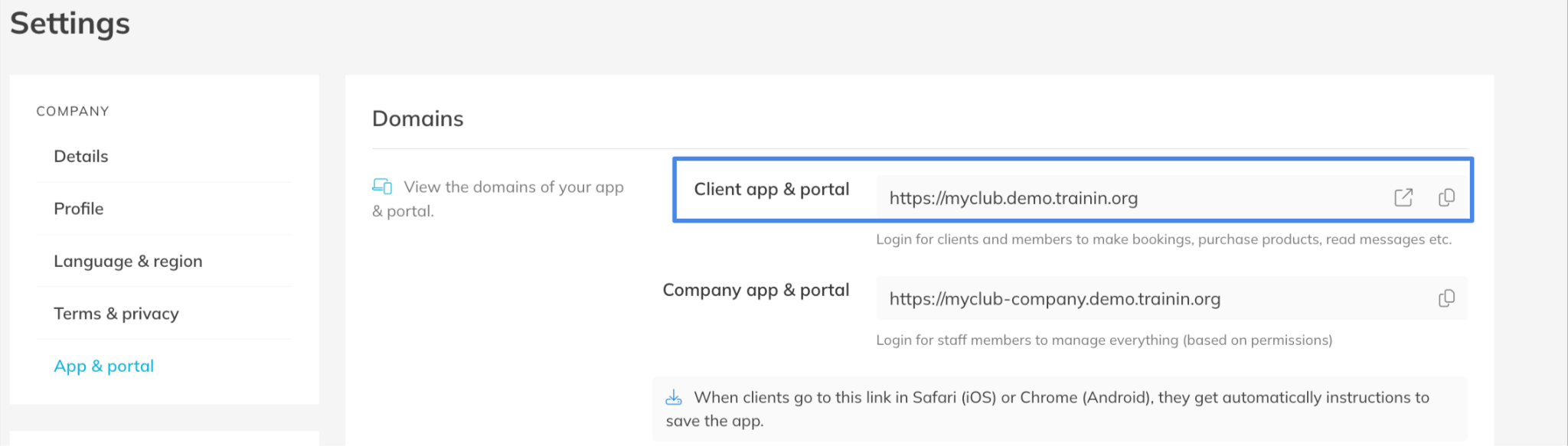
Native App (Recommended): Encourage the client to download the Trainin native app. It automatically directs them to the correct environment, bypassing browser issues entirely.
Option 4. Trouble Shooting Steps for Login: If the client is having login issues with their phone:
– Ask the client to try the following steps:
Log out of Trainin in the web app and fully close the app.
Make sure the phone is updated to the latest software version and install updates if necessary.
Clear cookies or cache on the phone / device used.
For iPhone:
– Go to Settings > Apps > Safari > Advanced > Website Data and tap “Remove All Website Data”.
For Android:
– Go to Settings > About Device > Storage.
– Select the browser (for example Chrome).
– Tap “Clear Cache”.
Option 5. The Manual Reset (Last Resort)
– If the client still can't get in, you can manually intervene:
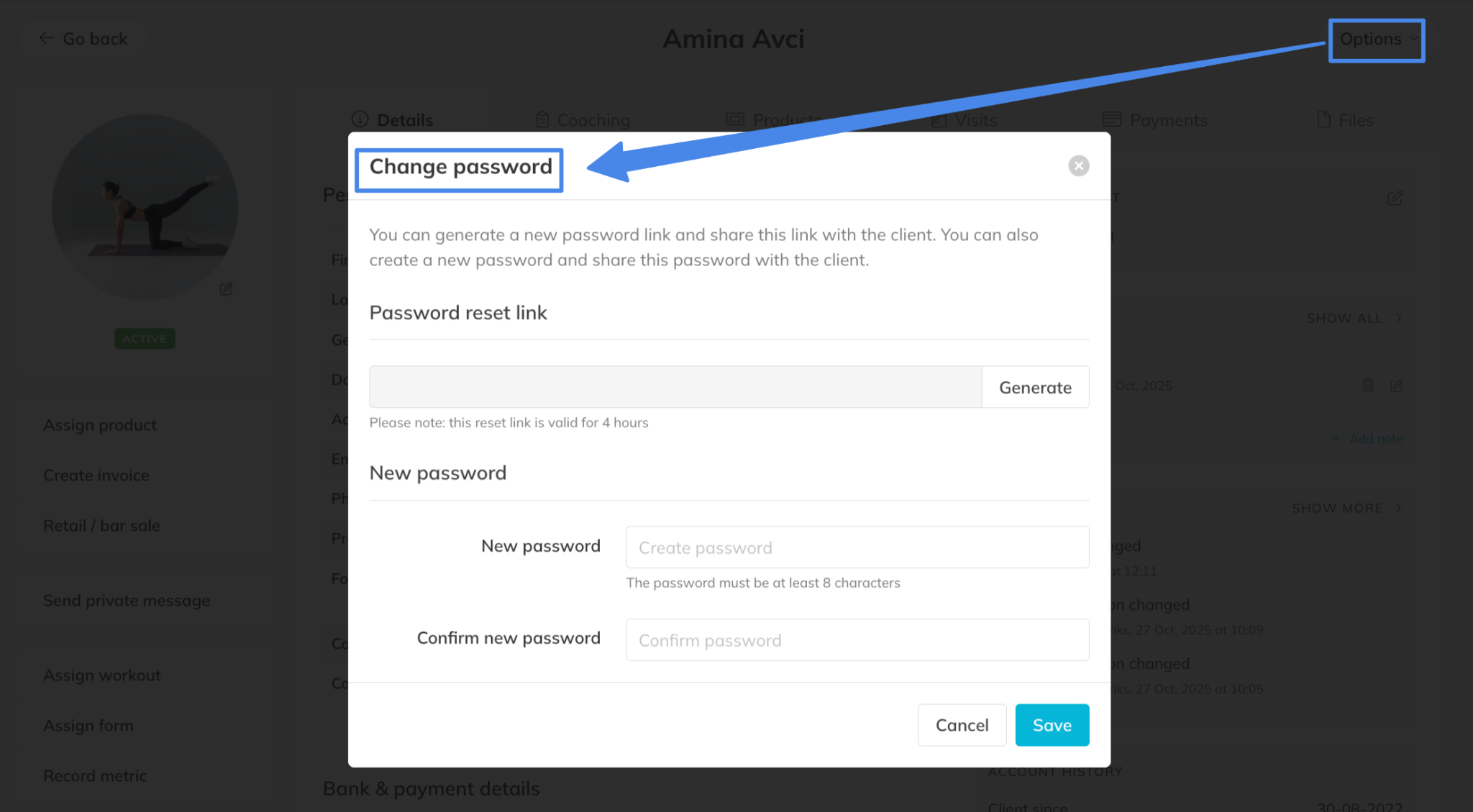
Go to Client Profile > Options > Change Password.
Option A: Create a temporary password for them.
Option B: Generate a password reset link to send to them via chat or email.
Best Practice
Always verify the client account and login email first to be sure they have a log-in account and are attempting to log in in the right environment.
Pro Tips
Ask the client to copy and paste their email address when logging in to avoid typing errors.
Share the client app link directly with the client to eliminate confusion about the correct login environment.
Encourage clients to install the native Trainin client app for the most reliable login experience.
If multiple trainers work in the same business, ensure everyone shares the same client app link and not one from a different location,
Common Questions
The client says they never received a welcome email. What should I do?
– First, ask the client to check the Spam folder of their email. Also, check if the client has a login account. If not, create one so the welcome email is automatically sent.
– Or you can re-send the welcome email using the ‘options’ in the client account. This will send a new welcome email with a newly generated password and a link to the client portal.
The client is using the correct email but still cannot log in. What could be wrong?
– This is often related to device cache, cookies, or an outdated phone operating system.
Related Articles
– How Clients Login to the Trainin App– Turning Your Trainin Company Profile into a Public Website