Your company profile is a public page in your Client app. Visitors see your description, your company details, links to your terms and your activities, and they can click through to the schedule and the shop.
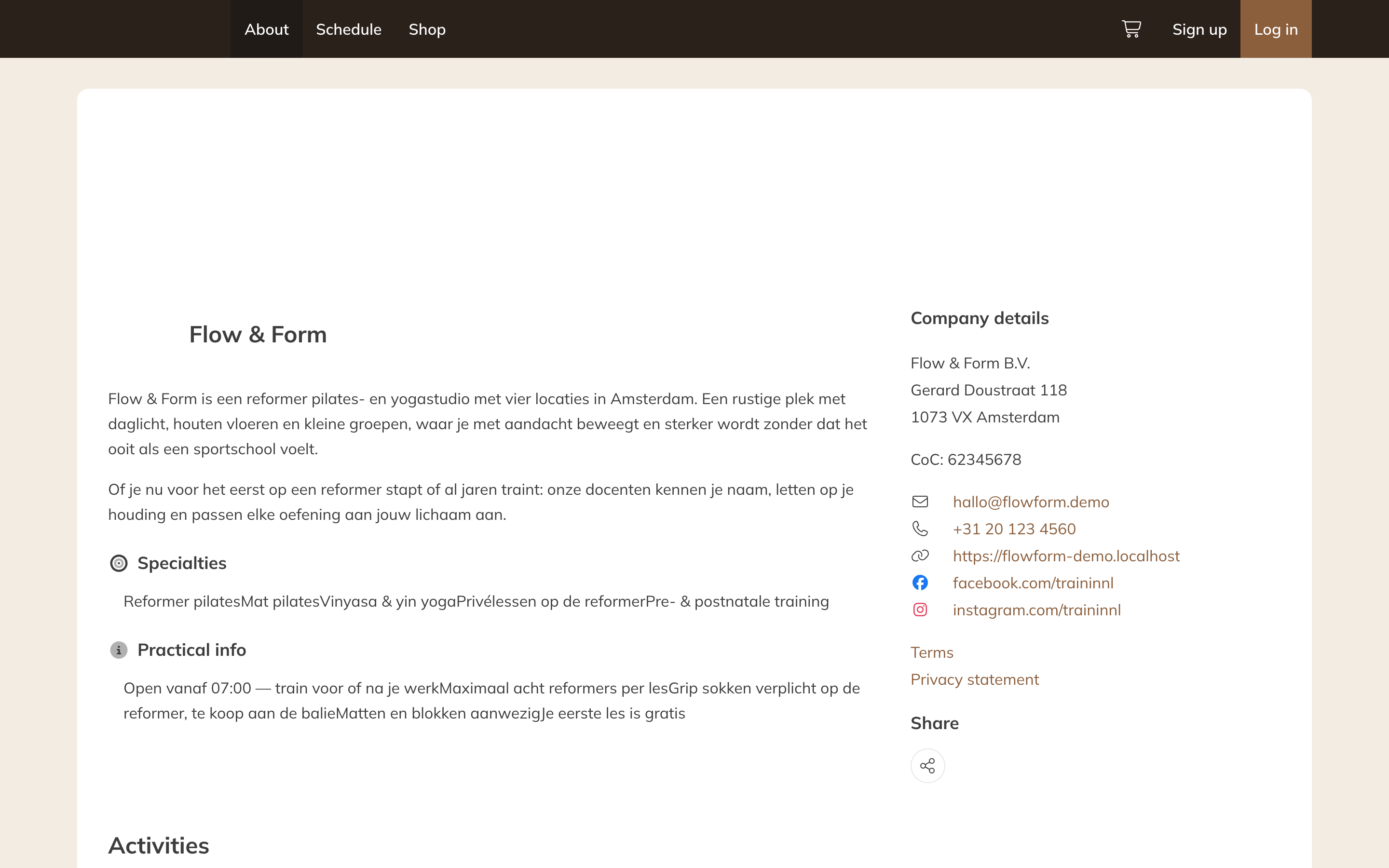
A public company profile
Making the profile public
- Go to My company → Settings → Company profile.
- Under Domains, turn on the Public company profile switch.
- Click Save. The link now appears under Link to company profile. Open it or copy it with the buttons next to it.
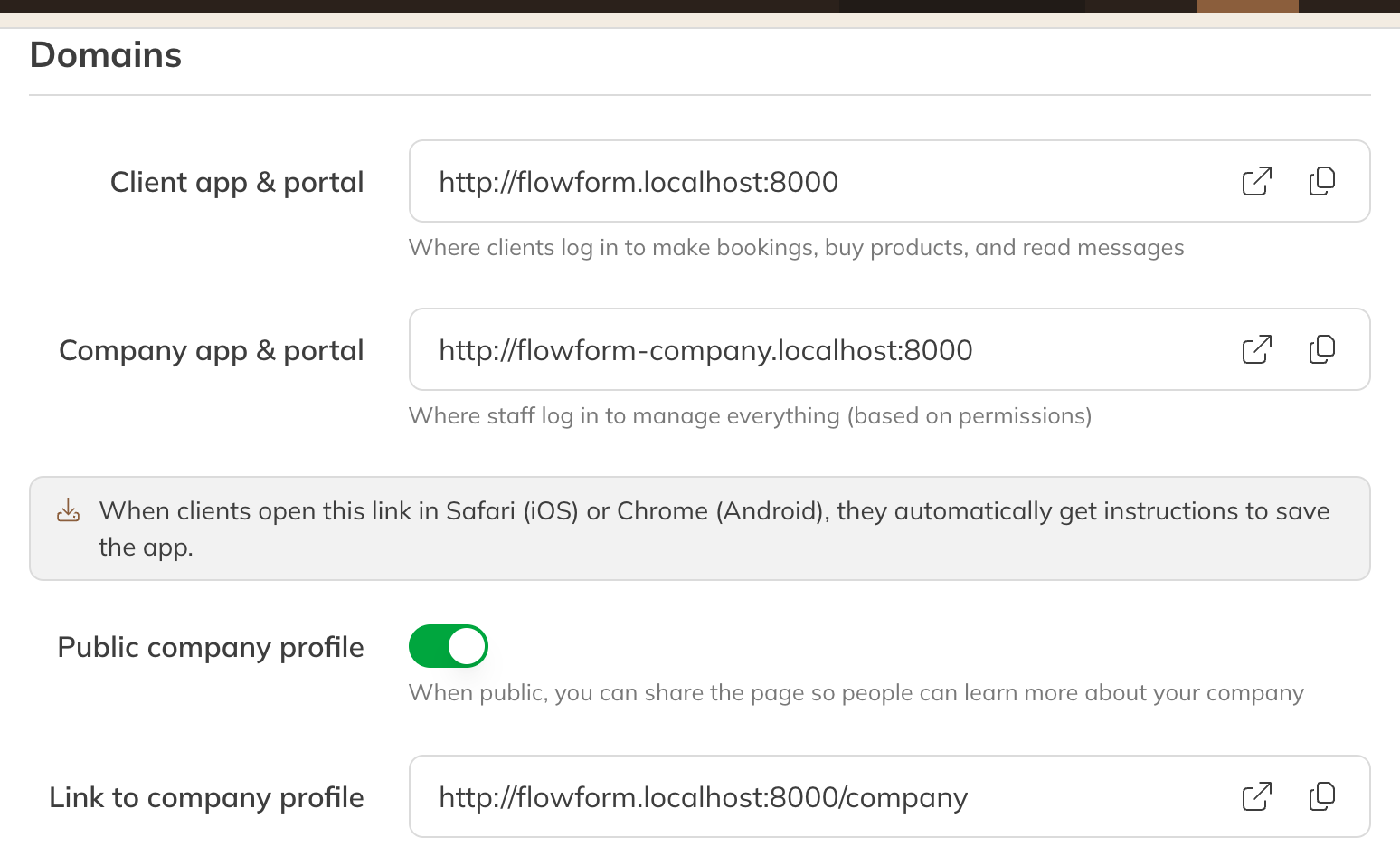
Domains and the link to your company profile
What's on the profile
Under Profile on the same page you fill in what visitors see:
- Public name and Business type
- Profile picture and Header picture (recommended: 1920 x 400 pixels)
- Website, Facebook and Instagram
- About the company, Specialties and Practical info
Your address, Chamber of Commerce number, email address and phone number come from your company details. The links to your terms come from Terms & privacy.
Tip: Want to see what a new visitor sees? Open the link in a private browser window, so you're not logged in.