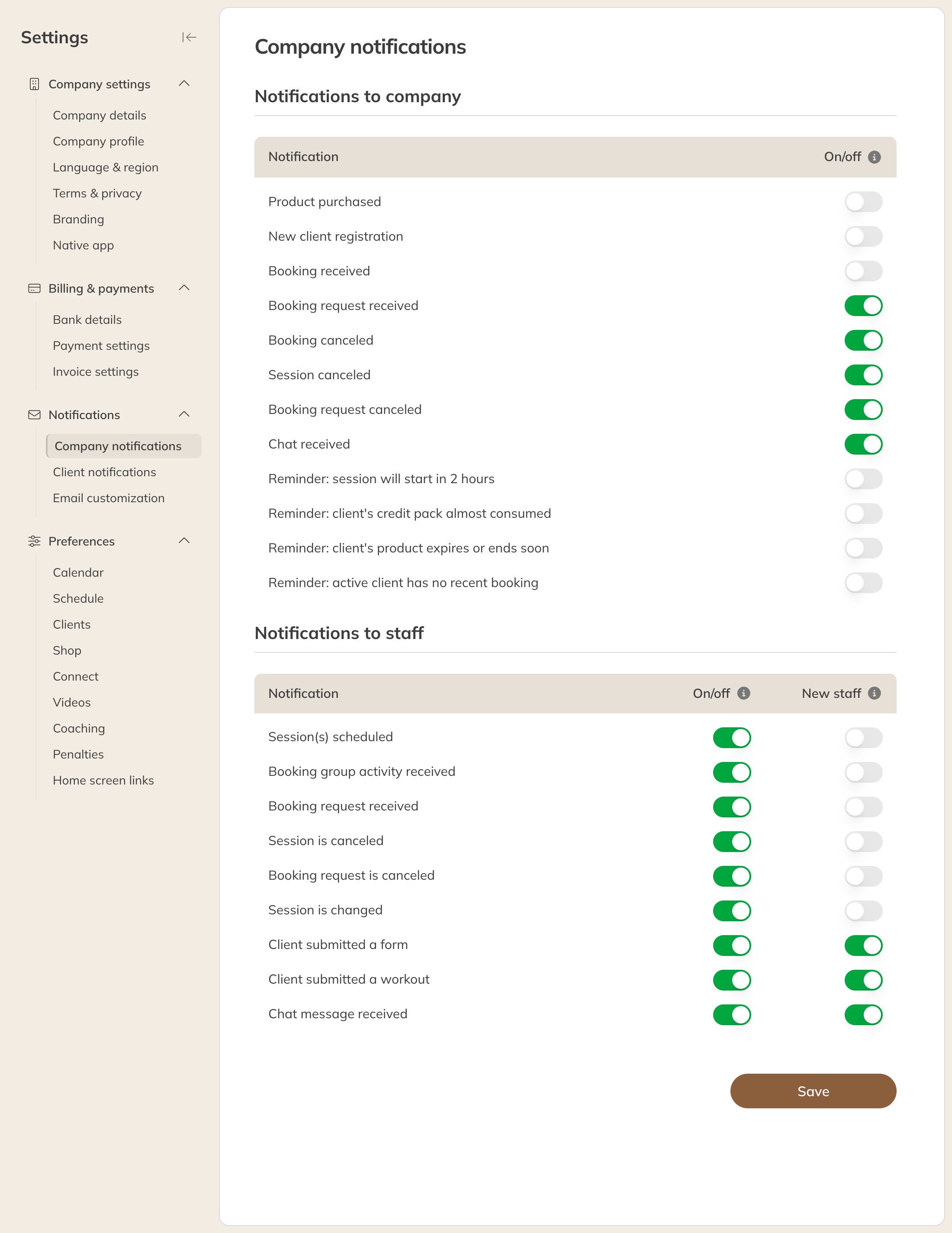
Go to My company → Settings → Company notifications. Turn the switch on or off for each notification and click Save.
Company notifications
Notifications to the company
These are the notifications for your company, for example Product sold / purchased, Booking cancelled or Reminder: client almost out of credits. They go to the email address in your company details and appear in the app. In the app, all admins and managers see the same notifications.
If a notification is off, nothing is emailed and nothing appears in the app.
Notifications to staff (Pro and Premium)
Here you choose which notifications staff can receive, such as Session(s) scheduled or Session changed:
| Column | What it does |
|---|---|
| On/off | Whether staff can receive this notification. If it's off, they don't see it on their profile and nothing is sent. |
| New staff | Whether the notification is on by default for staff you add from now on |
Staff can then turn their notifications on and off themselves, via My account → Notifications. You can also do this per staff member, on the staff member's page under Notification preferences.
Tip: You set which emails your clients get under Client notifications.