Each staff member has one role. The role determines which permissions they have. You find roles and permissions under My company → Staff → Roles & permissions (from Pro).
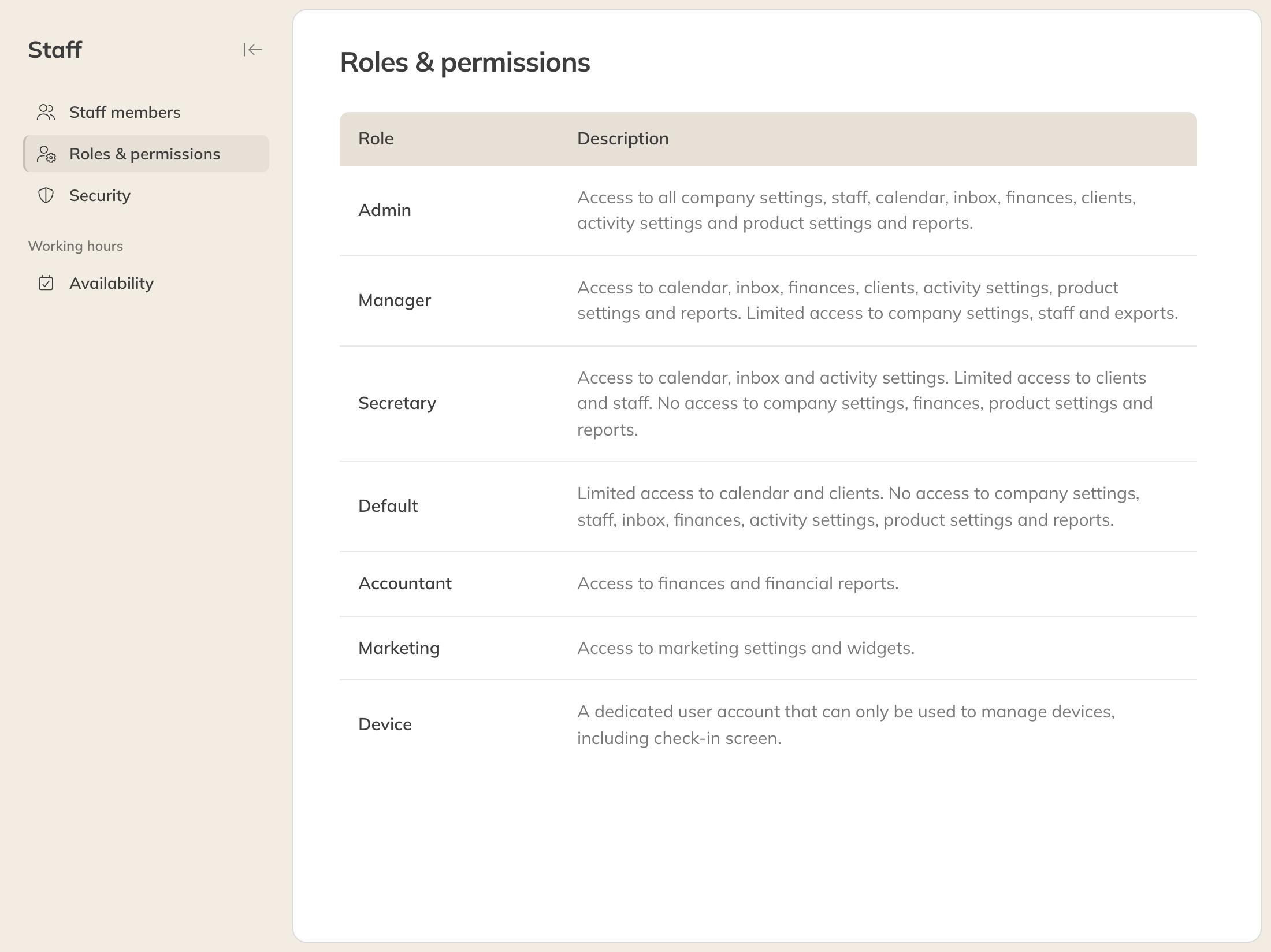
The roles
The roles
| Role | Default access |
|---|---|
| Admin | Everything: company settings, calendar, messages, finances, clients, activities, products and reports |
| Manager | Calendar, messages, finances, clients, activities, products and reports. Limited access to company settings and exports. |
| Assistant | Calendar, messages and activities. Limited access to clients and staff. |
| Standard | Limited access to the calendar and clients |
| Accountant | Finances and financial reports |
| Marketing | Marketing settings and widgets |
| Equipment | A special account for managing devices, such as the check-in screen |
You can't create new roles; you adjust the existing ones.
Changing a role
- Click the role.
- Optionally change the Role name and Description.
- Under Permissions, turn on or off what the role can do in each area, for example Delete clients or Export reports.
- Click Save. The change applies straight away to everyone with this role.
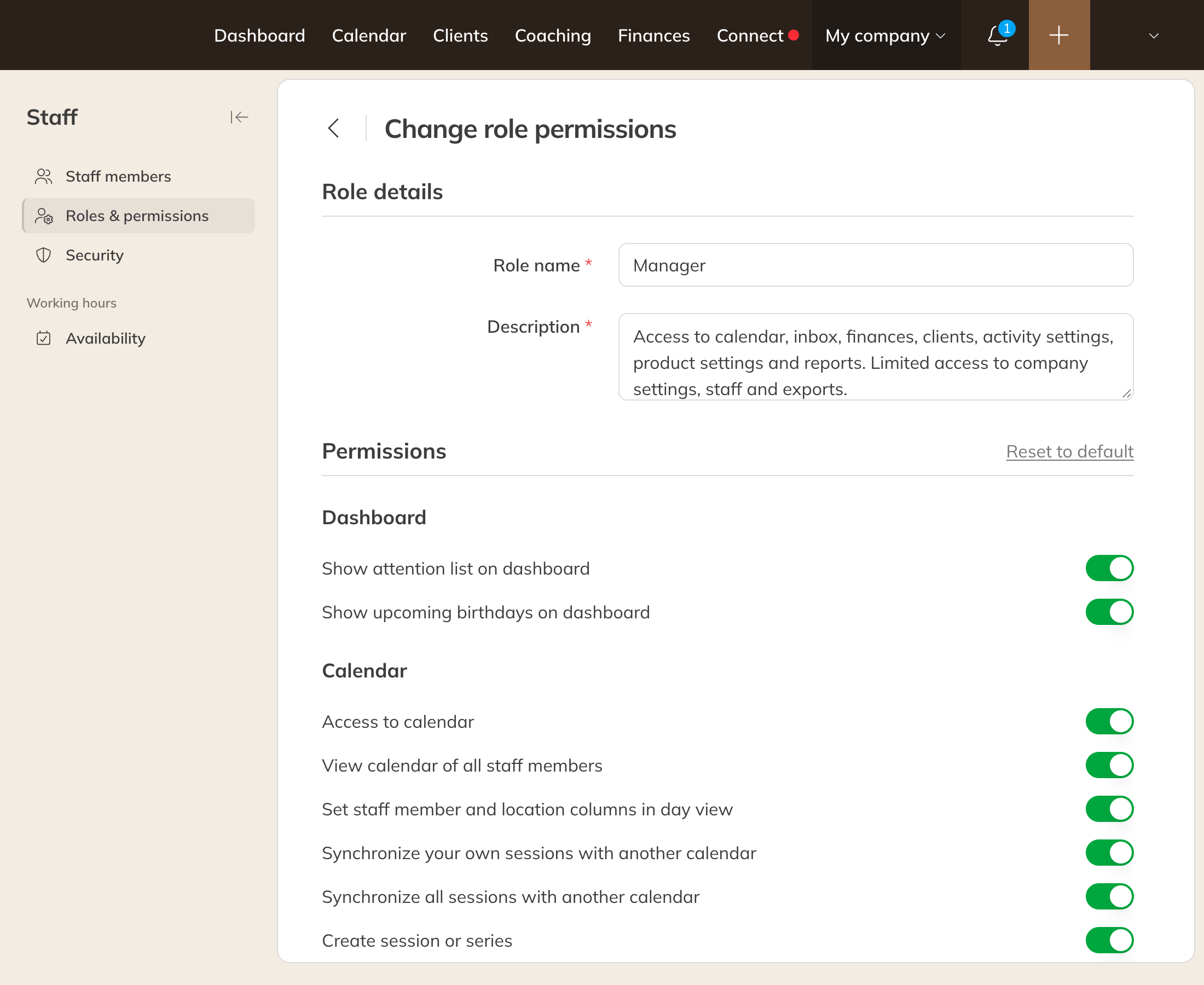
Changing a role's permissions
Reset to default gives the role its default permissions again.
Note: For the Admin role, you can only change the name and description. An admin always has all permissions.
Giving a staff member a different role
Open the staff member and choose a different Role under Roles. Only admins can do this.