- Go to My company → Staff and click the staff member.
- Click More at the top right and choose Delete.
- Click Yes, delete staff member.
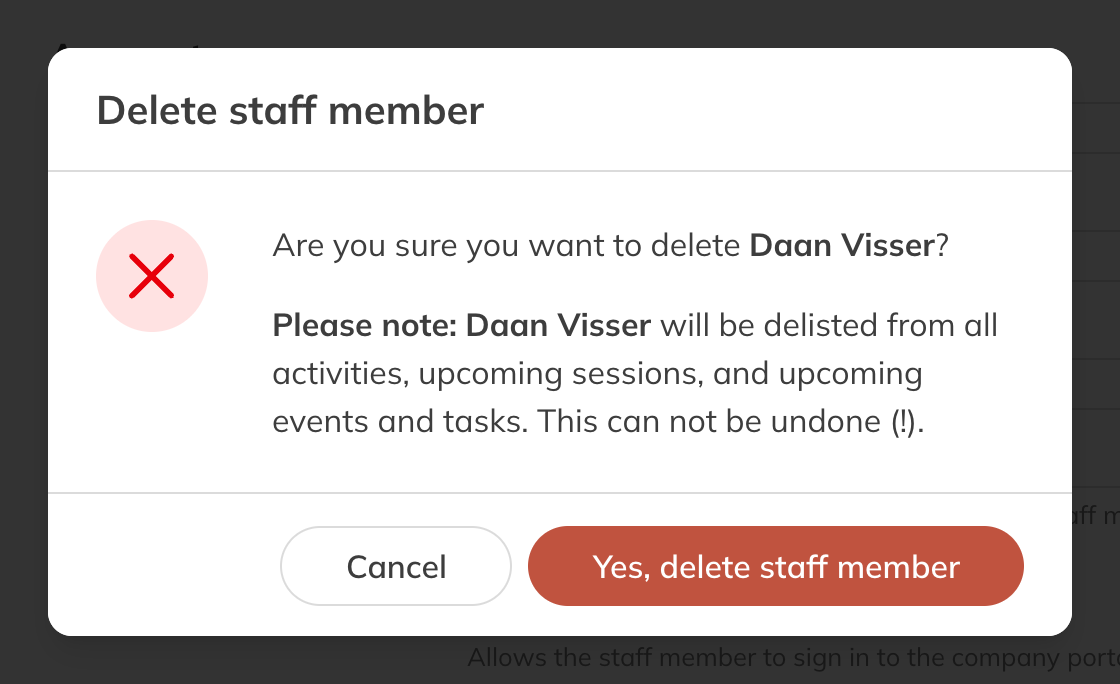
Deleting a staff member
What happens
- The staff member can no longer log in.
- They are unlinked from all their activities, clients, series and availability, and from all future sessions, calendar items and tasks.
- Past sessions, items and tasks keep the staff member, so you can still see who taught what.
- Their personal chats are deleted.
- If the staff member has API keys, they stop working straight away. The window says so too.
Note: Deleting can't be undone. Afterwards, give future sessions a different trainer.
Note: You can't delete your own account. Have another admin do it.