With two-step verification, a password alone isn't enough to log in. This is available in every plan.
- Go to My company → Staff → Security.
- Under Two-step verification, choose Required for all staff.
- Click Save.
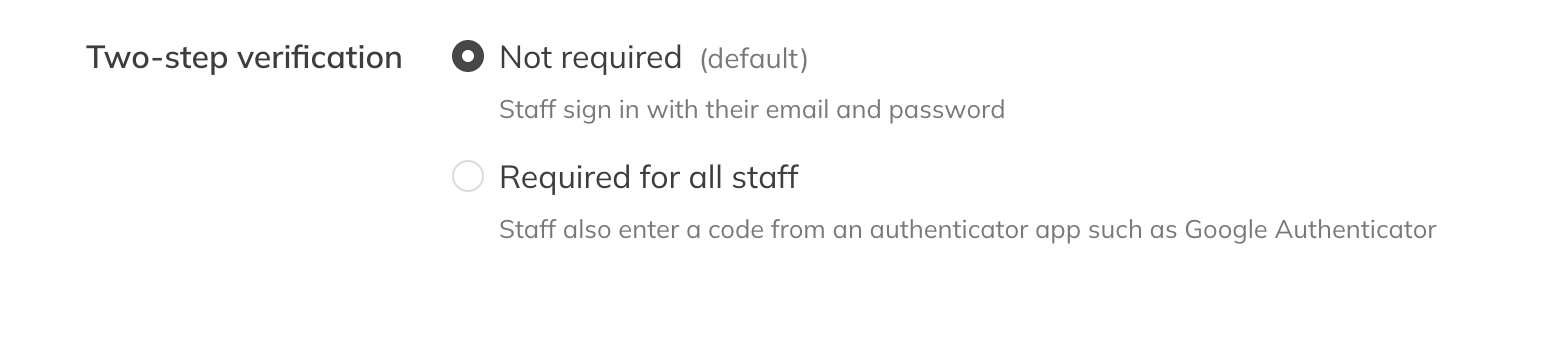
Requiring two-step verification
The next time they log in, each staff member sets up two-step verification with an authenticator app, such as Google Authenticator, and gets recovery codes. After that they enter a code from that app every time they log in.
Note: Only an admin can change this setting. Trainin support can't turn it off for you.
A staff member can't log in anymore
Has a staff member lost their phone and recovery codes? An admin opens the staff member and chooses Reset under Two-step verification. The staff member then sets it up again. You can't reset your own two-step verification; ask another admin to do it.