A staff member without a login account (Premium)
Do you have trainers who only need to be on your schedule, such as a guest instructor? In Premium you create a staff member without a login account. Such a person can't log in to the company portal and doesn't get a welcome email.
- Go to My company → Staff and click New staff.
- Fill in the name and choose a Role. The Email is now optional.
- Under Login account, untick Create a login account.
- Click Save.
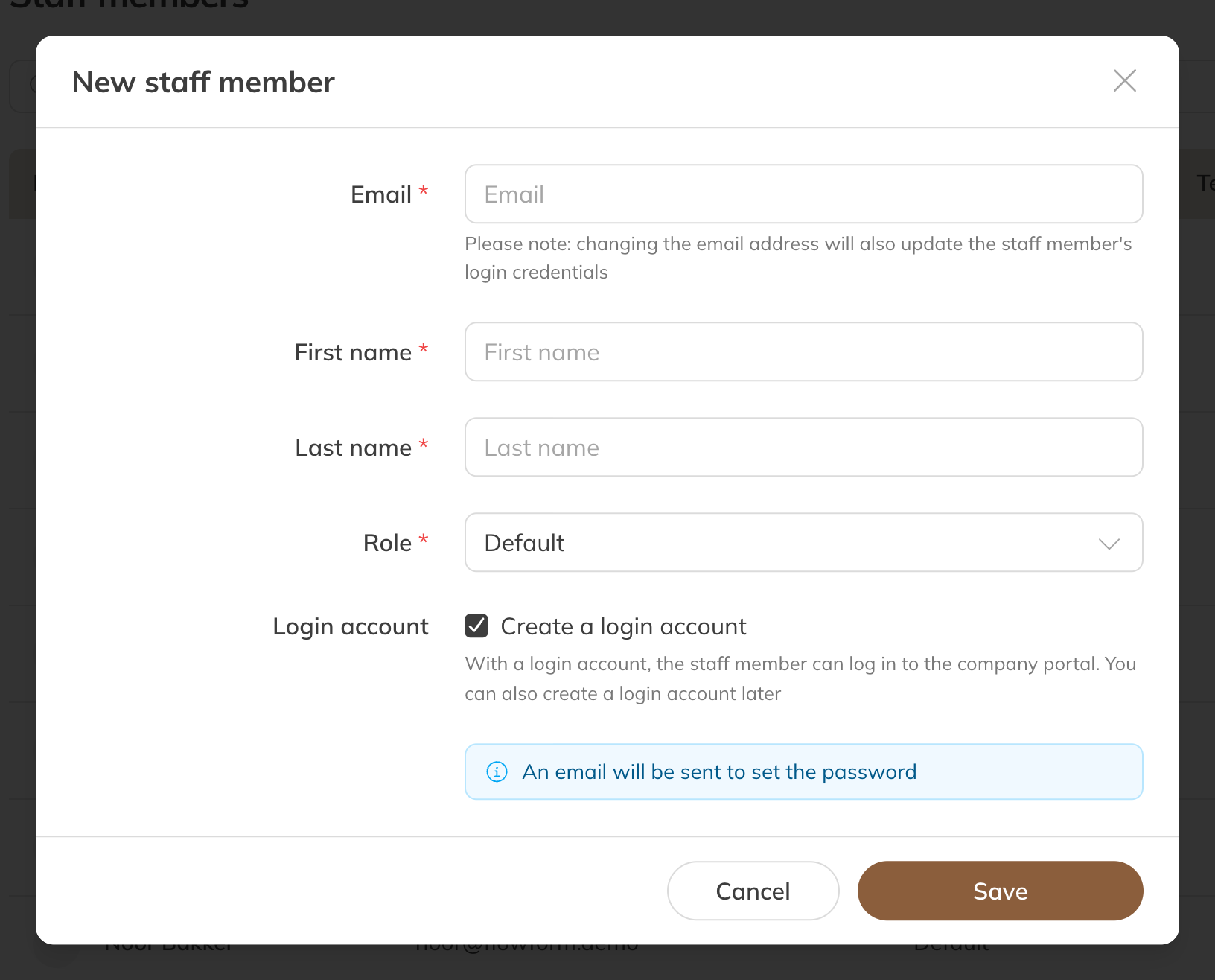
A staff member without a login account
Otherwise you set up the staff member like anyone else: their public profile, the activities they can be scheduled for, and so on. See Adding a staff member.
Note: Staff without a login account don't count towards your subscription.
Adding a login account later
Open the staff member and, under Account, tick Create a login account. An email address is required for this. After saving, the staff member gets a welcome email to set a password. From then on they count towards your subscription. In Premium you can untick the box again.
The Equipment role
The Equipment role is for an account on a fixed device, such as a tablet at the entrance with the check-in screen. You only see this role if you have Trainin access control.
- A device account can only open the check-in screen, choose the location, and change its own account and password. The rest of Trainin is locked.
- It doesn't need two-step verification, even if you require it for all staff.
- It doesn't count towards your subscription.
You can read how to set up the check-in screen in the topic on check-in and access control.