For each activity, you set whether and until when clients can cancel themselves. Open the activity and go to Booking settings → Cancellation policy.
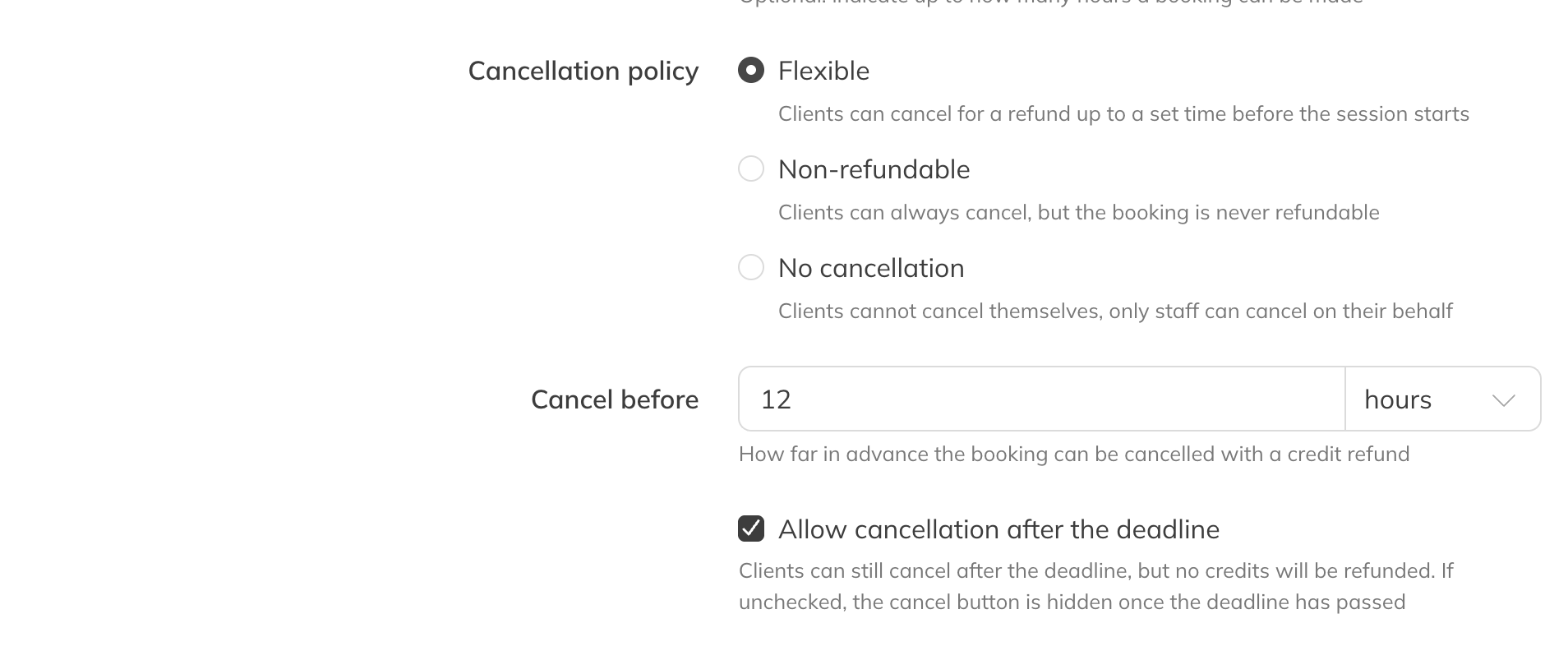
An activity's cancellation policy
| Option | What happens |
|---|---|
| Flexible (default) | Clients cancel free of charge and get their credits back, up to the time you enter under Cancel before. |
| Non-refundable | Clients can always cancel, but never get credits back. |
| No cancellation | Clients can't cancel themselves. Only a staff member can do it for them. |
Cancel before
With Flexible, enter how long before the start clients can still cancel with a refund, in hours, days or weeks. The maximum is 48 hours, 30 days or 12 weeks. A new group activity starts at 2 hours, a private or rental activity at 24 hours.
Allowing cancellation after the deadline
- Checked (default): after the deadline the client can still cancel, but without getting credits back. That way the spot does become free for someone else.
- Unchecked: after the deadline the cancel button disappears.
Good to know
- Clients see the policy when they book, for example Credit(s) refunded free of charge up to 2 hours in advance.
- If your team cancels a session, clients always get their credits back.
- If you want to handle it differently for a particular client, cancel the booking yourself as a staff member.
- If you use the waiting list, a cancelled spot automatically goes to the first person waiting. See The waiting list.
- Bookings via ClassPass follow the policy you set in ClassPass, not the activity's.
Tip: If you use booking penalties (Premium, or Pro with the add-on), you can use Enable booking penalties to give strikes for late cancellations and no-shows for this activity.