An online class is a regular activity where you add a link to the stream for each session, for example from Zoom, Google Meet or YouTube. Only clients who booked see the link.
1. Making the activity online
- Open the activity via My company → Activities, or create a new one.
- Under Details, click More settings.
- Under Online options, choose:
- Link: the client sees the link right after booking.
- Live: the link becomes visible 15 minutes before the start.
- Optionally set Environment to Online, and click Save.
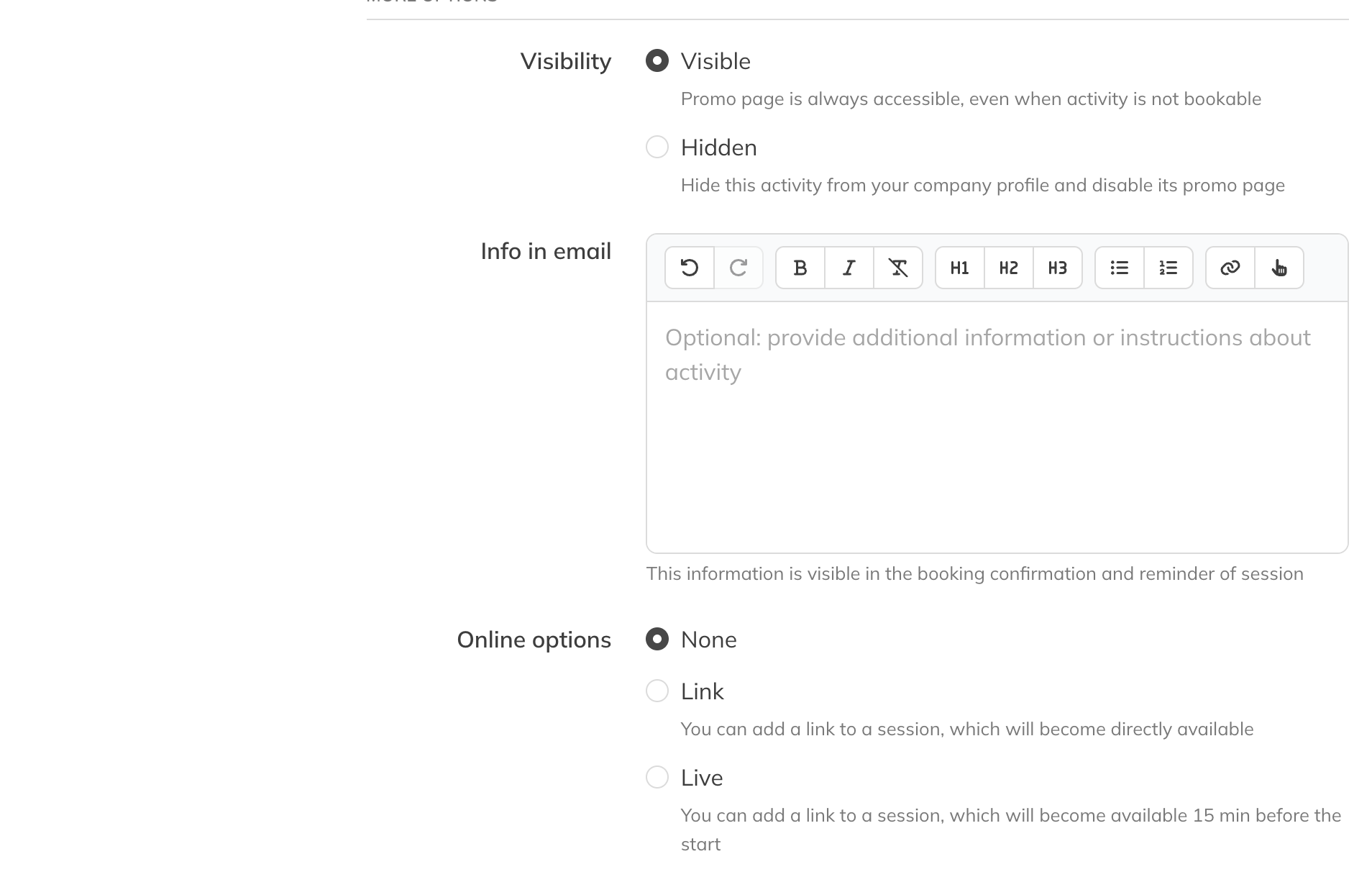
Online options for an activity
2. Adding the link to the session
- Schedule the session or series in the calendar.
- Open the session and click Edit.
- Under Link, enter the link to the stream, and under Link note any instructions, such as a password.
- Save. If you edit the series, all sessions get the same link.
You only see the Link and Link note fields if the activity has an online option.
What the client sees
The client finds the link with their booking in the app. With Live, until 15 minutes before the start they see when the link will become available. Clients who haven't booked (or are no longer booked) don't see the link.
Tip: Want to email the link too? Send a message to all participants from the session.