With the ClassPass connection, you fill empty spots in your group classes with ClassPass members. Trainin passes your sessions on to ClassPass and processes bookings and cancellations. You need an agreement with ClassPass, and the permission to manage marketplace integrations. The connection is available from the Pro plan.
1. Activating ClassPass
- Go to My company → Integrations and, under Marketplace, choose ClassPass.
- Click Activate ClassPass.
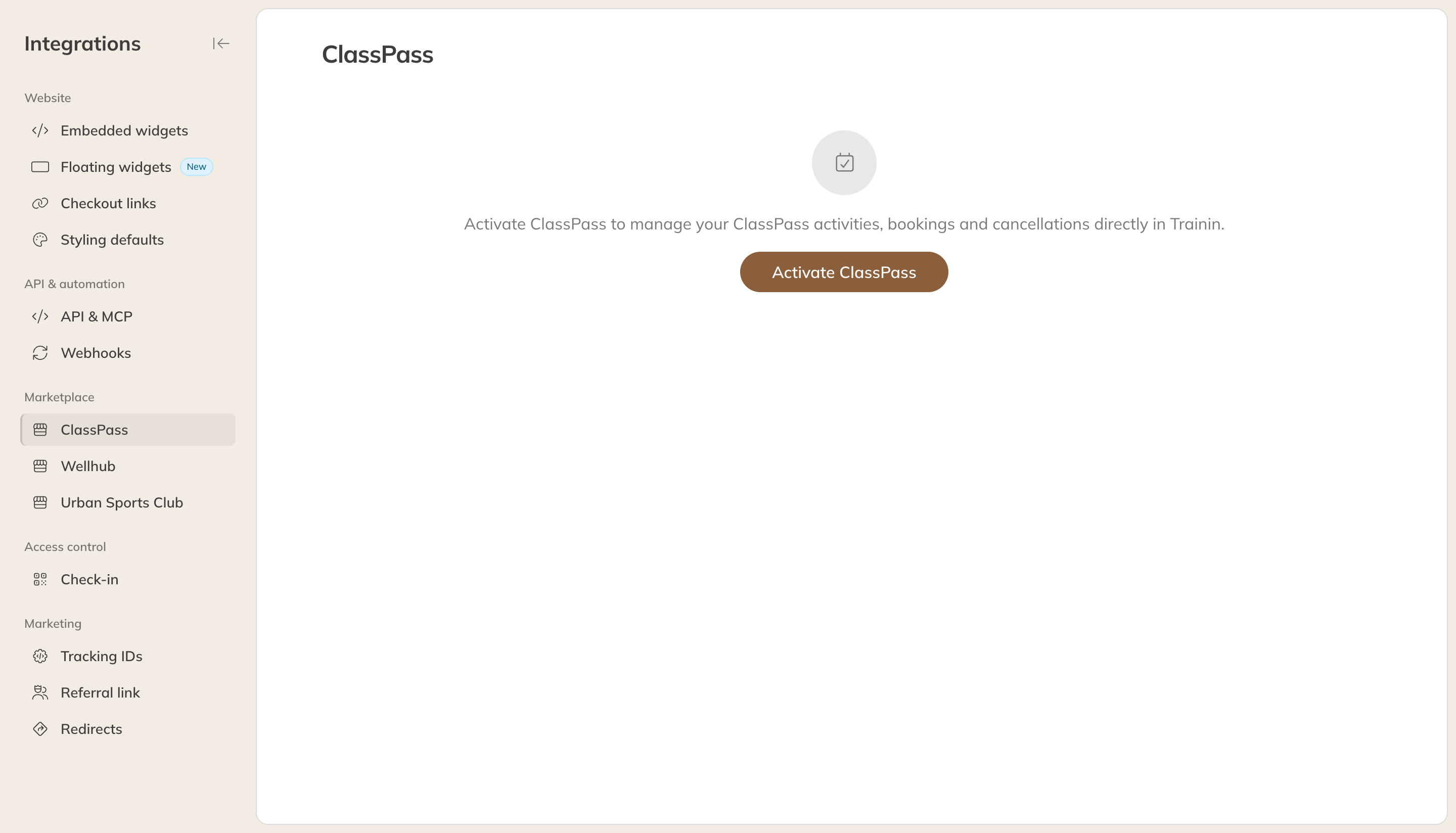
Activating ClassPass
On the ClassPass page you'll then find your Partner ID and the Venue IDs of your locations. Pass these on to ClassPass so they can link your account.
2. Turning on locations
For each location you want to offer on ClassPass, open the location under My company → Locations. Under Marketplace, turn on ClassPass. Each location has its own venue ID. Leave ClassPass venue ID empty to use it; if you want several locations to share one venue ID, contact Trainin.
3. Opening up activities
- Open the group activity via My company → Activities.
- Turn on Marketplaces and then ClassPass.
- Under ClassPass spots, enter how many spots per session you open up for ClassPass.
- Optionally, under ClassPass revenue per booking, enter what you earn per booking on average. You then see the ClassPass revenue in your reports.
- Click Save.
You can still change the number of ClassPass spots per session or series in the calendar.
Good to know
- You set the booking window and cancellation policy for ClassPass members in ClassPass, not in the activity.
- Changes in Trainin show up in ClassPass within a few minutes.
- Your own clients can book any free spot, including spots opened up for ClassPass. ClassPass members never get more than the number of ClassPass spots.
- ClassPass bookings are marked as attended by default. Mark a participant as absent if they don't come. ClassPass receives the attendance 24 hours after the session ends.
- Once a session is on ClassPass, you can no longer change its location. Cancel the session and schedule a new one.