If your business is set to Collection, you can make an exception for individual clients. For example, for a client who prefers to pay with a payment link each period.
- Open the client's profile and go to Details.
- Under Bank & payment details, click the pencil next to Recurring payment method.
- Choose Charge automatically or Send payment link and click Save.
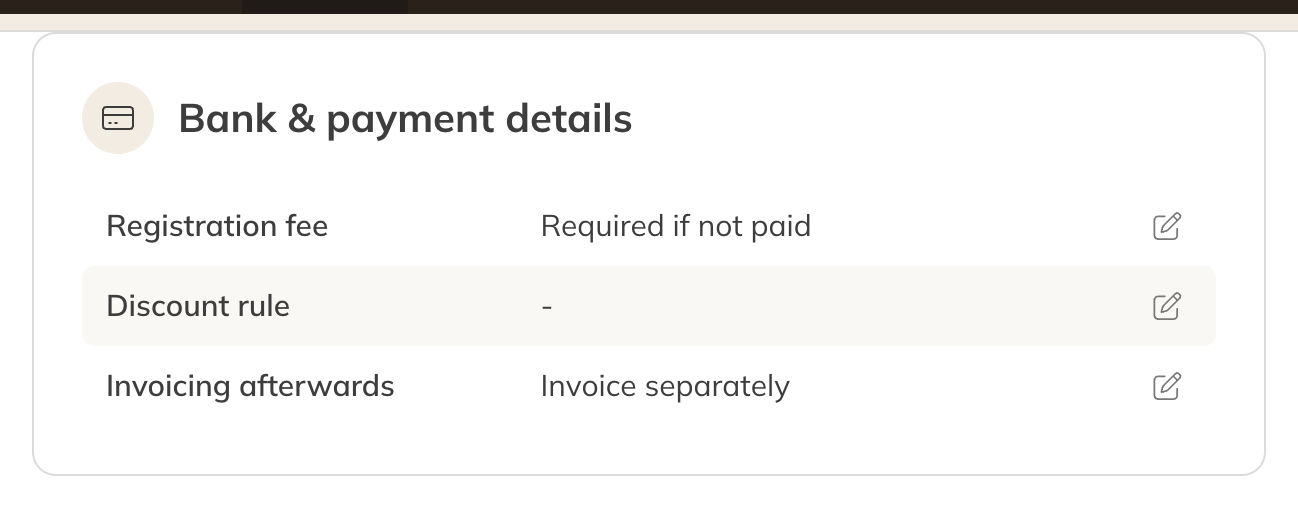
Bank & payment details in the client profile
The change applies from the next payment that is sent. New clients are set to automatic collection by default.
Note: Don't see Recurring payment method and Mandate? These lines only appear if your business is set to Collection under Payment settings. See Collecting membership fees automatically.
Adding or changing a mandate
Under Mandate you see whether the client has a mandate (Yes or No). Use the pencil to add or change a SEPA mandate: fill in the client's account number and account holder. Mollie then saves a mandate with those bank details.
Note: Only add a mandate if the client has given you permission to do so.
Tip: If a client is set to Send payment link, the checkout doesn't ask for a mandate when they buy a membership. If you later switch the client to automatic, add a mandate or have the client pay online once.