Invoices are laid out automatically with a sequential invoice number, your company details, the client details, the lines with VAT and the totals. You set the details under Settings → Invoicing & payments → Invoice settings.
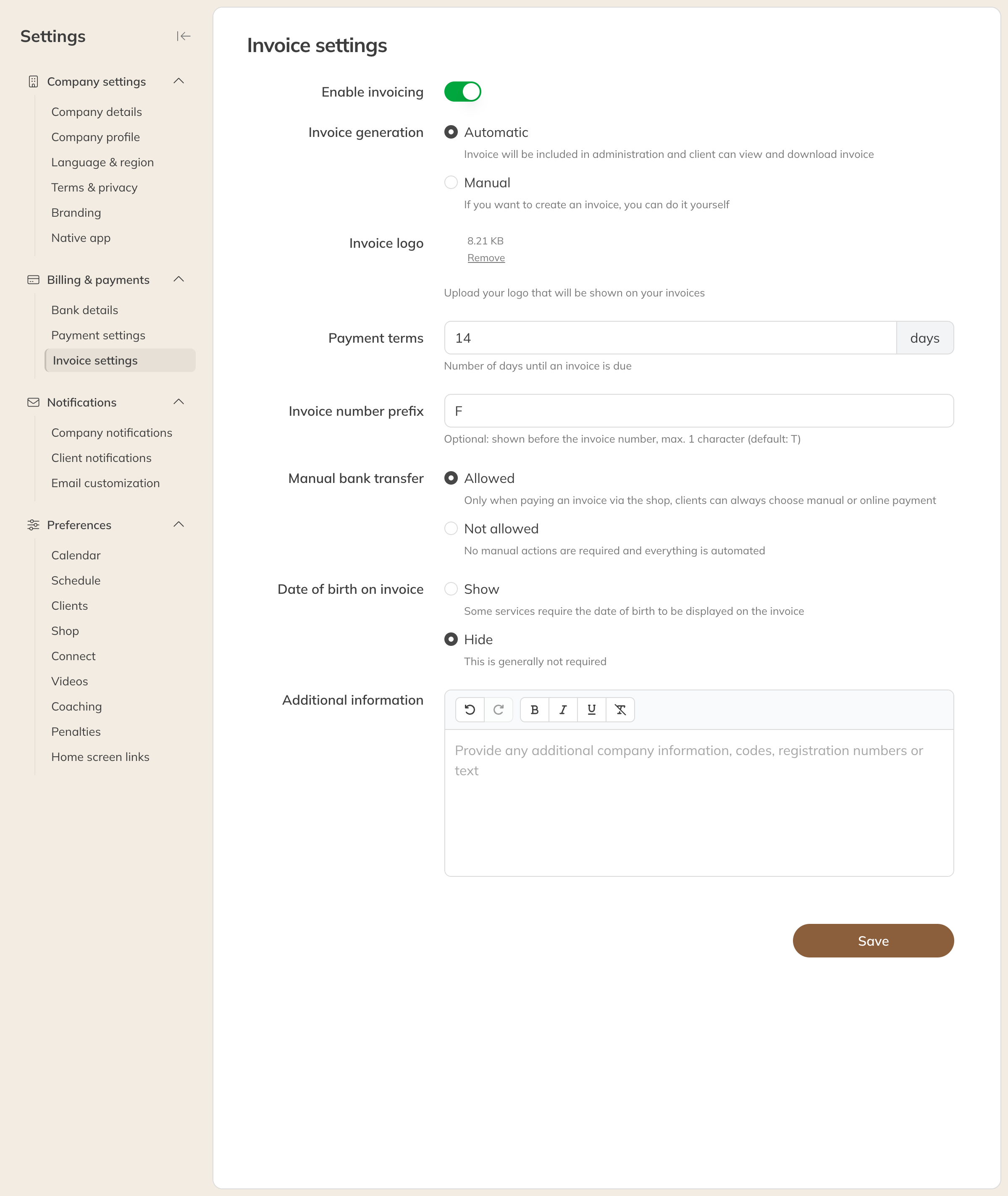
Invoice settings
| Setting | What it does |
|---|---|
| Enable invoicing | Turns invoices on or off for your business. |
| Invoice generation | Auto or Manual. See Automatic invoice after payment. |
| Invoice logo | Your logo on every invoice. A well-cropped PNG with a transparent background works best. |
| Payment terms | The number of days until an invoice is due. The due date follows from this. |
| Invoice number prefix | One character before the invoice number (T by default). |
| Manual bank transfer | Allowed: when a client pays an invoice through the shop, they choose between paying online and making a transfer themselves. Not allowed: online payment only. |
| Date of birth on invoice | Show or Dismiss. In some sectors the date of birth is required. |
| Additional information | Extra company information, codes, registration numbers or text, at the bottom of every new invoice. |
Click Save.
Note: In Spain, only Trainin can turn on invoicing. Please contact support.
Company details and bank details
Your company's details on the invoice come from two other pages:
- Company details (under Company settings): company name, address, email address, phone number, CoC number and VAT number. If your business is exempt from VAT, tick VAT exempt.
- Bank details (under Invoicing & payments): account holder name, account number and the BIC if needed.
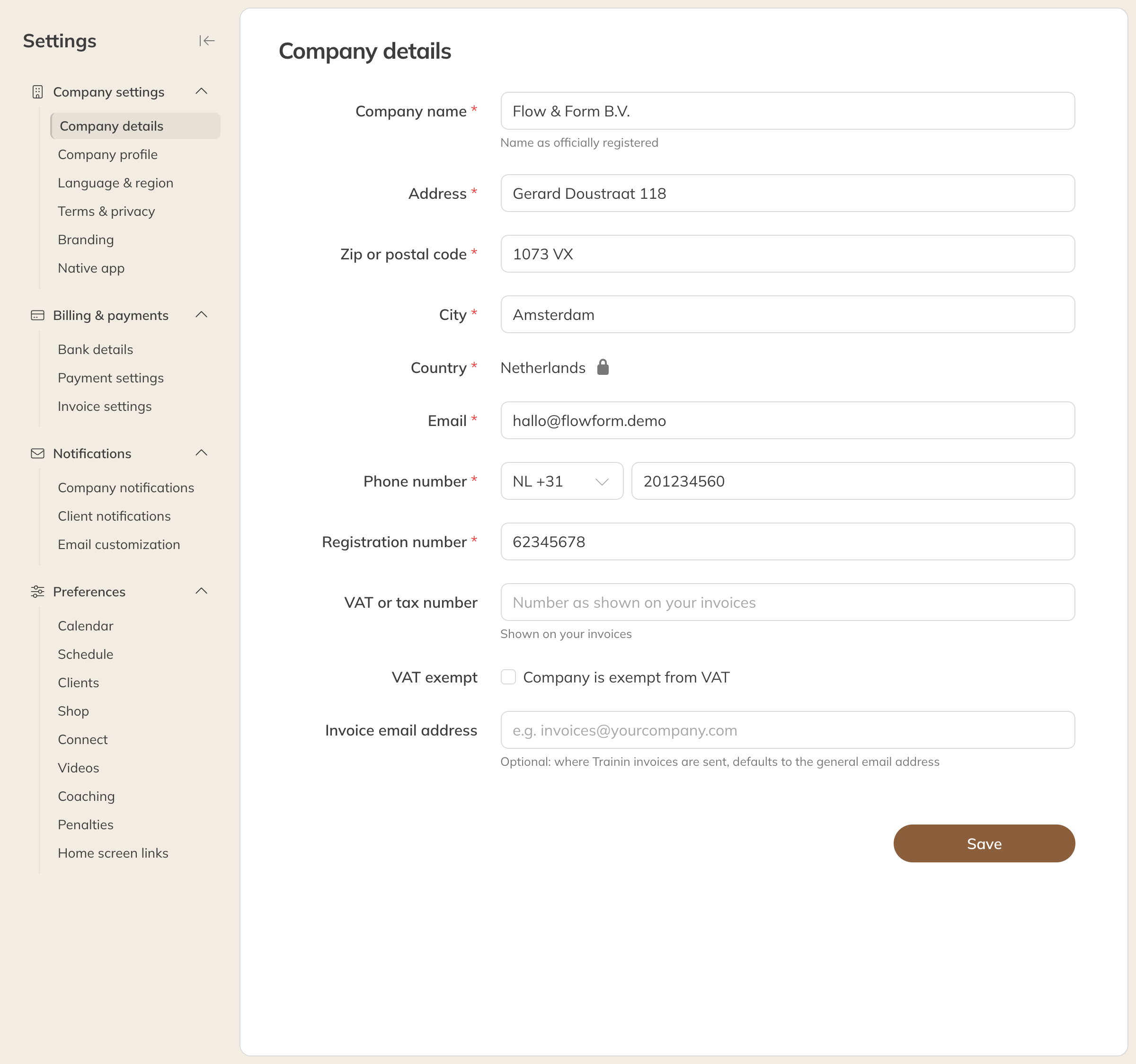
Company details
Note: You are responsible for the correct details on your invoices. In the Netherlands, the Chamber of Commerce (KvK) number is required.
Tip: Curious what an invoice looks like? Save an invoice as Drafted and choose View pro forma.