You can send a session message in any plan, as long as you have the permission to send messages to participants of your sessions.
- Open the session in the Calendar.
- Click Send message. On your phone you'll find it in the three-dot menu.
- At the top you'll see which session it's about: Activity, Date & time and Location. The message goes to the participants of this session.
- Choose News or Dashboard, choose whether to send it now, later or save it as a draft, and write your message.
- Click Send message.
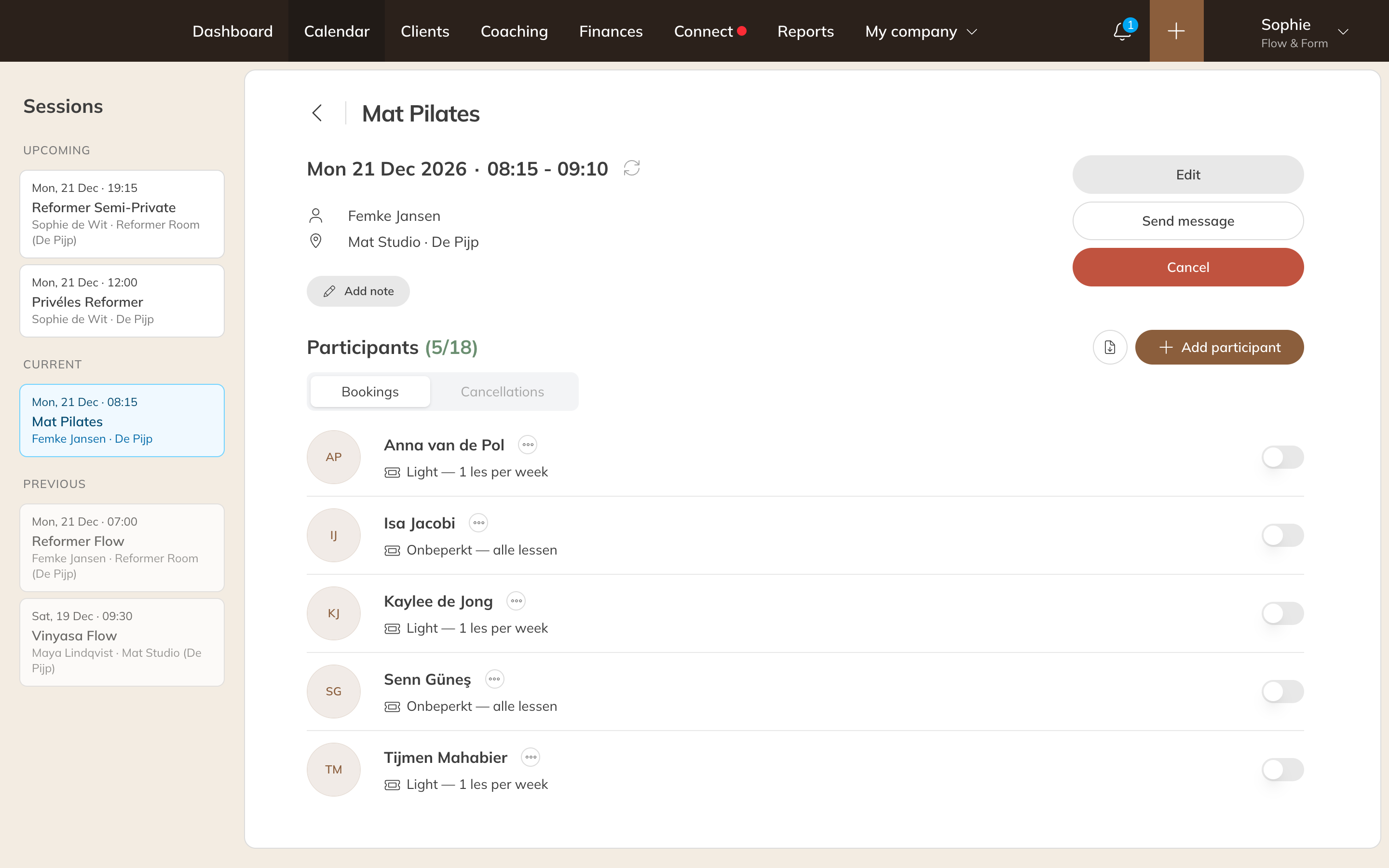
Send message from a session
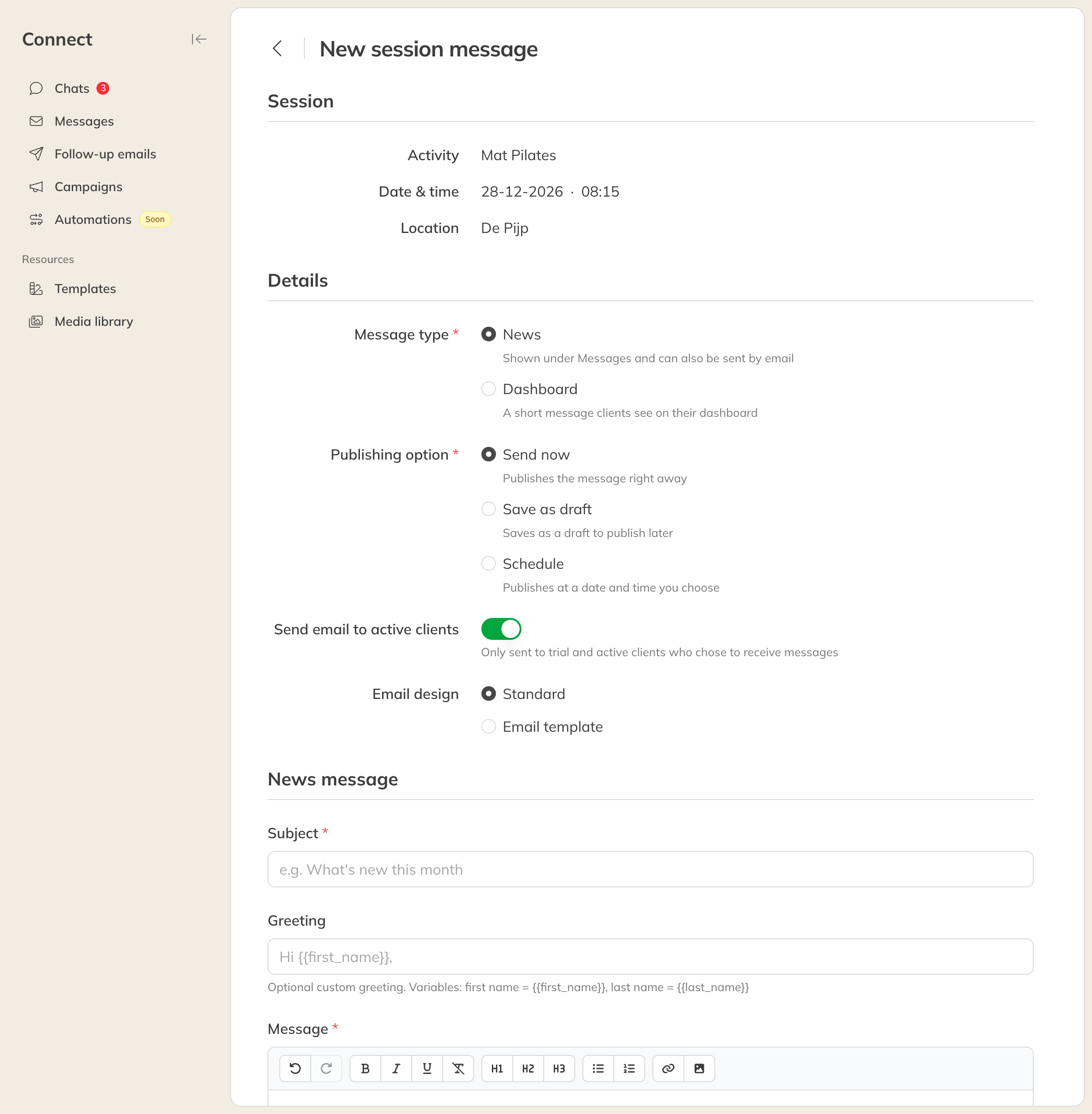
A new session message
Otherwise it works like a regular news message: a news message can also go out by email, and clients only get that email if they want to receive messages. See Sending a news or dashboard message.
Note: Are you changing or cancelling the session itself? Participants are already notified about that automatically. Read Cancelling a session or series.