After a purchase or booking, clients normally stay in Trainin. With a redirect you send them on to a page on your own website, for example a thank-you page. This is useful for measuring conversions. Setting a redirect on a widget is available in the Pro and Premium plans.
Through a widget
- Open your widget via My company → Integrations → Embedded widgets (or Floating widgets).
- Click More settings.
- Under Redirect URL, enter the address without https://. For example yoursite.com/thanks. Trainin adds https:// itself.
- Click Save.

The Redirect URL of a widget
Anyone who buys or books through this widget then lands on your page.
Through a link
Add ?redirect= with the address to a link to your schedule or shop. For example: …/shop?redirect=yoursite.com/thanks. The address is kept for the whole visit. This works just like a referral link.
Passing on details
You can have details of the purchase added to the address, for example to pass the amount on to your advertising tool. Click See available placeholders under the Redirect URL field for the list.
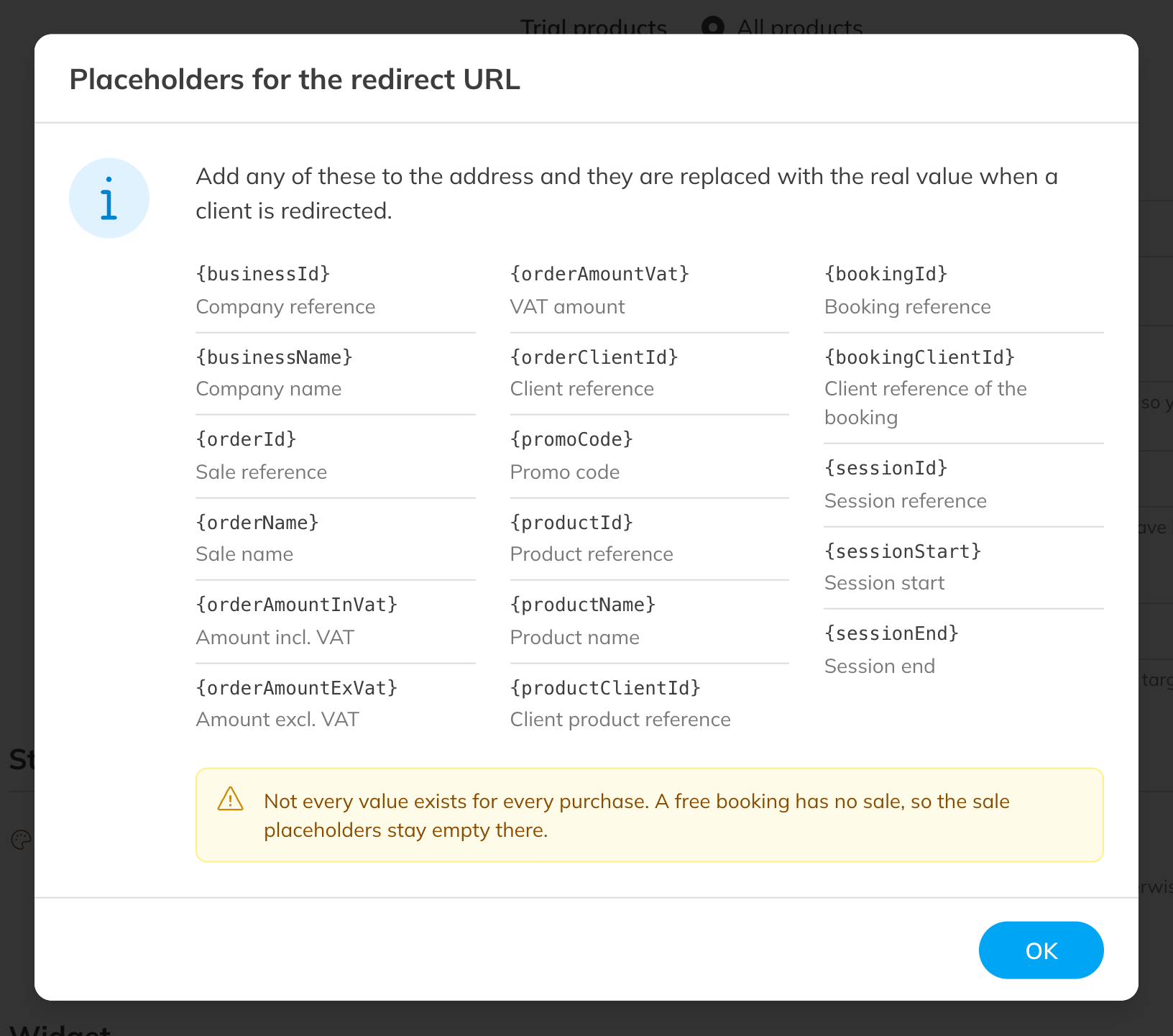
The placeholders for the redirect URL
| Placeholder | What goes in it |
|---|---|
{businessName} | The name of your business |
{orderName}, {orderAmountInVat}, {orderAmountExVat}, {orderAmountVat} | The name of the sale, the amount including and excluding VAT, and the VAT |
{promoCode} | The discount code used |
{productName} | The name of the product |
{sessionStart}, {sessionEnd} | Start and end of the booked session |
{orderId}, {productId}, {bookingId} and others | Identifiers of the sale, the product, the booking and the client |
An example: yoursite.com/thanks?amount={orderAmountInVat}&product={productName}.
Note: Not every value exists for every purchase. A free booking has no sale, so the sale details stay empty.