How to Activate Automated Follow Up Emails
Estimated Reading Time: 12 minutes
Applies to: PRO+
Quick Summary
Automated follow up emails allow you to automatically contact clients based on specific triggers in the system.
These emails help you re-engage inactive clients, encourage new purchases, and keep communication consistent without manual work.
Why This Matters
Clients may stop booking Activities or forget to renew their Membership or Credit Pack.
Automated follow up emails help you reconnect with clients at the right moment, improving retention and increasing recurring revenue.
Step by Step Instructions
Step 1: Open the follow up email settings: My Company > Marketing > Follow Up Emails
– This section contains all automated follow up emails that can be activated and configured.
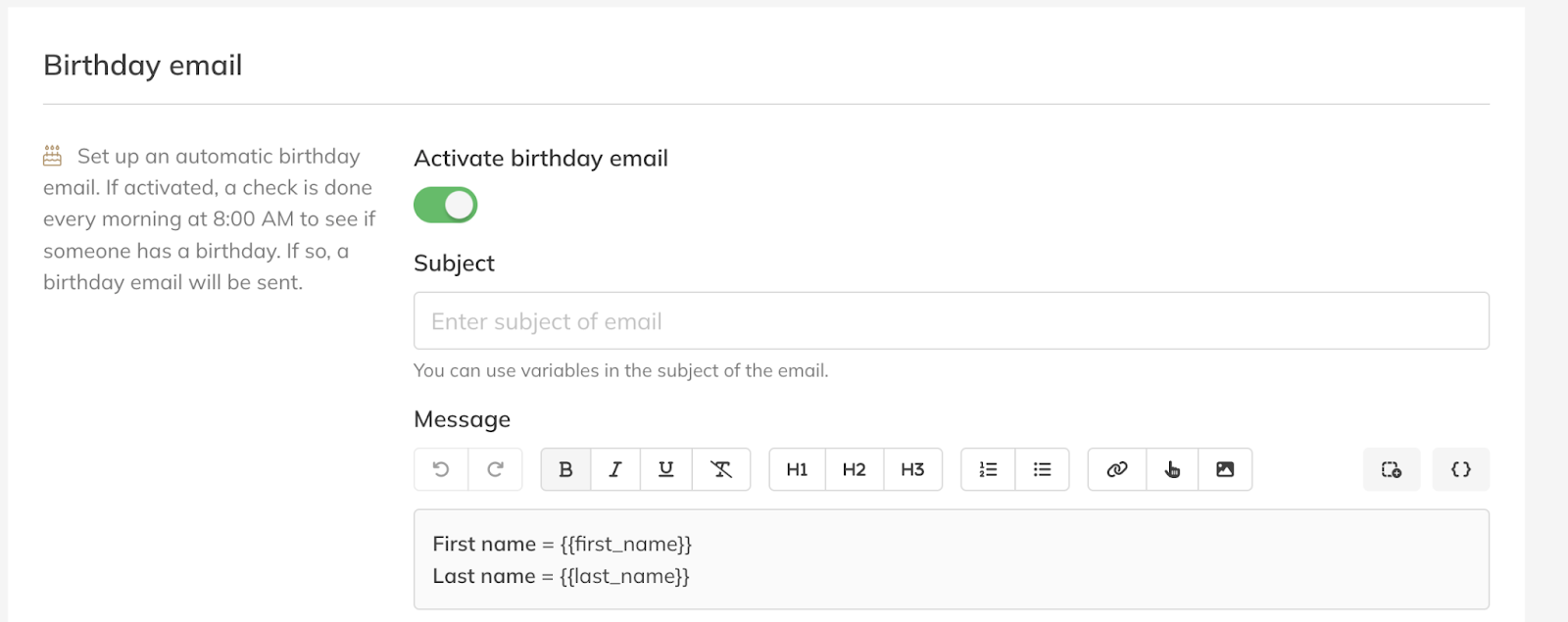
Step 2: Configure the birthday email: My Company > Marketing > Follow Up Emails > Birthday Email
– Set up an automatic birthday email. If activated, the system checks every morning at 8:00 AM if any client has a birthday. If so, a birthday email will automatically be sent.
Step 3: Configure the trial follow up email: My Company > Marketing > Follow Up Emails > Trial
– Set up an automatic follow up email after a client has taken a trial Activity or completed their last trial Activity. The follow up email will be sent the next day at 12:00 PM if the client has not yet purchased a new Product.
Step 4: Configure the no recent booking email: My Company > Marketing > Follow Up Emails > No Recent Booking
– Define the number of weeks since the client's last Activity booking after which the follow up email should be sent.
Step 5: Configure the credits almost consumed email: My Company > Marketing > Follow Up Emails > Credits Almost Consumed
– Define the number of Credits remaining in a Credit Pack that will trigger the follow up email. This email only applies to Credit Packs that can be purchased in the Shop.
Step 6: Configure the Credit Pack expiration email: My Company > Marketing > Follow Up Emails > Credit Pack Expires
– Define the number of weeks before the Credit Pack expires when the system should send the reminder email. This email only applies to Credit Packs that can be purchased in the Shop.
Step 7: Configure the Membership ending email: My Company > Marketing > Follow Up Emails > Membership Ends
– Define the number of weeks before the Membership ends when the reminder email should be sent. This email only applies to Memberships that can be purchased in the Shop.
Step 8: Write and personalize the email content
– Add clear messaging that encourages the client to return, book Activities, renew a Membership, or purchase a Credit Pack. You can add dynamic variables, links, buttons or images. You can only add the link of an image, but you can use a program such as Postimages to convert an image into a link. The link can be added to the text.
Start with one simple follow up, such as contacting clients who have not booked an Activity for several weeks.
Once this works well, you can expand your automations with additional follow ups for Membership expiration, Credit Pack reminders, or trial conversions.
Common Questions
Can I activate multiple follow up emails?
– Yes. You can activate several follow ups at the same time, each based on different triggers such as inactivity, Credit Pack usage, or Membership expiration.
When are follow up emails sent?
– The timing depends on the trigger you configure. For example, a trial follow up email is sent the day after the trial Activity at 12:00 PM if no new Product has been purchased.
Do automated follow up emails work for Credit Packs and Memberships?
– Yes. You can create reminders for both Credit Packs and Memberships based on remaining Credits, inactivity, or expiration dates.
If you would like to know more about our Pro, Premium or Add-Ons, send us an email to support@trainin.com.
Related Articles
– How to configure your newsletter settings– How to send a newsletter to your customers