The Client app adapts to your settings. If you don't use a feature, your clients don't see it either. Below you'll find what's in the app and where you turn it on or off.
For visitors
Someone who isn't logged in only sees the public parts: About (your company profile), Schedule, Shop and Login. Whether the schedule is visible to visitors is set in the timetable settings.
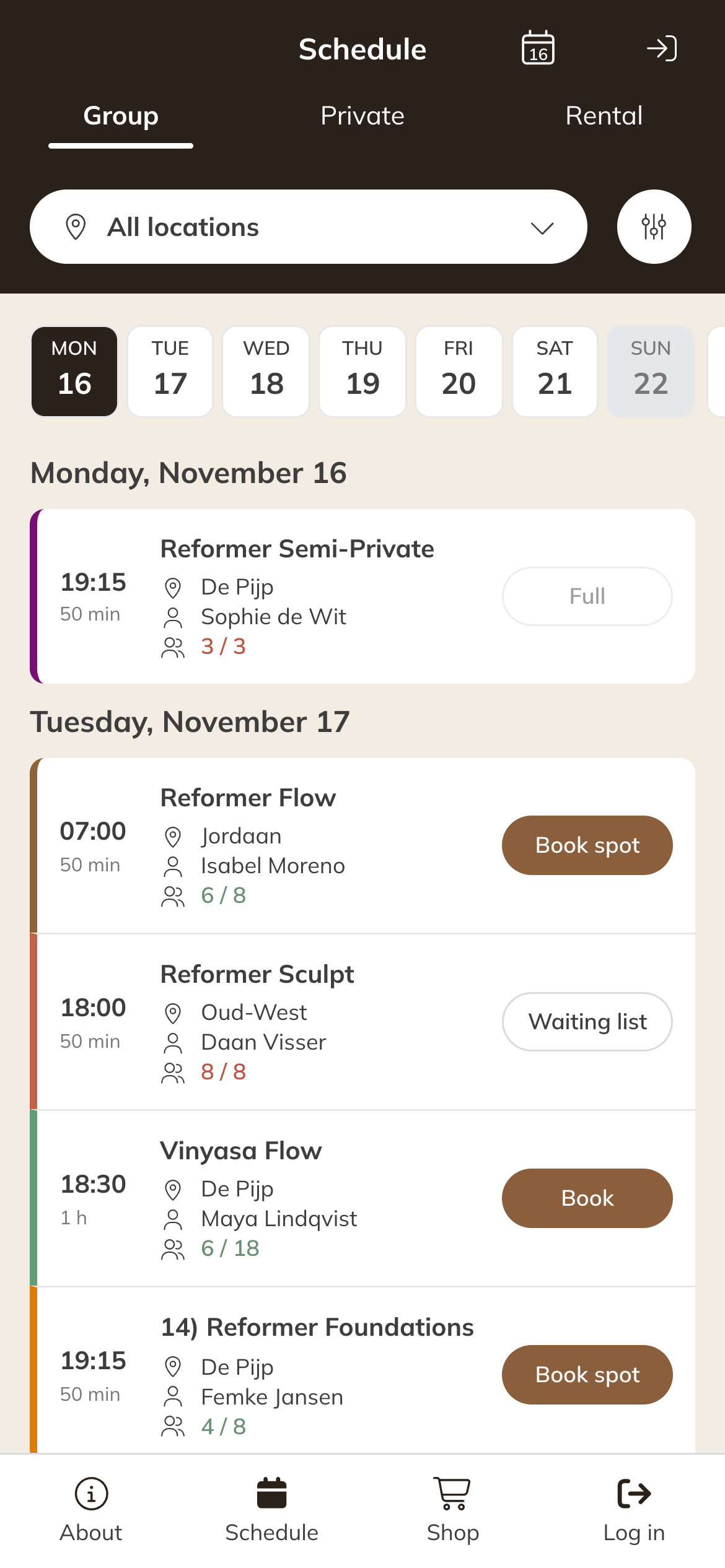
The schedule for a visitor who isn't logged in
The menu on the phone
At the bottom are Home and Schedule, plus room for two of these items, in this order: Shop, Coaching, Videos and Forms. Anything that doesn't fit goes under More. That's also where the client finds their account, bookings, products, payments and messages.
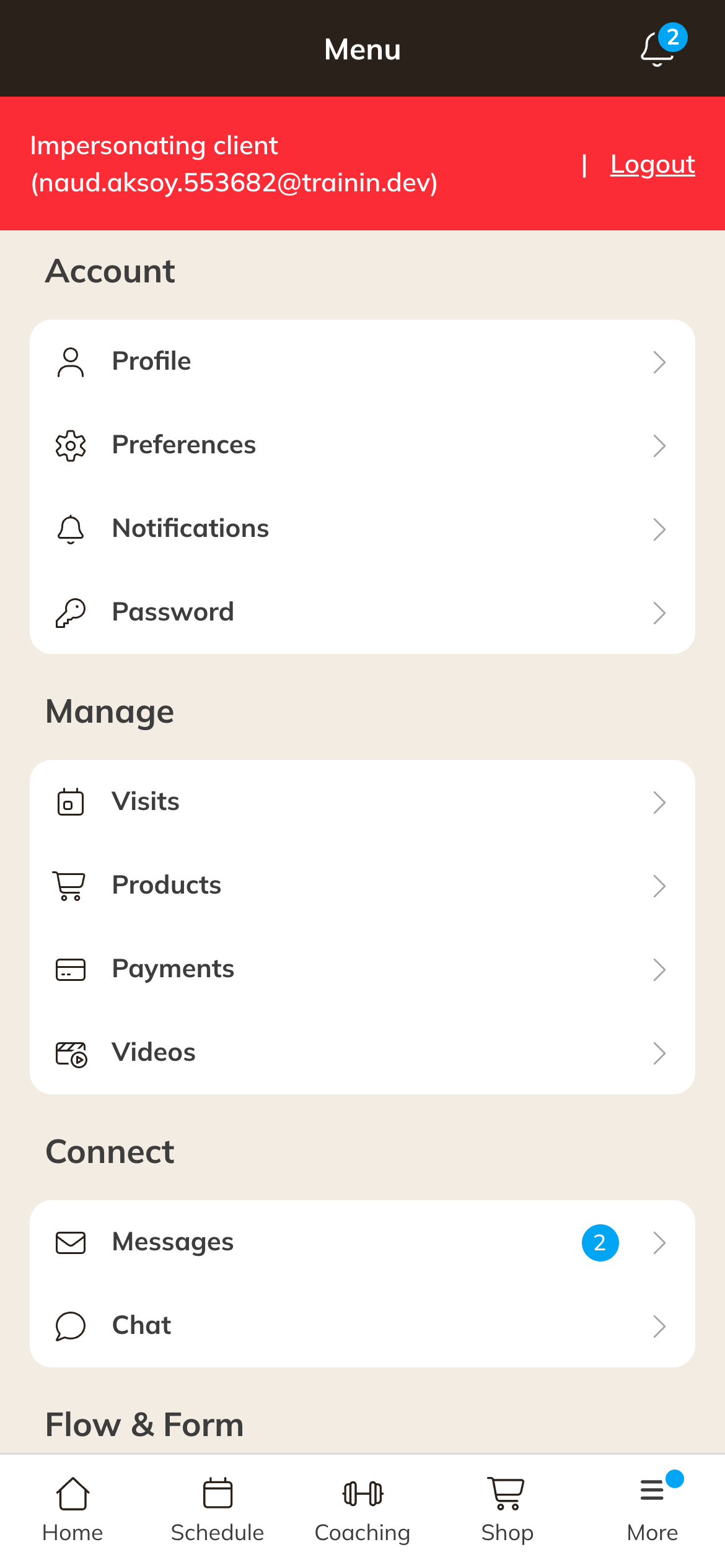
The More menu in the Client app
All parts
| Part | What the client sees | Where you set it |
|---|---|---|
| Home | The home page, see below | Always on |
| Schedule | Your timetable, with a tab for each type of activity, such as Group and Private | Settings → Schedule & timetable: Enable schedule, Visibility and the labels. See Timetable settings. |
| Shop | Your products to buy | Settings → Shop: Enable shop |
| Videos | Your video collections | Settings → Videos: Video tab visibility. By default only when there are videos the client can watch or buy. |
| Coaching | Workouts, programs and results | Settings → Coaching: Enable coaching and Client access. See Choosing which clients see coaching. |
| Forms | Forms the client needs to fill in or has filled in | Appears as soon as you send a client a form |
| Files | Files you share with the client | Appears as soon as you share a file. See Sharing files and links with clients. |
| Messages | Your news messages and personal messages | Always on for logged-in clients. See Sending a news or dashboard message. |
| Chats | Chatting with your business | Settings → Connect: Enable chat |
| About | Your public company profile | Settings → Company profile: Public company profile. See Your public company profile. |
| Bookings, Products and Payments | The client's own bookings, credit packs and memberships, and payments | Always on for logged-in clients |
| Account | Profile, Preferences, Notifications and Password | Always on for logged-in clients |
Note: If you use access control with check-ins, Bookings is called Visits in the app.
The home page (Home)
On Home, a logged-in client sees the following, if there's anything to show:
- notices, such as a request to accept your terms and conditions;
- Incoming: payment requests that are still open;
- their access code or a QR button to check in, if you use access control;
- your home screen links (Premium);
- their upcoming Bookings;
- Coaching, if the client has access;
- Current products: their credit packs and memberships;
- News: your latest news messages. How far back is set under Settings → Connect with Show news on Home.
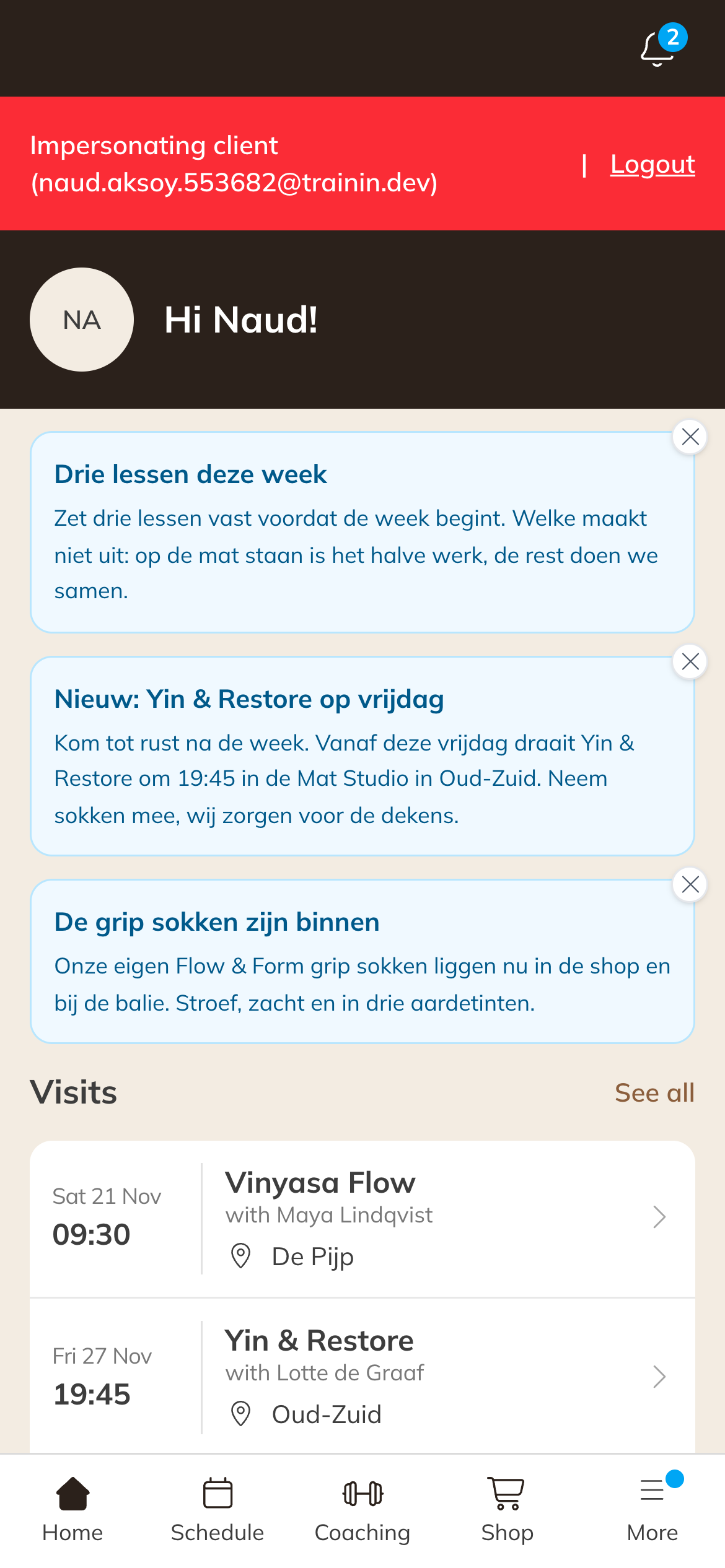
A client's home page
Tip: Curious what your app looks like? Open your Client app link in a private window in your browser. You'll see it the way a visitor does. See Finding your way in Trainin.