- Go to Clients and open the client.
- Choose the Details tab.
- Click the pencil next to the block you want to change, for example Personal details or Address.
- Make your changes and click Save.
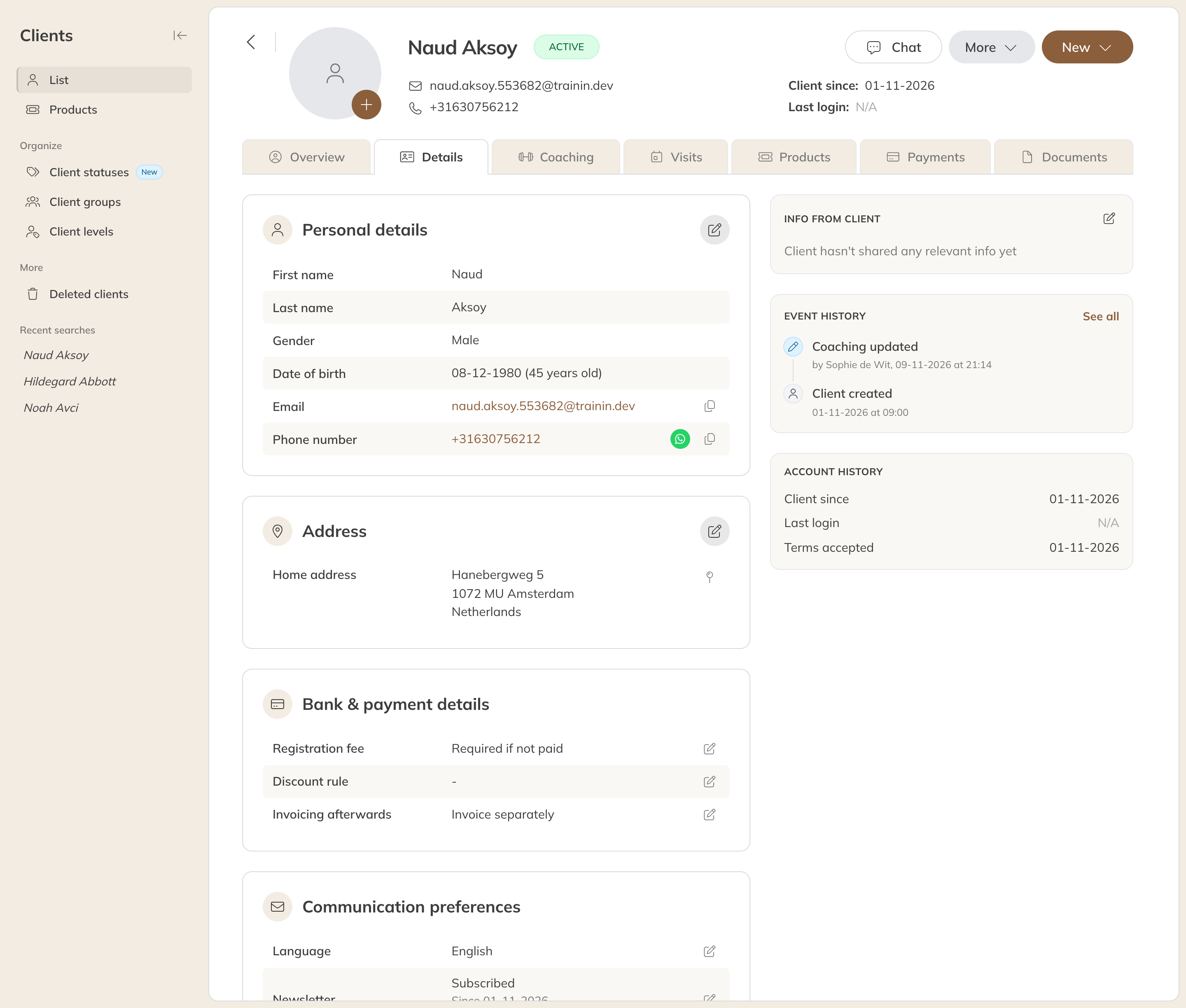
A client's Details tab
Under Personal details you change the name, phone number, emergency number, email address, gender and date of birth, as well as your own reference, card reference or occupation.
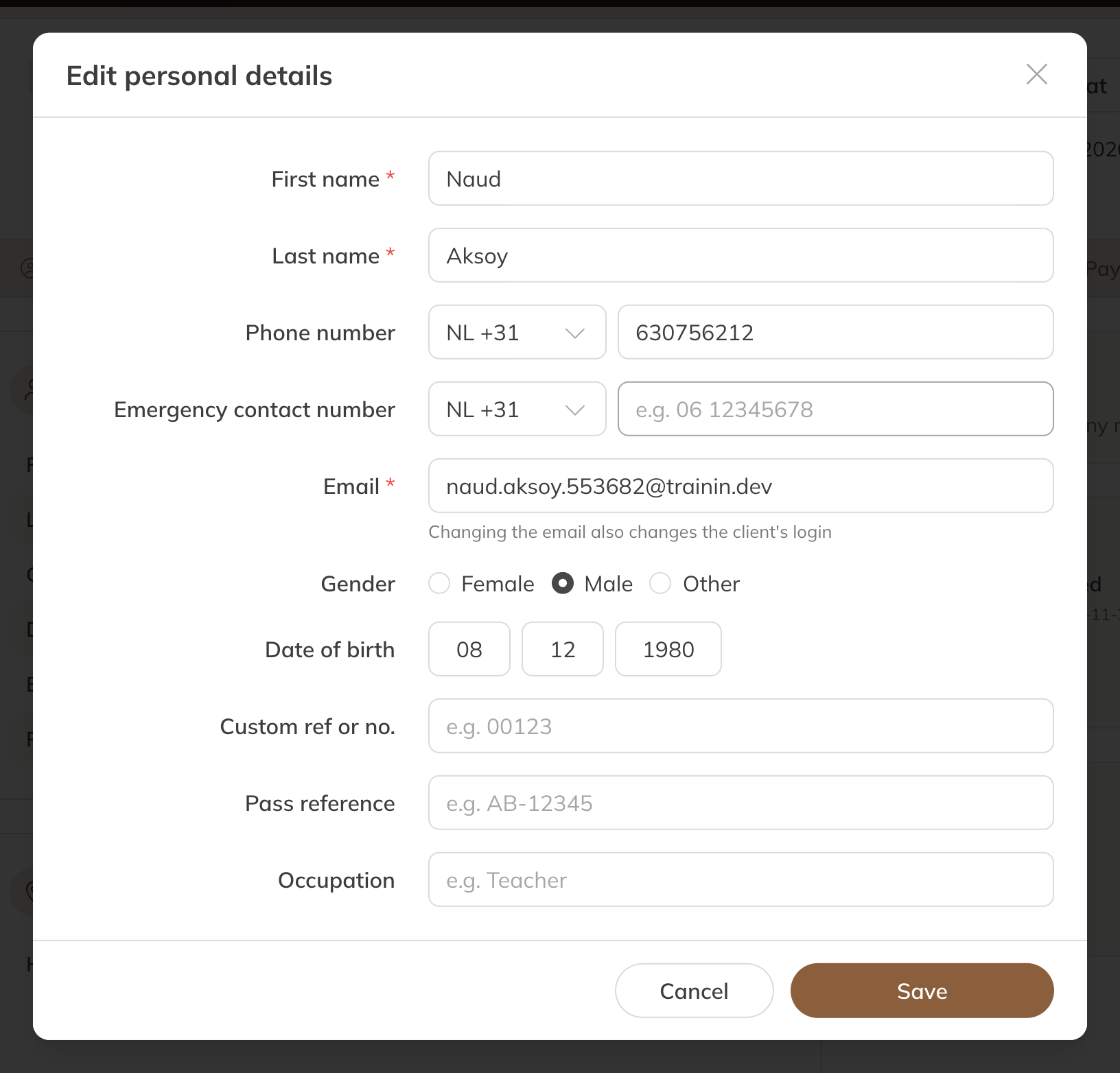
Changing personal details
Note: The email address is also the username. If you change it, the client logs in with the new address from then on. Let the client know.
Changing the account number
If you collect by direct debit, the Bank & payment details block has a Mandate line.
- Click the pencil next to Mandate.
- Enter the new Account number and the Account holder.
- Click Save.
The payment provider then records a mandate with the new account number. The next direct debit is taken from that account. Make sure the client has given permission.
Tip: Would a client rather get a payment link each period instead of a direct debit? You set that in the client's recurring payment method; it's described in the Payments category.
In the same block you set per client whether a registration fee is charged, whether a discount rule applies and how the client is invoiced.