Internal notes
A note lets you record something for your colleagues, for example an agreement about a renewal or an injury. Notes are only visible to staff, never to the client.
- Open the client. The Details tab has the Latest internal notes block.
- Click Add note.
- If the note is about a family member, first choose who it's for.
- Type the note and click Save.
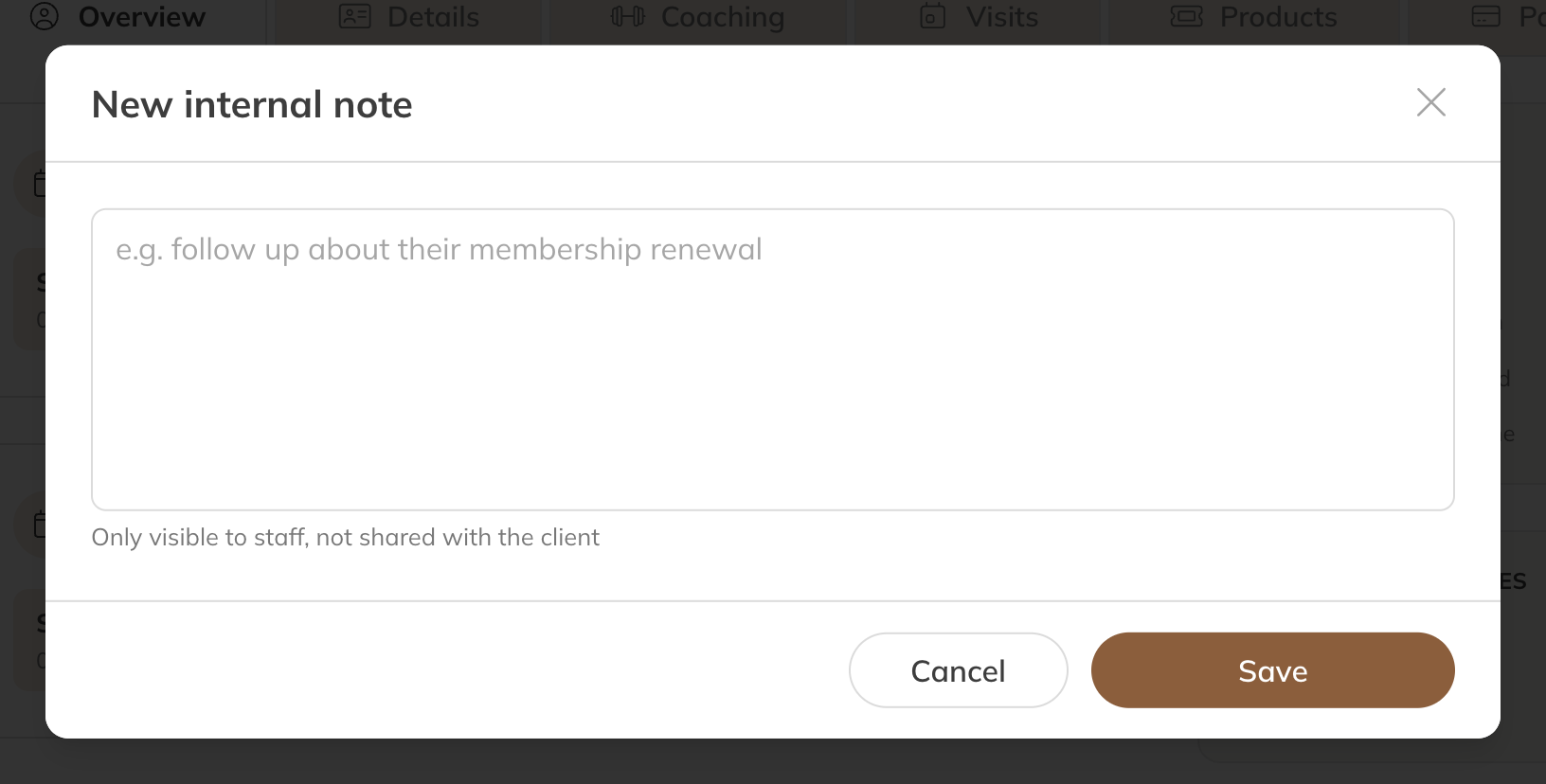
A new note
Use See all to see all notes, with who wrote them and when. There you can change or delete a note, or create a New note.
Note: Viewing and writing notes requires the permission Add, edit and delete client notes.
History
The history shows what was changed on the client's account, when and by whom.
- Open the client and choose the Details tab.
- At Event history, click See all.
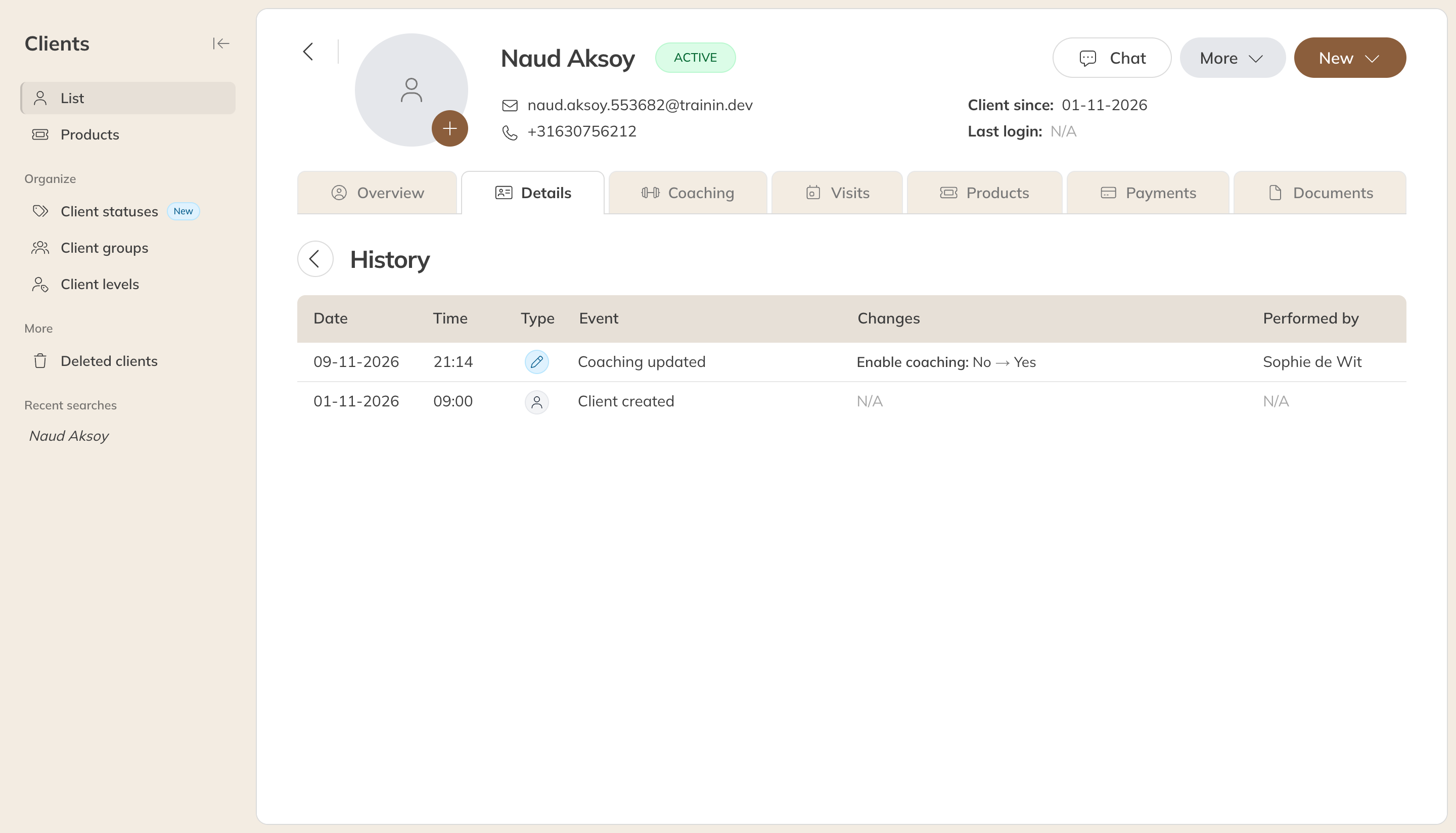
A client's history
Each line shows the Date, Time, Type, Event, Changes and Performed by (who made the change). Among other things, you'll see:
- the client being created, the welcome email and the login being deactivated;
- changes to personal details, address, language, newsletter and payment details, such as the mandate;
- changes to groups, level, teachers and locations;
- notes, files, access codes and accepted terms;
- family members who were added, changed or deleted.
Tip: You see bookings on the Visits tab: see Viewing a client's bookings.