Do you often use the same filters, for example all clients with the status At risk at one location? Save them as a view. A view keeps your filters, the columns you see and the sorting. This is available from the Pro plan in the client list, in Clients → Products and in the lists of bookings and payments.
Saving a view
- Set up the list the way you want it: filters, Columns and sorting.
- Click the Saved views button next to Columns and choose Save current view.
- Enter the View name, short and clear (25 characters at most).
- At Who can see this view, choose Only me or Whole business.
- Click Save current view.
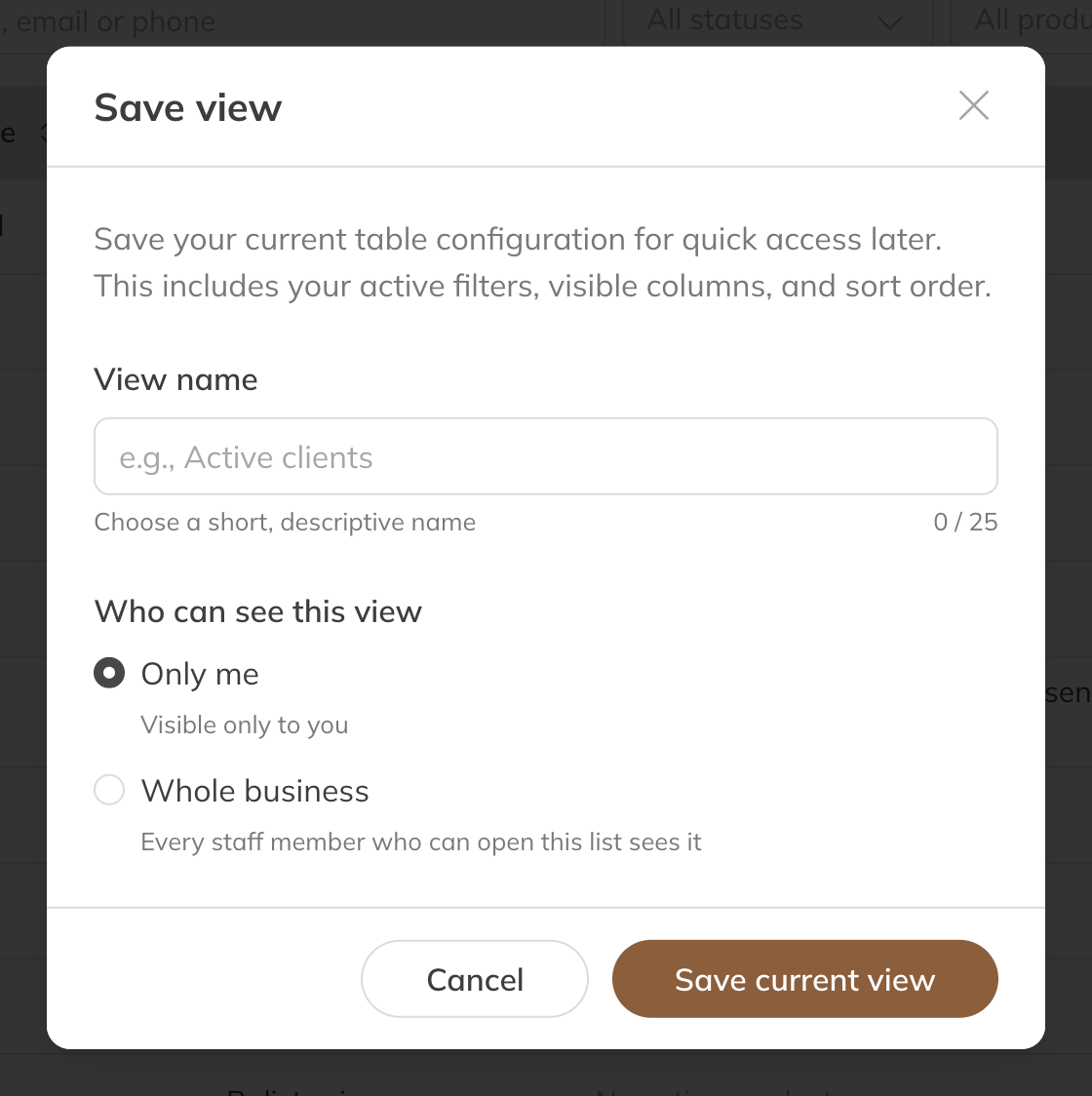
Saving a view
Using a view
Click the Saved views button and choose the view. If there are views of your own and from the team, you'll see them under Your views and Shared with the team.
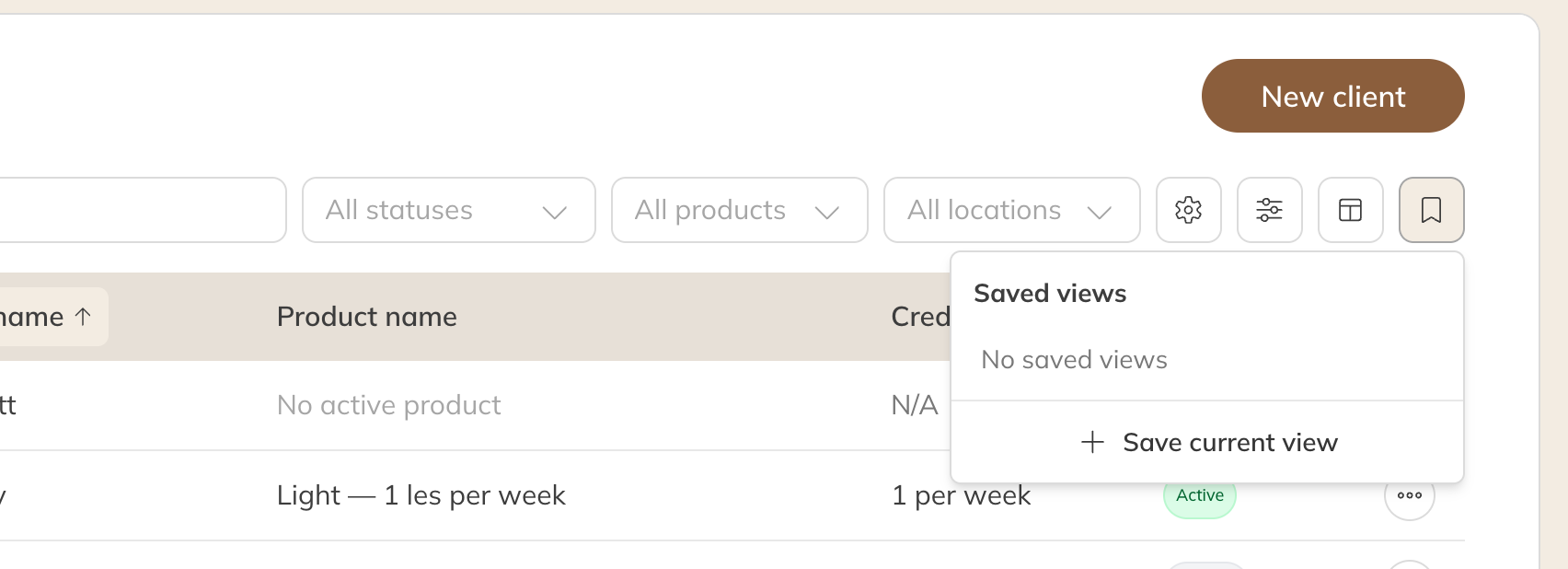
Saved views
- Click the star to make a view Your default view. The list then always opens with that view. This only applies to you.
- Use the pencil to change the name or who sees the view. Use the bin to delete it.
- Drag views to change the order.
Views for the whole team
A view for the Whole business is visible to everyone who can open the list, with all the figures the filters show. Only staff with the permission Manage saved views shared with the whole business can create, change and delete these views. If you delete a shared view, it disappears for everyone.
Note: A view you created yourself can be made personal again. A colleague's shared view can't be made personal.