Where to start
- In the client's profile: New → Assign credit product.
- In the client list: Options next to the client → Assign credit product.
- Through the + in the menu bar → Assign a product; you search for the client there first.
- For a new client: switch on Assign a product at the bottom of the form.
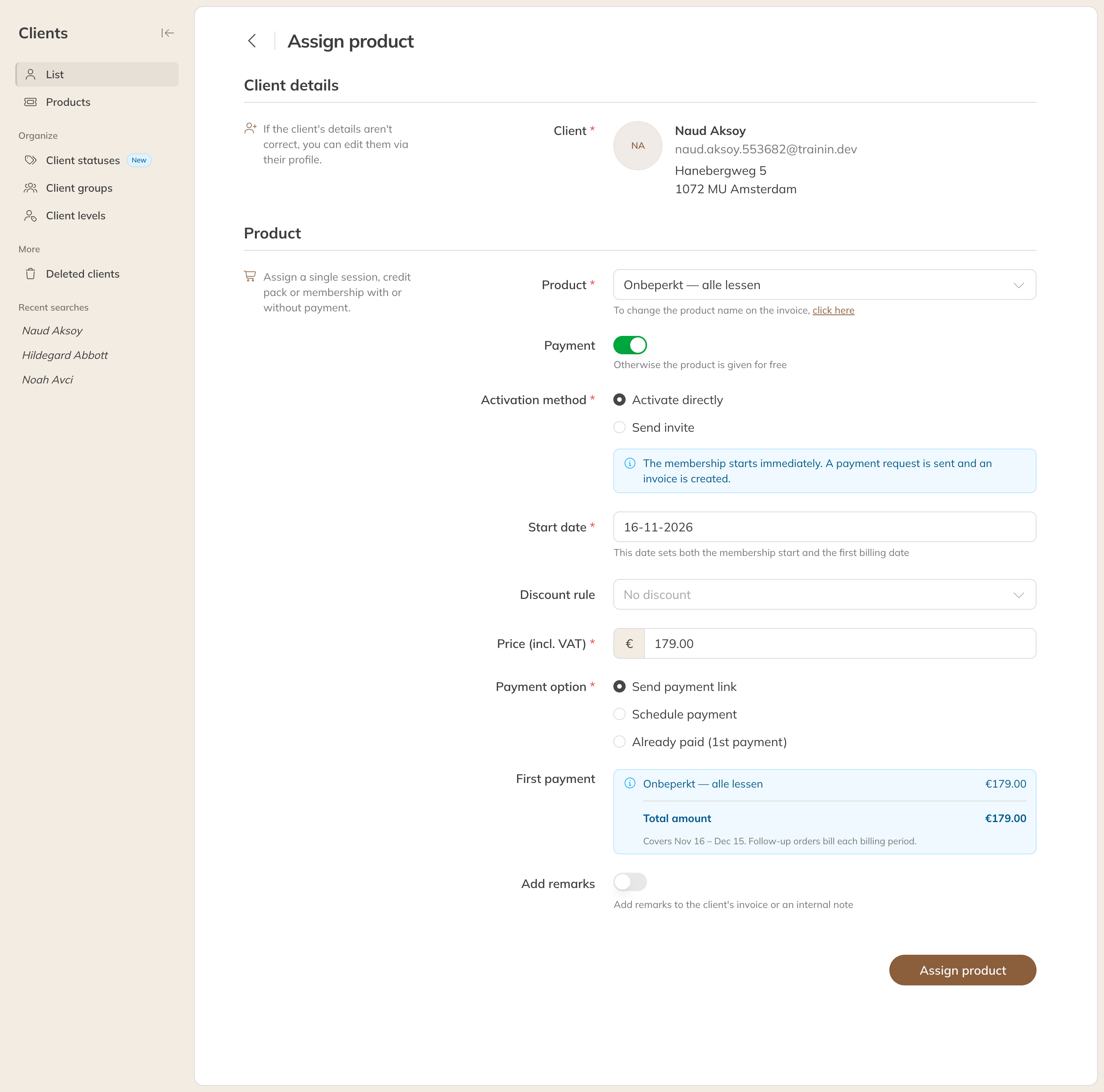
Assigning a membership
The form
- Product: choose the single class, credit pack or membership. If you want a different name on the invoice, click click here below the field.
- Payment: if this is off, you give the product for free. Nothing is charged and no invoice is created.
- Activation method: see below.
- Start date (membership) or Valid (credit pack, single class): when the product starts. A start date can also be in the past.
- Discount rule and Price (incl. VAT): the product's price is already filled in. Enter a different amount to give a discount.
- Quantity: for a single class or credit pack, you can give several at once.
- Add remarks: a remark in the email to the client, a remark on the invoice, or an internal note the client doesn't see.
Click Assign a product. Below your choices, a blue box always shows exactly what's going to happen.
Activation method
| Option | What happens |
|---|---|
| Activate directly | The product starts right away (or on the start date). You choose how it's paid at Payment option. |
| Send invite | The client gets a payment link. The product only starts once the client has paid. |
Payment option with Activate directly
| Option | What happens |
|---|---|
| Send payment link | The product is active right away and the client gets a payment request by email. For a membership that doesn't start on the first day of the period, the first payment is pro rata from the start date. |
| Schedule payment | You choose the Payment date, Amount and Period of the first payment yourself. Use Add payment to schedule more. This lets a membership start today with the first payment later. |
| Already paid | The payment is recorded as paid, for example if the client paid in cash. For a membership, this applies to the first payment. |
| Collect amount via direct debit | Only if the client has a mandate: the amount is collected straight away by direct debit, without a payment link. |
| Payment via terminal | Only if you use a card terminal: the client pays straight away on the terminal. |
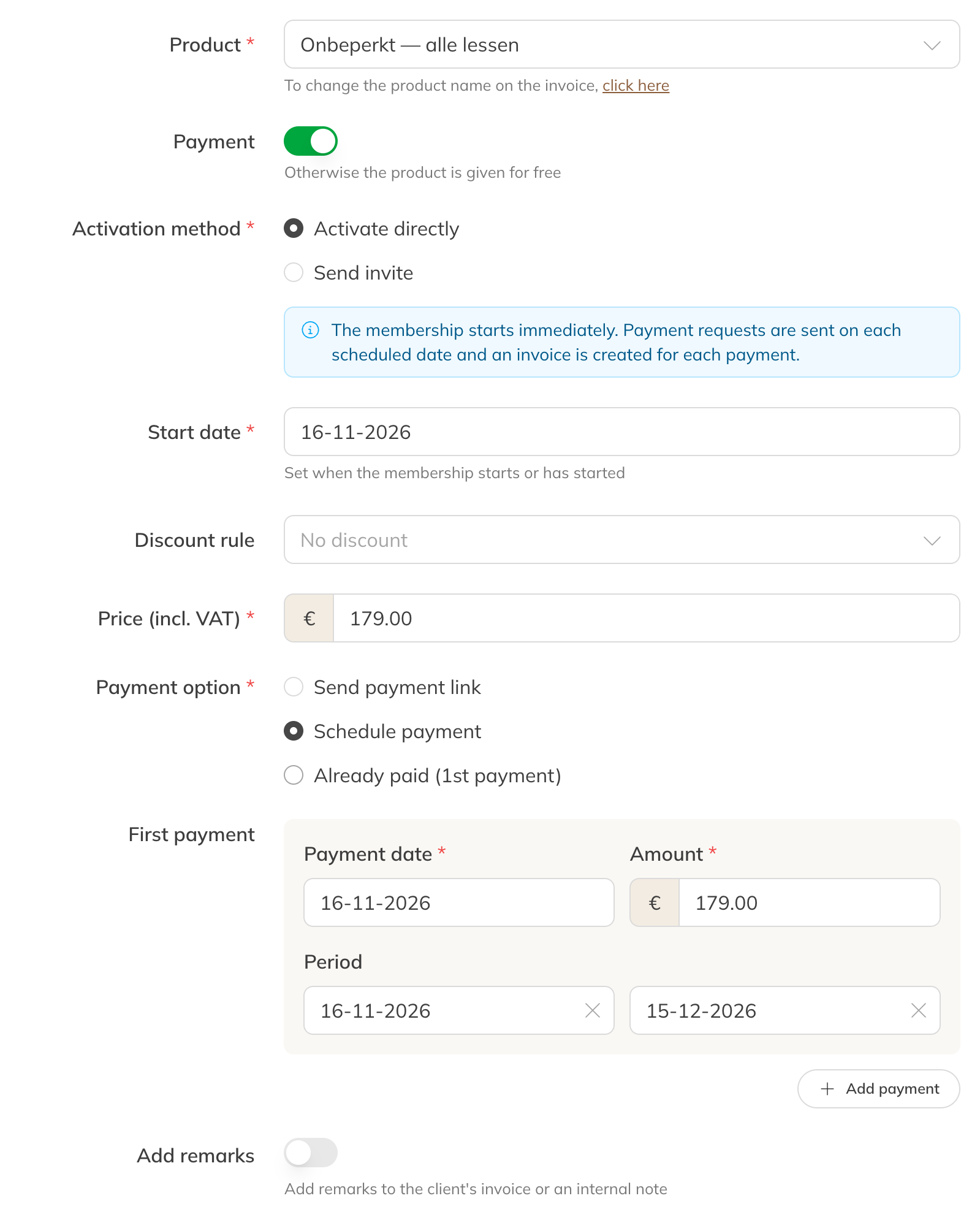
Schedule payment: date, amount and period of the first payment
For an ongoing membership, Trainin then schedules the next payments itself, every payment period. If you create invoices, an invoice is created for each payment and sent with the payment request.
Discount or free
- Discount: enter a lower amount at Price (incl. VAT), or choose a Discount rule. For a membership, the price also applies to the following payments.
- Free: switch off Payment. No payment and no invoice are then created. Note: a membership you give this way stays free, including in later payment periods.
Note: Can't see the price or Already paid? Then you don't have permission for it. Ask an administrator to change your role.
Tip: Want to put a client straight into a session but they don't have a product yet? Read Client can't be added.