- Open the client.
- Choose the Visits tab.
For each booking you see the date, time, session, status and which product it was paid with.
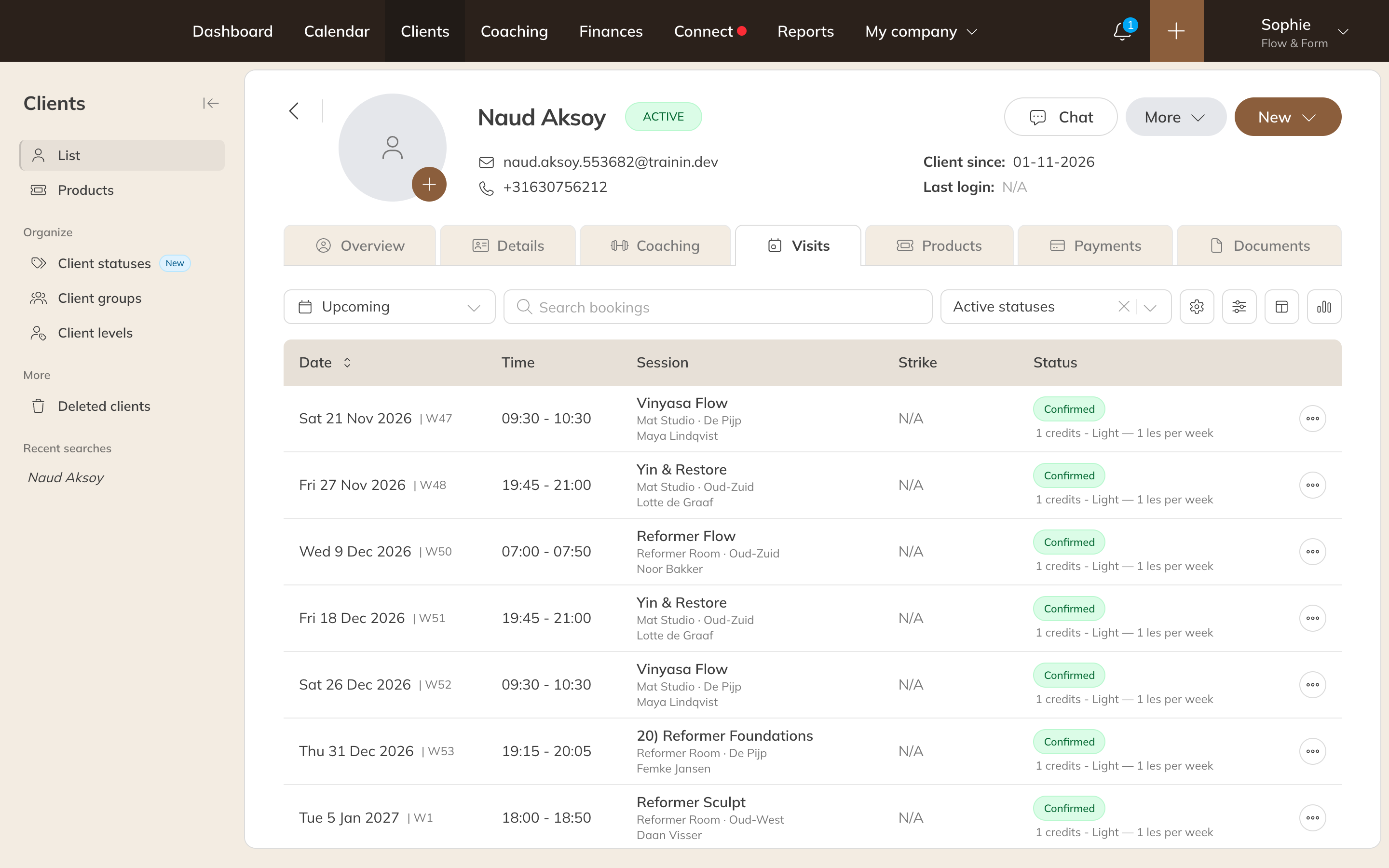
The Visits tab
- At the top left, switch between Upcoming and History.
- Use Search bookings and the status filter to find a booking.
- Use Filters to filter by Credit product, Activity, Activity type, Location, Room or resource or trainer.
- Use Actions to export the list to Excel or CSV.
Changing a booking
Click Options next to a booking:
| Option | What happens |
|---|---|
| Mark as attended | The client is registered as attended. |
| Set as open | The credit goes back to the client; the booking stays and you can confirm it again later. |
| Cancel | The booking is dropped. With Give credit back to client the client gets the credit back; otherwise it counts as a late cancellation. |
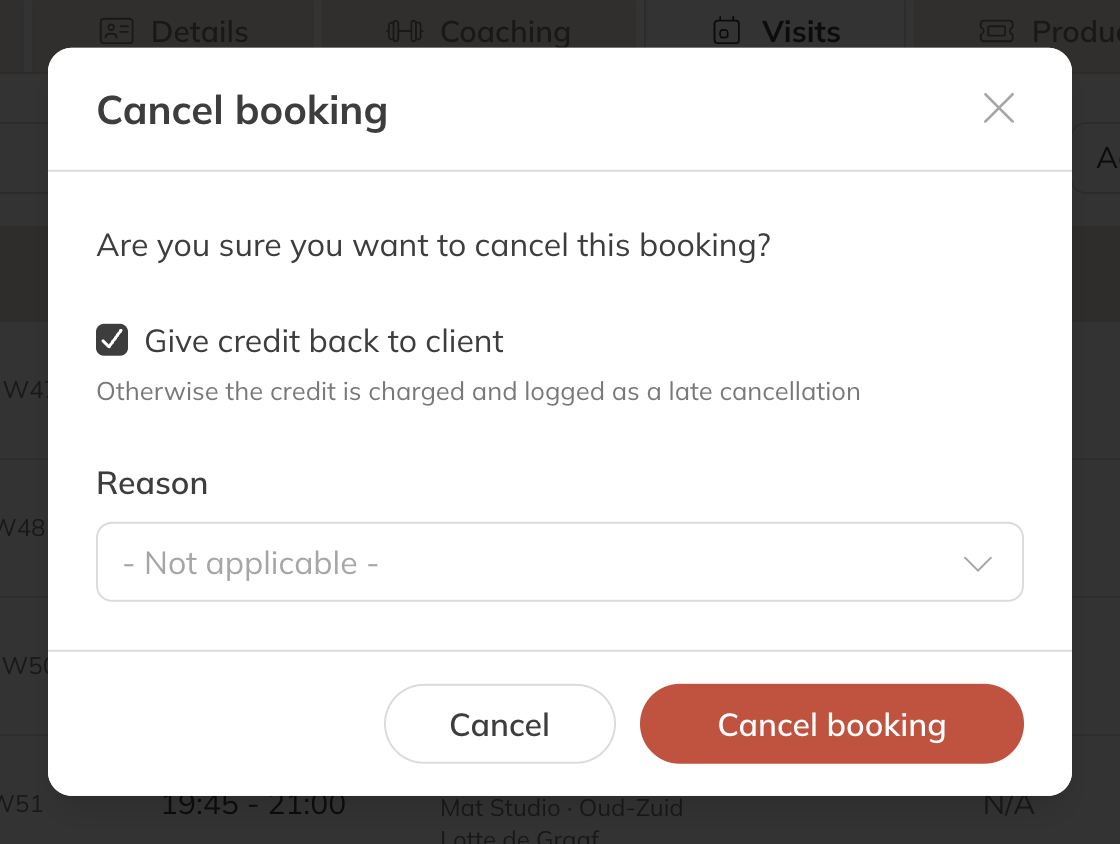
Cancelling a booking
You see this tab if you have permission to view clients' bookings.
Tip: You'll find an overview of all paid bookings of all your clients in the reports.