With a rental activity, clients can book a room, field or piece of equipment themselves, without an instructor. For example a studio by the hour or a padel court. Rental is available in the Premium plan, or in the Pro plan with the rooms and spot booking add-on.
1. Create the room and give it availability
- Create the room or resource at a location. See Locations, rooms and resources.
- Go to My company → Locations → Availability and click the room.
- Click Add and choose the days and times when the room can be rented, for all activities or only for certain ones.
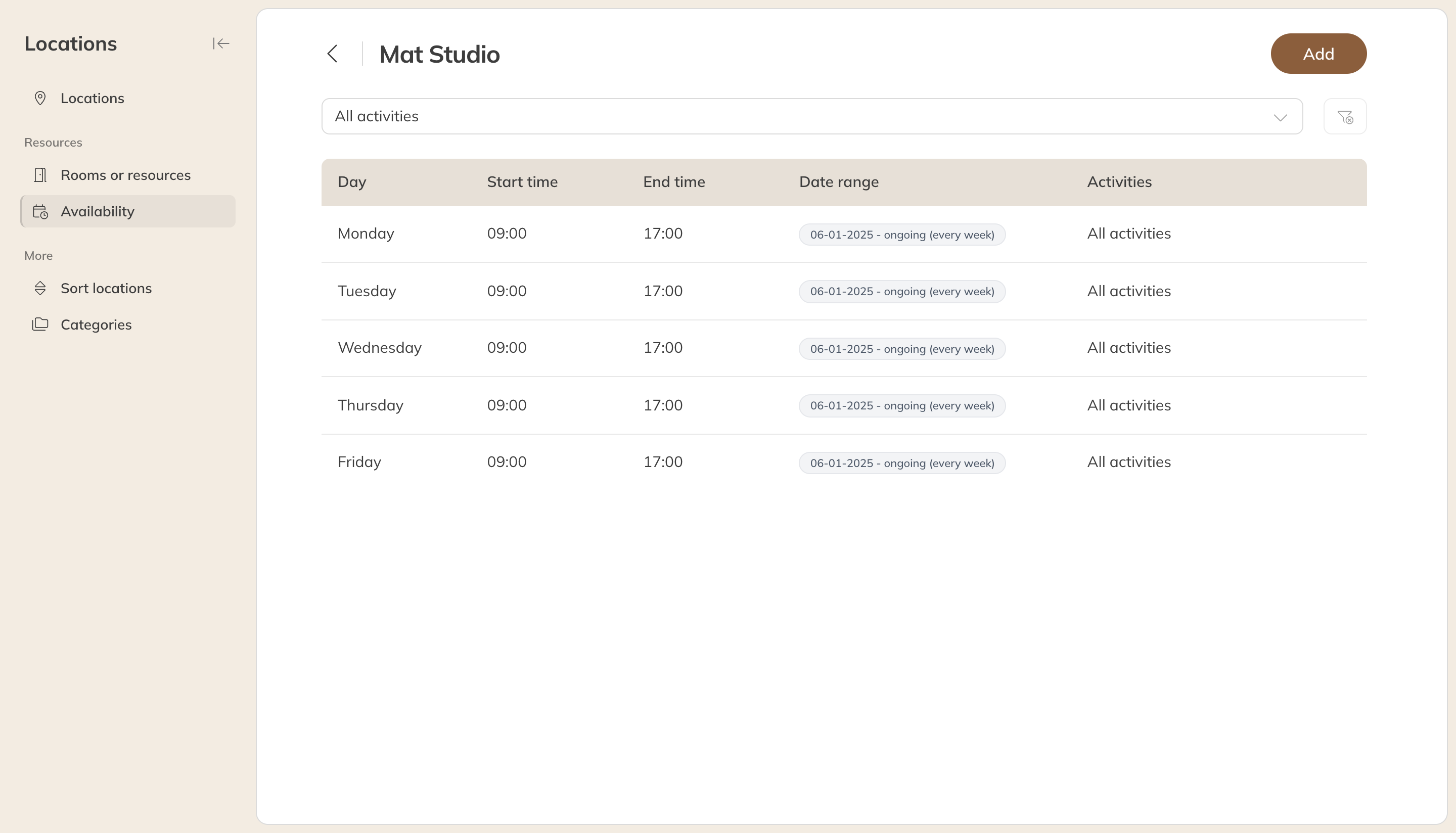
The availability of a room
2. Create the rental activity
- Go to My company → Activities, click New activity and choose Rental.
- Choose at least one Location and, under Rooms or resources, the rooms clients can rent.
- Under Booking option, set the activity to Direct or Request. A new rental activity is set to None.
- Set the duration, the times and the price (via Credit products) and click Save.
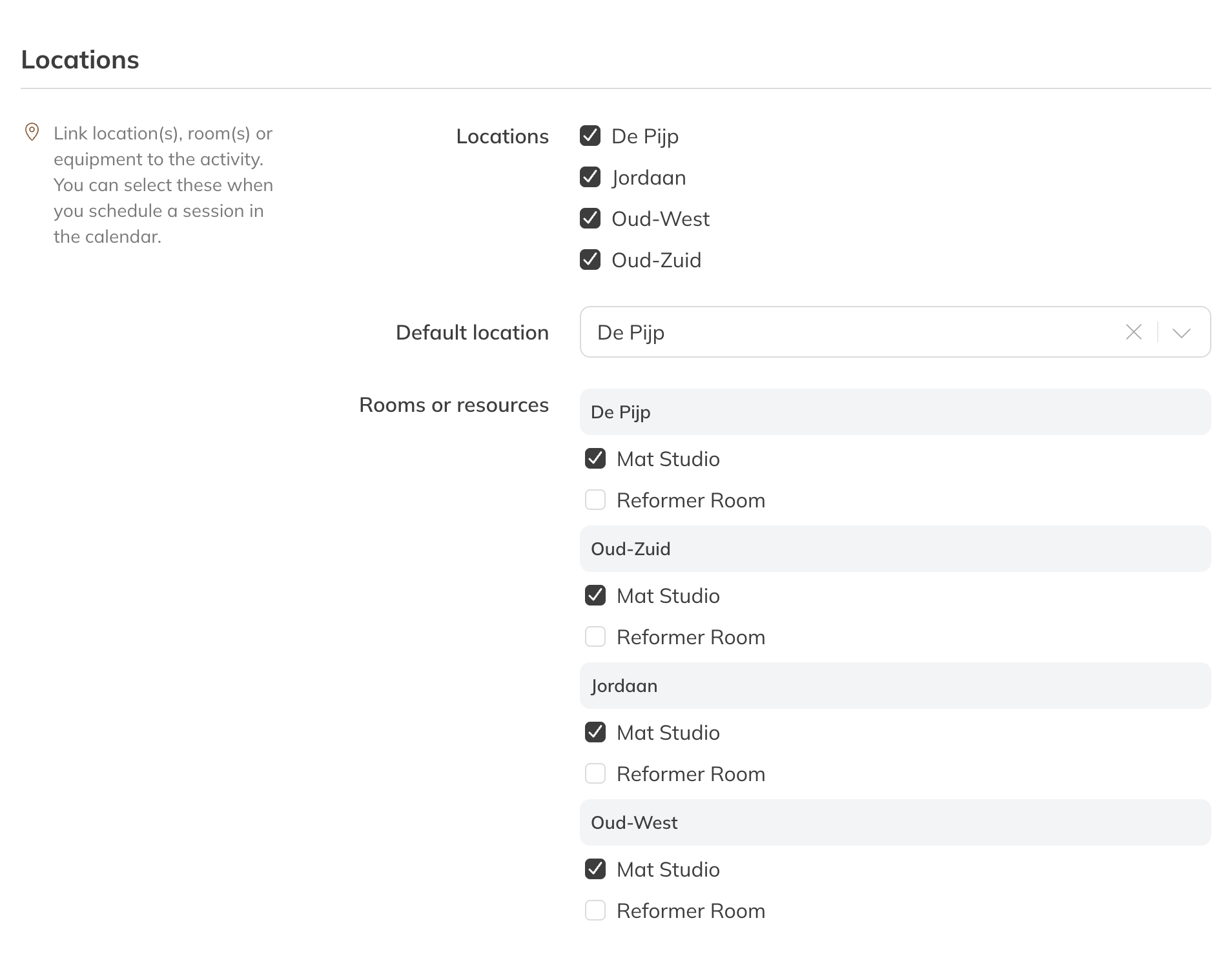
Linking rooms to a rental activity
Good to know
- Clients only see times when the linked room is available. Without a room, or with a room that has no availability, the rental has no bookable times. You then see a warning about it.
- A room booked through a rental is always visible to the client.
- Fixed or flexible times and time between bookings work the same as for private sessions. See Private sessions: fixed or flexible times.