Every product that's in the shop or for sale through a link has its own checkout page. With the link to that page, a client buys the product directly, without going through the shop first.
The link for one product
- Go to My company → Products.
- Click the three-dot menu next to the product and choose Checkout link.
- Click Copy. With View you open the page yourself.
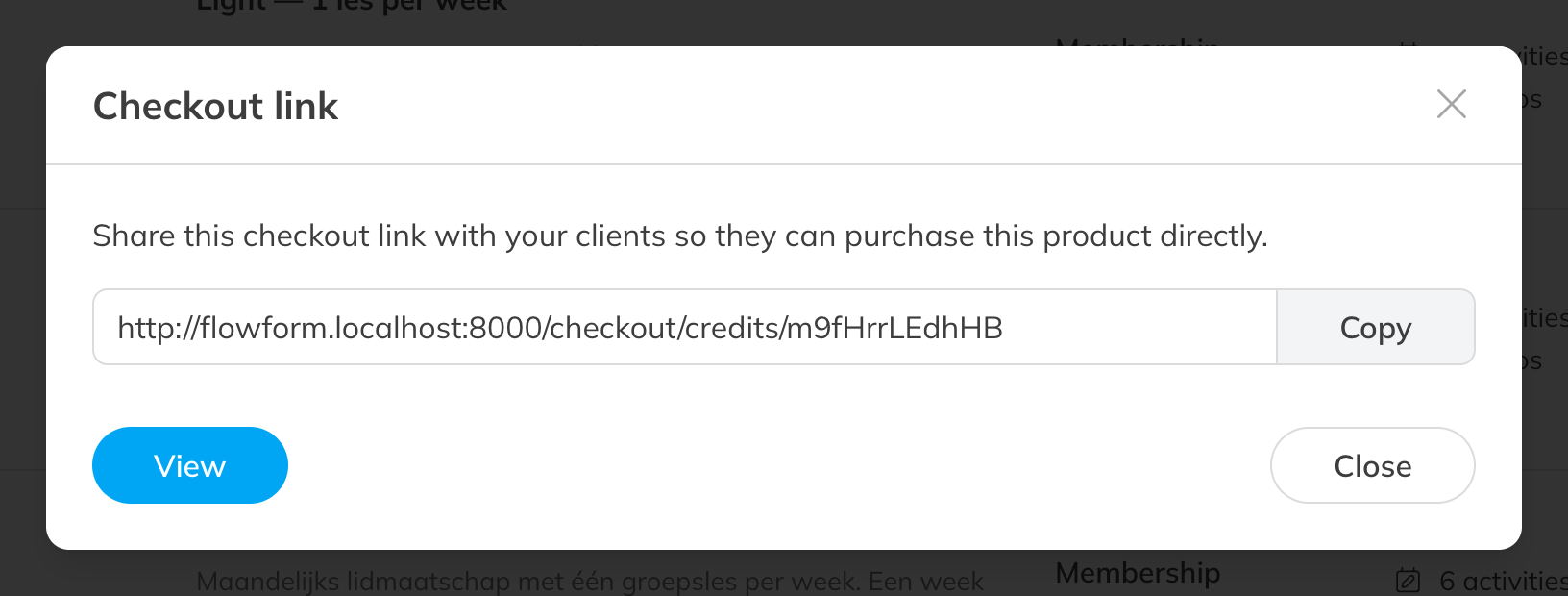
The checkout link of a product
All links in one place
Under Integrations → Checkout links you'll find all credit products and retail products with a link. Click the copy icon next to a product.
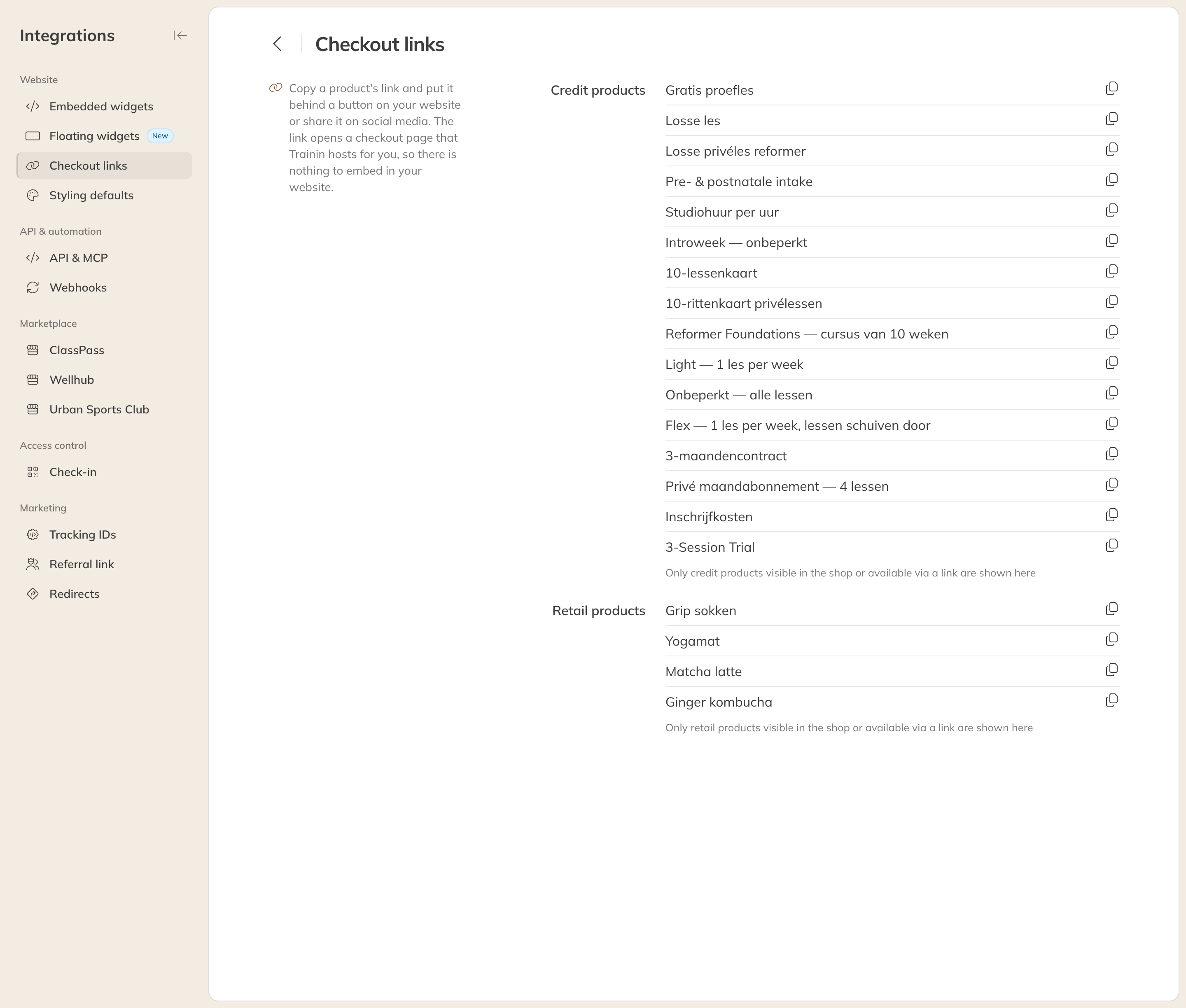
All checkout links under Integrations
What the client sees
The client lands on the checkout page, logs in or creates an account, and pays. For a membership or pass, the client sees the Effective from date and can choose a later date, unless the product has a fixed start date. See Start date and payments of a membership.
Note: If the shop is turned off in your shop settings, checkout links don't work either.
Tip: Want to sell a product only through the link, for example a promotion for your newsletter? Set Sales channels to Direct checkout link only.
Note: Adding a start date to the end of the link, as in the old system, no longer works. If you want a membership to start on a fixed date, fill in Start on the product.