Do you give personal training to regular clients, for example, and send one bill at the end of the month? Then you schedule the sessions without credits and invoice them afterwards. This is available in the Pro and Premium plans.
Getting ready
- Create a product of the single session type and link it to the activity. That product sets the price per session.
- Make sure staff are allowed to add clients without credits: in the calendar settings, set Clients without credits to Staff may add. See When are credits deducted?
- Schedule the sessions and add the client. The bookings stay outstanding until you invoice them.
Note: A client can never book without credits themselves. So you schedule sessions you invoice afterwards yourself.
Invoicing per client
- Go to Finances → To invoice → Outstanding bookings. Here you'll see the clients with unpaid sessions. The menu item appears as soon as there are outstanding bookings.
- Choose a client. Assign a product to the outstanding bookings and exclude any bookings you want to leave out.
- Choose a discount rule if needed, and choose how the client pays: with a payment link, or as a draft that you finish yourself in the next step.
Invoicing in bulk
Do you invoice all your clients afterwards every period? Then you can do it in one go.
- Turn it on for each client who should be included: open the profile, Details → Bank & payment details, and set Invoicing afterwards to Bulk invoicing. By default this is set to Invoice separately.
- Go to Outstanding bookings, choose the period and click Bulk invoicing.
- Check the period and click Confirm.
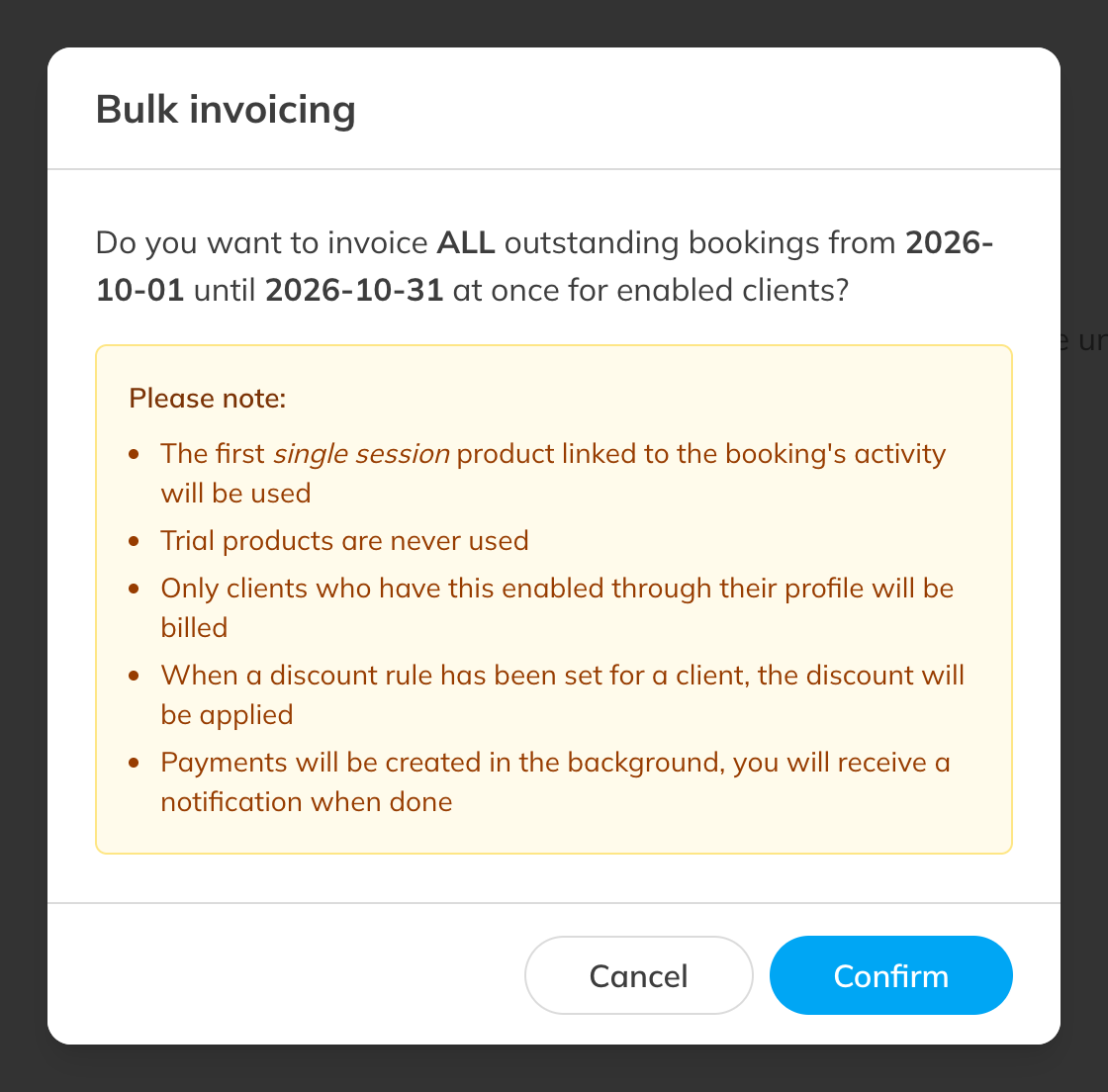
Bulk invoicing
Good to know:
- Only clients with Bulk invoicing in their profile are invoiced.
- For each activity, the first single session product in your product list is used, so the order of your products decides which one. Trial products are never used.
- A booking for an activity without a linked single session product stays outstanding.
- If a client has a discount rule, the discount is applied.
- If the client is set to automatic collection and has a mandate, the amount is collected by direct debit. Otherwise the client gets a payment link.
- The payments are created in the background. You'll get an alert when it's done and you'll find them under Finances.
Tip: Want a client to see their own description on the invoice? Create a separate activity with its own single session product, or invoice that client separately.