A client can watch a video collection if one of these applies:
| Method | Who can watch |
|---|---|
| Available for free switched on in the collection | Every client. |
| Available to client groups in the collection | Every client in one of those groups, for as long as they're in the group. |
| The collection belongs to a credit product | Clients with that membership, credit pack or other credit product. |
| The client has bought the collection | See Selling a video collection. |
Access applies to the whole family: if a parent has the product, or a family member is in the client group, the whole family can watch.
Linking videos to a membership or credit pack
- Go to My company → Products and open the membership or credit pack.
- Under Videos, at Video collections, tick the collections that belong to this product.
- Click Save.
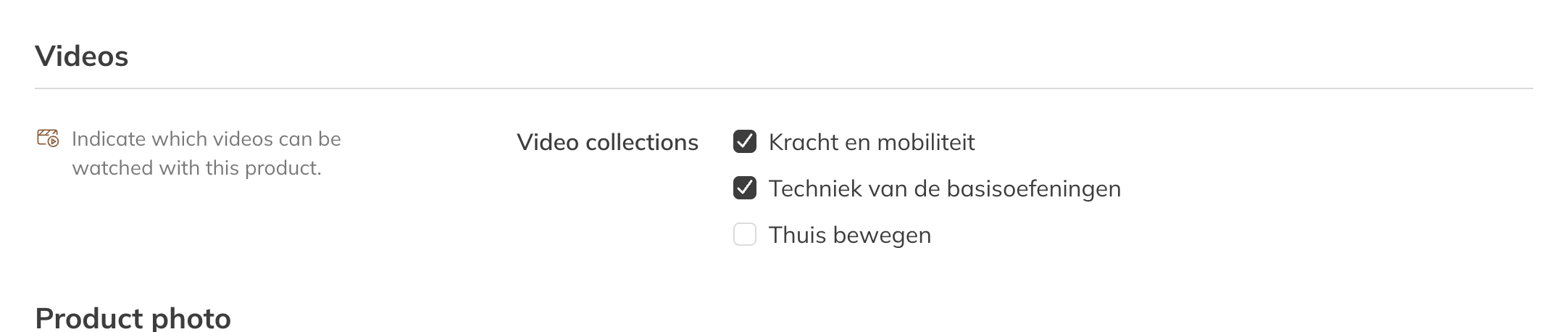
Video collections on a membership
You only see the Videos block once you have at least one video collection.
- The client can watch as long as the product is active or paused. Even when all credits are used up, until the product's end date.
- After the end date, or if the product has been ended, access stops.
- This also applies to clients who already had the product: if you link a collection, they can watch right away.
What the client sees
In the app, collections are under Videos, with the tabs All videos, Free and Purchasable. A collection the client doesn't have access to (yet) shows a padlock.
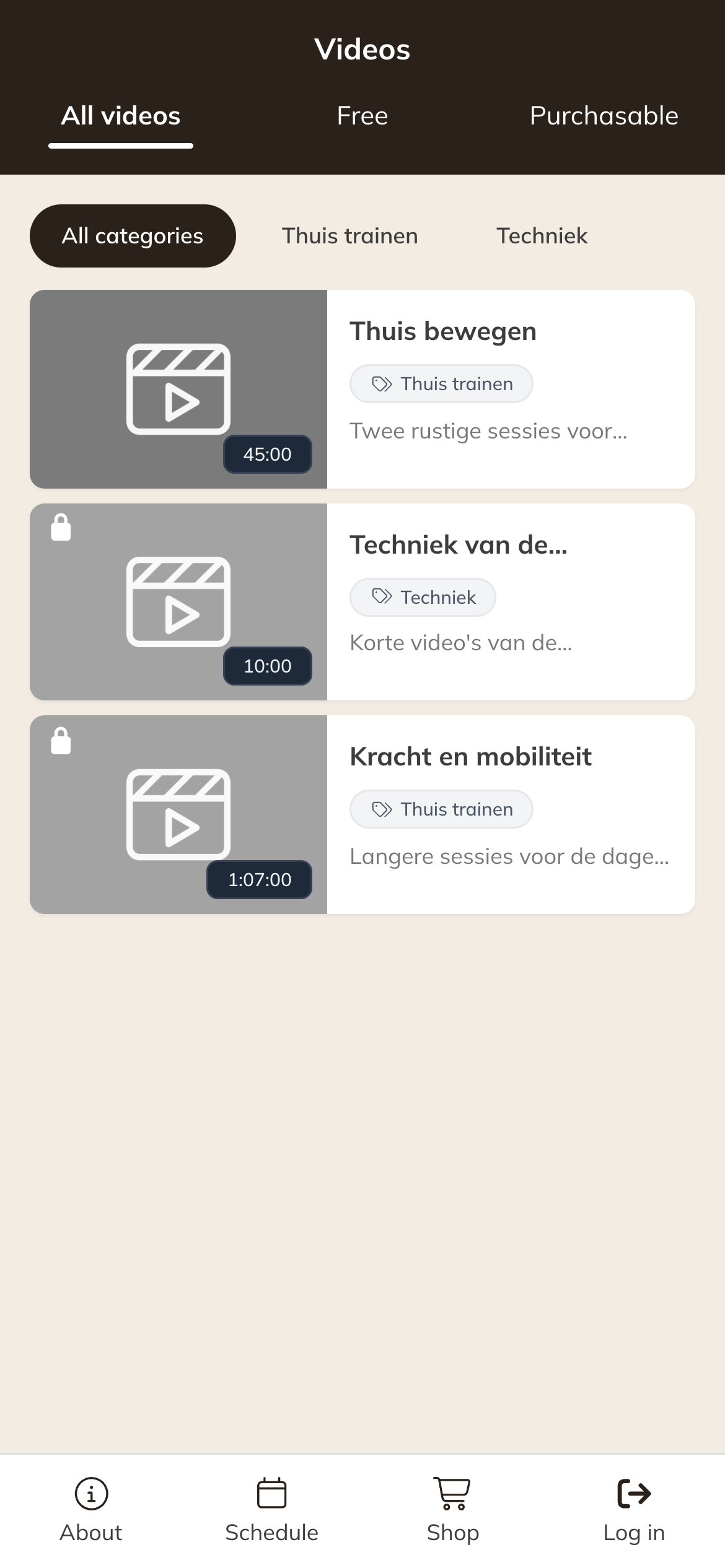
Videos in the client's app
The Videos tab in the app
Under Settings → Preferences → Videos, choose an option at Video tab visibility:
- Visible when videos are available (default): the tab only shows if there's a free collection, a collection for sale in the shop, or a collection the client is already allowed to watch.
- Always visible: the tab is always there.
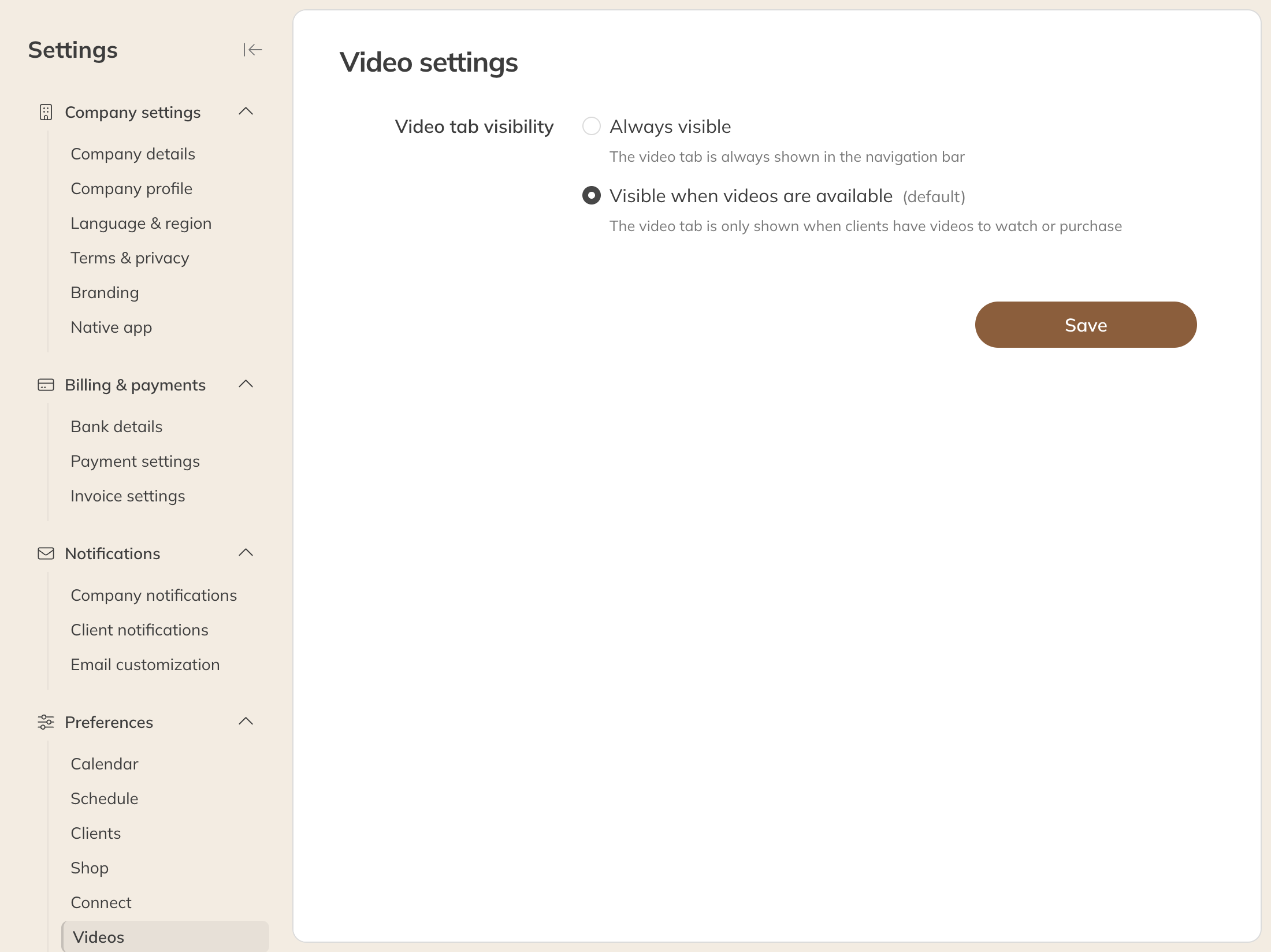
Video settings