You'll find news messages under Connect → Messages. They are available in the Pro and Premium plans.
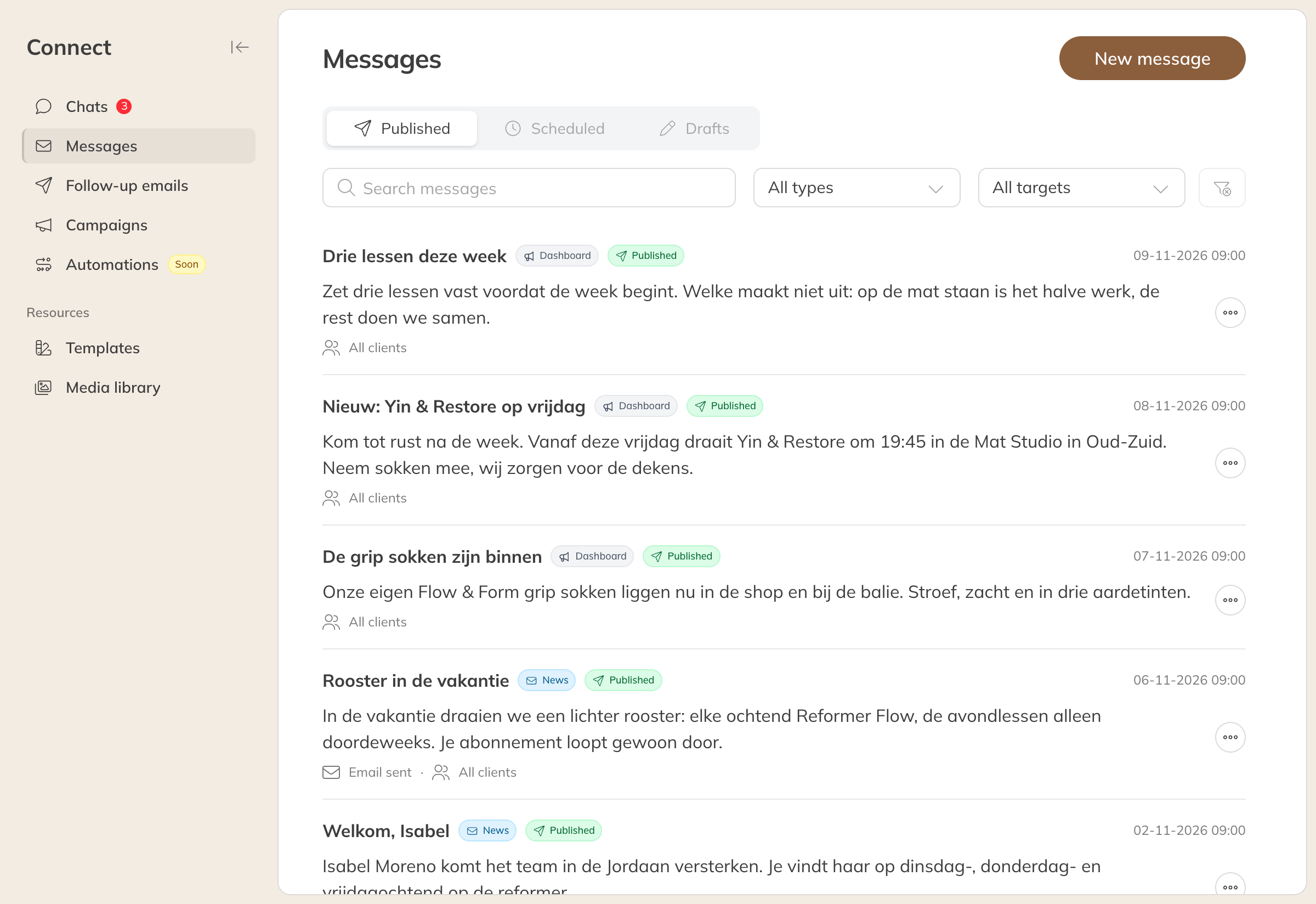
The overview of news messages
News or dashboard?
| Message type | What happens |
|---|---|
| News | The message appears for the client under Messages, in the app and on the website. You can also send it by email. |
| Dashboard | A short message clients see on their dashboard, for example We're closing early today. Up to 500 characters. A dashboard message is not sent by email. |
Creating a message
- Go to Connect → Messages and click New message.
- Choose the Message type: News or Dashboard.
- Choose the Publishing option:
- Send: the message appears straight away.
- Save as draft: you publish it later.
- Schedule: you pick a date and time for the message to appear.
- Fill in the Subject and the Message. For a news message you can enter your own Greeting, using
{{first_name}}and{{last_name}}for the first and last name. There's no need to type a greeting into the message yourself: it's added automatically. - Under Send to, choose who gets the message (see below).
- Click Send message. For a draft or a scheduled message, the button is called Save draft or Schedule message.
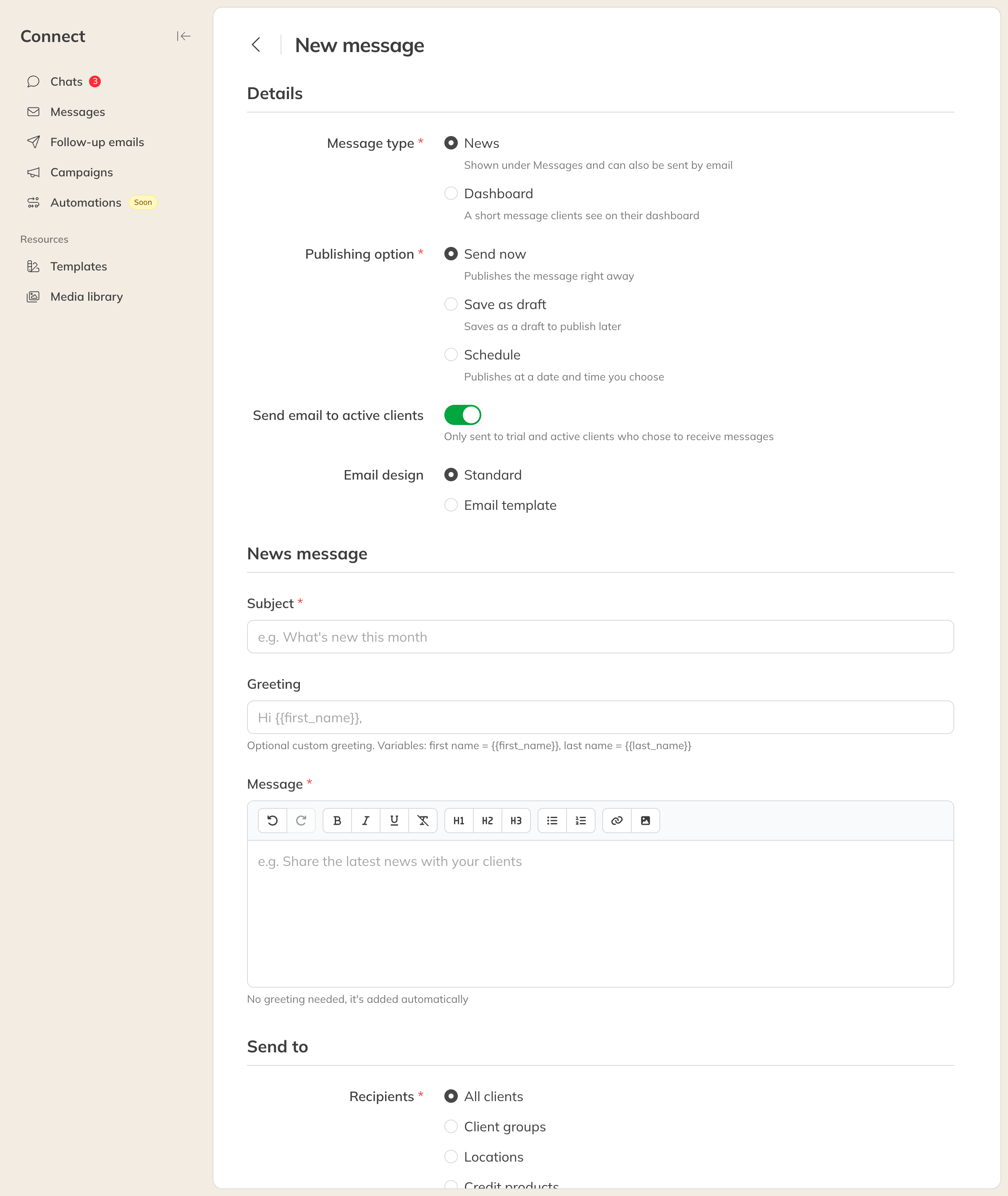
Creating a new message
In a news message you can format text, use headings and lists, add links and upload images from your computer.
Who to send it to
Under Recipients you choose:
- All clients
- Client groups: one or more groups
- Locations: clients of one or more locations
- Credit products: clients with one of the selected products
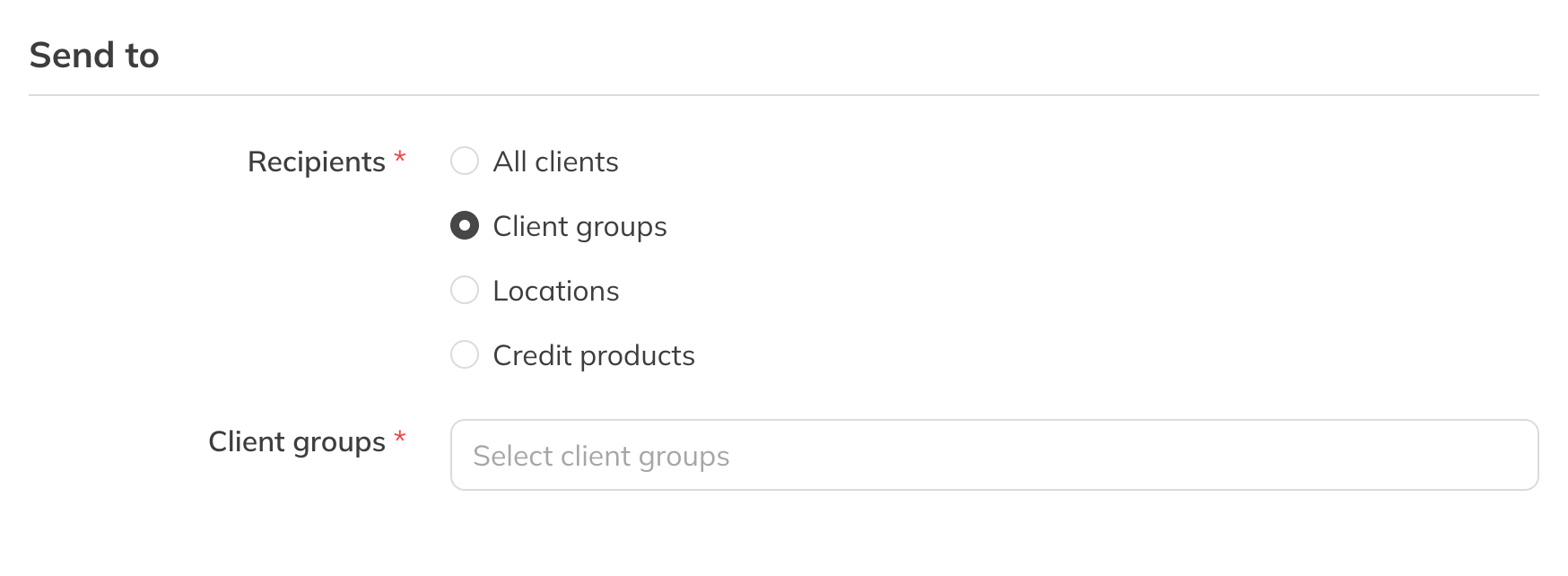
Choosing who gets the message
Sending it by email too
For a news message, turn on the email switch. Who receives the email depends on your plan:
- With campaigns (see Email campaigns and the email builder) the switch is called Send email to active clients. The email only goes to trial and active clients who want to receive messages. To send a newsletter to all your clients, use a campaign instead. You can also choose an Email template: the message is then placed in that template's message block.
- Without campaigns the switch is called Send email. If you send to All clients, only clients who have the Newsletter turned on get the email. If you send to groups, locations or products, the email goes to clients who have the notification New message to group or session participants turned on.
Everyone you select will still see the message in the app.
Tip: Click Send test to send the email to yourself or a colleague first.
After sending
In the overview you can filter by Published, Scheduled and Drafts, by type and by audience. You can still edit a message that has already been published, but only the subject and the content.