In the Client app, your news messages and the chat sit together in the menu, under Messages and Chat. On a computer, clients find them in the menu under their name. A number next to them is the number of unread messages.
Chat
The chat only appears if Enable chat is on (see Turning chat on or off and deciding who can chat).
- Without a personal inbox the menu item is called Chat. The client has one conversation, with your business, and can start it themselves.
- With a personal inbox it's called Chats. The client sees a list of conversations: with your business and with staff members. The client can only start a conversation with a staff member themselves if Allow clients to start conversations is on.
Just like you, clients can attach files, edit or delete their own message for up to 15 minutes after sending it, and mark a conversation as unread.
For a reply from the company inbox, the client sees your business name, or the staff member's name if Show staff name to clients is on.
If the client can no longer reply in a conversation, for example because the staff member is no longer their trainer, they see You can no longer send messages in this chat.
When a client receives a chat message, they get an alert. If they don't read it within 15 minutes, an email follows, provided they have the Chat received notification turned on.
News messages
- Under Messages the client finds all news messages they've received since becoming a client. They don't see messages from before they signed up.
- The home page shows the two newest. You set how old these can be under Show news on Home.
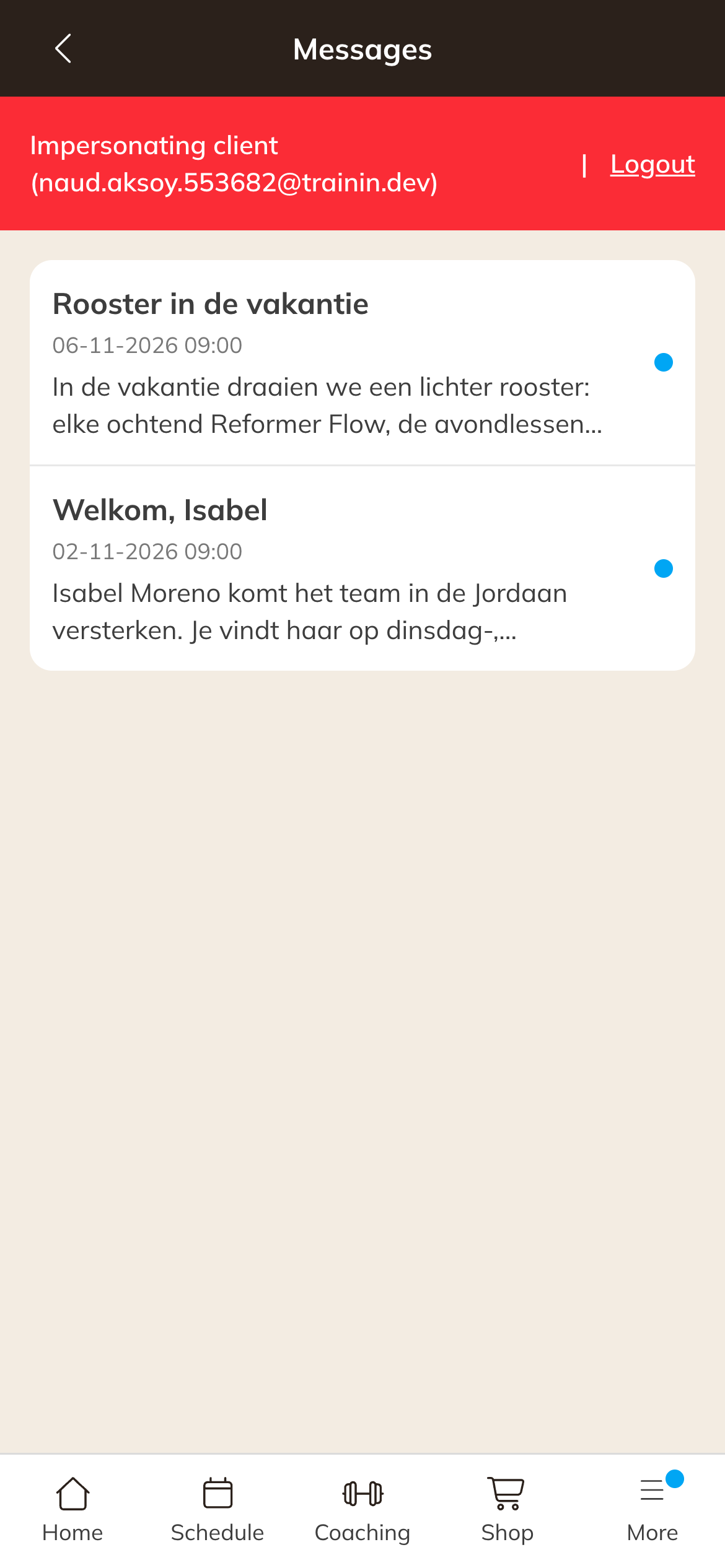
News messages in the Client app
To find out how to send a news message, read Sending a news or dashboard message.
Note: Family members without their own account can't chat. The main account holder chats on behalf of the family.