Follow-up emails go to clients automatically at the right moment. You'll find them under Connect → Follow-up emails. They are available in the Pro and Premium plans.
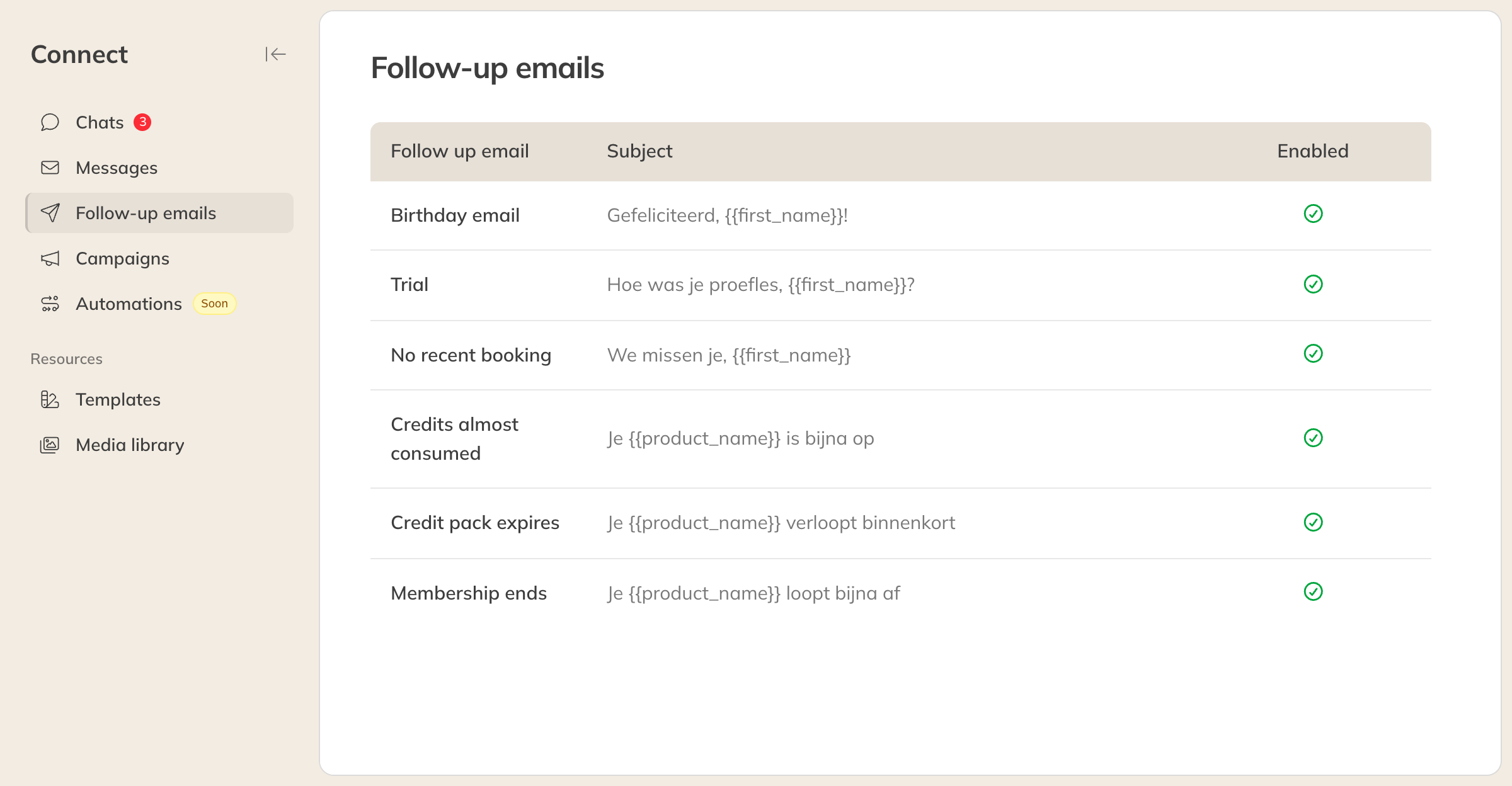
The overview of follow-up emails
The follow-up emails
| Follow-up email | When it's sent |
|---|---|
| Birthday email | On the client's birthday. Every morning at 8:00 Trainin checks whose birthday it is. Only clients who have visited in the past year, or who have an active or future product, get the email. |
| Trial | After the last trial class, once the trial product has been fully used or has expired. The email goes out the next day at 12:00, and only if the client hasn't bought a product yet. |
| No recent booking | When a client with an active product hasn't visited for a number of weeks. You choose after how many weeks (Number of weeks since last visit). Sent at 12:00. |
| Credits almost consumed | When there are only a few credits left on a credit pack. You choose how many (Number of credits left). |
| Credit pack expires | A number of weeks before a credit pack expires (Number of weeks before credit pack expires). |
| Membership ends | A number of weeks before a membership ends (Number of weeks before membership ends). |
Note: The emails about credit packs and memberships only cover products that are sold in the shop.
Turning on and writing a follow-up email
- Click the follow-up email in the overview.
- Turn on the switch at the top, for example Activate birthday email.
- Set the number of weeks or credits if needed.
- Edit the Subject and the Message. There's already a sample text in place.
- Click Save.
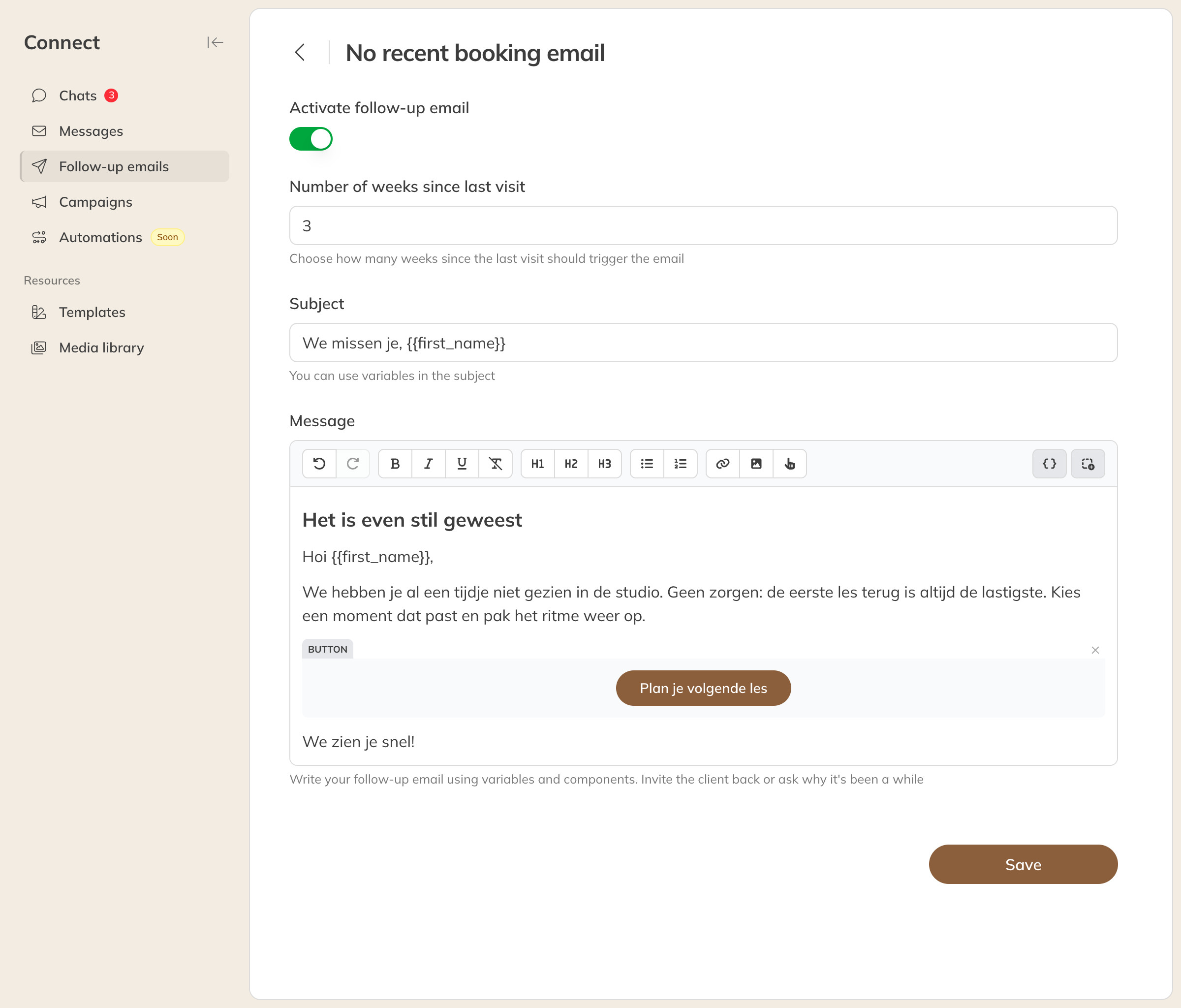
The No recent booking follow-up email
In the message you can:
- format text, use headings and lists and add links;
- add an image using a link (URL) to that image;
- add a button with Add button, for example to your schedule;
- use variables, also in the subject, such as
{{first_name}}for the first name and{{product_name}}for the product.
The emails about credit packs and memberships already include a Default action button that lets the client buy the product again or renew it.
Tip: A discount code in the trial email or birthday email works well. Create it first under your products and mention it in the text.