With campaigns you create and send your own newsletters and promotions, without any other software. Campaigns are new and carry the Beta label. They are turned on in the Premium plan; in the Pro plan they are not on by default yet. You'll find them under Connect → Campaigns.
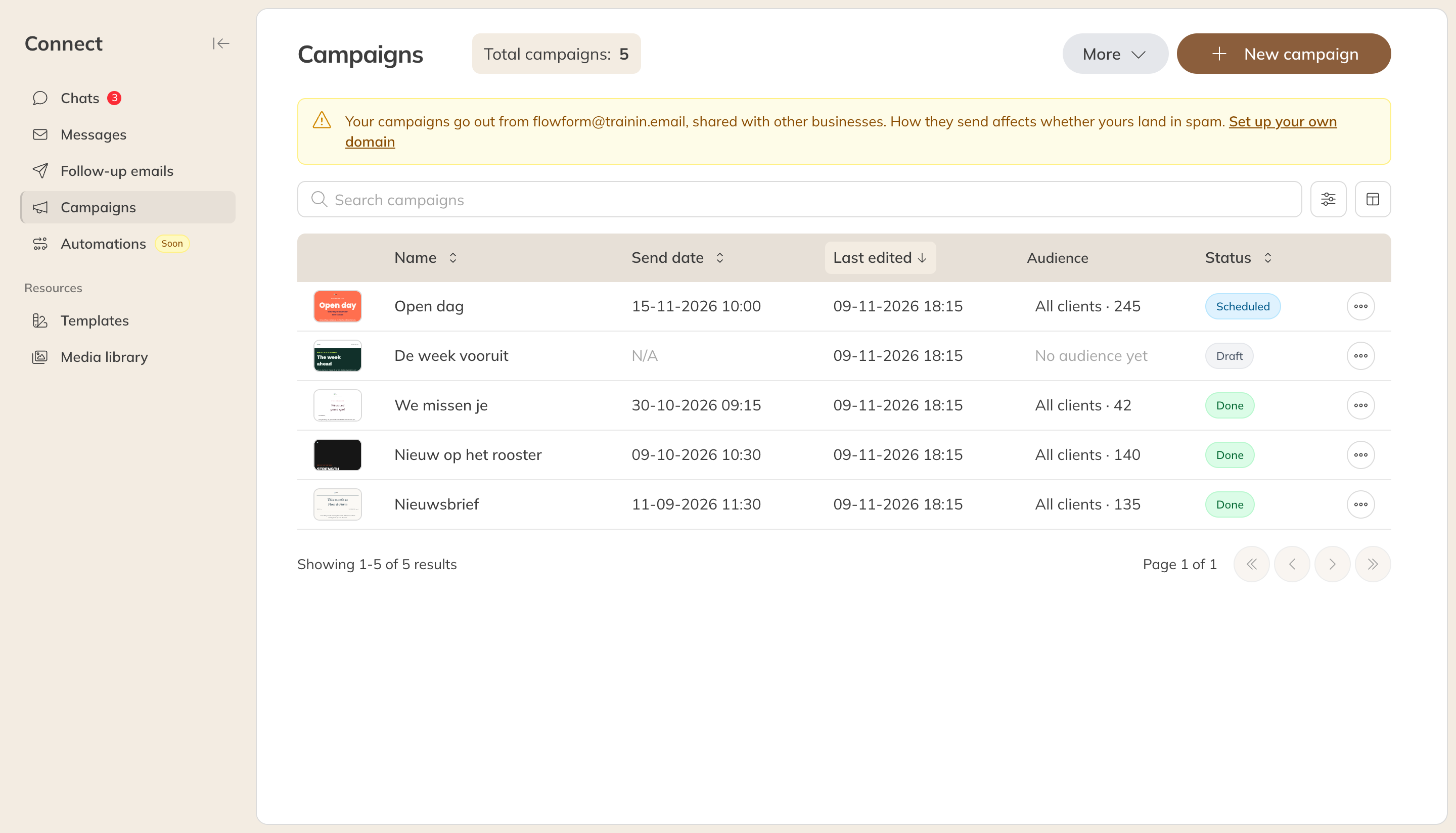
The overview of campaigns
How it works
- Click New campaign. Start with a blank design or with a template.
- Give the campaign a name and choose the type: news, promotions or events. Only clients who want to receive that kind of email get the campaign.
- Design the email in the email builder. Everything is saved automatically.
- When you publish, you fill in the subject and the sender, choose who gets the email, and send it straight away or at a time you choose.
As recipients you can choose all clients, clients in specific groups, clients with a credit product or clients with a particular status. A campaign only goes to clients who have the newsletter turned on and have a valid email address. Before sending, you can see how many clients will get the email, who will be skipped and why.
What the email builder offers
- Blocks you drag into the email: text, heading, image, logo, button, divider, spacer, social media, video and carousel, plus columns to place them side by side.
- Trainin content: blocks that show each client their own details, such as their upcoming bookings or products, and a block for a news message.
- Sections: ready-made parts such as a header, a promotional banner, a class schedule or a footer. Your logo and brand colours are added straight away. You can save a section you've made yourself for later.
- Styles for the whole email: background, font, headings, links and buttons.
- Variables such as the client's first name, the product name, the number of credits or the next booking.
- A preview on desktop and mobile, and a test email to yourself or a colleague.
Every new email gets a footer with your address, an unsubscribe link and a link to view the email in the browser.
Templates and images
Under Templates you'll find Trainin's templates and your own, sorted into categories. Under Media library you store the images you use in your emails.
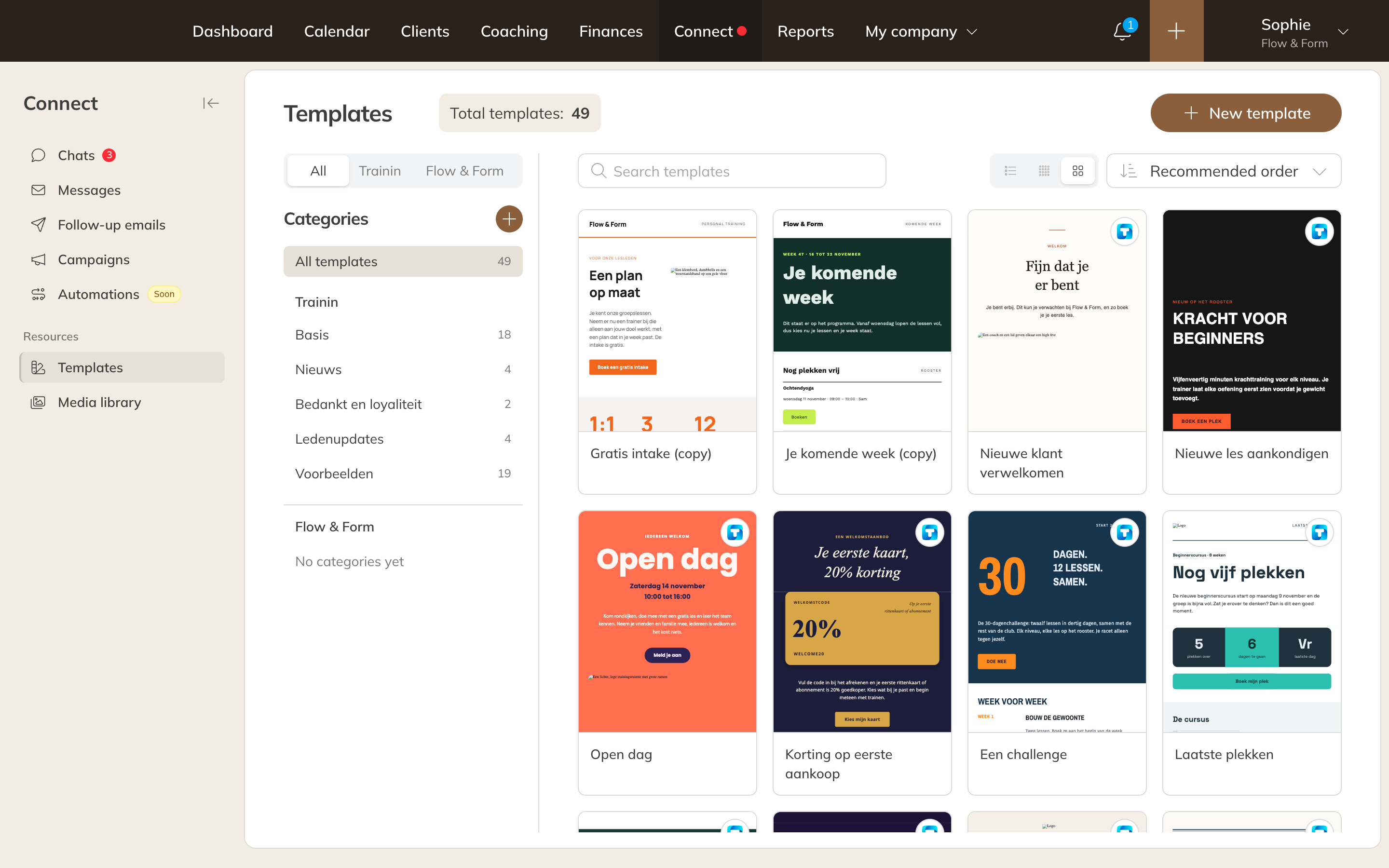
Templates from Trainin and from your own company
Note: By default your campaigns are sent from a Trainin address that you share with other businesses. Through More in the campaign overview you can set up your own domain, so your emails are less likely to end up in spam.
Tip: After sending, you can see a campaign's results, such as how many emails were delivered and opened.