The media library
In the media library you upload your images once and use them in all your emails. Go to Connect → Media library. In the email builder you choose from the same library.
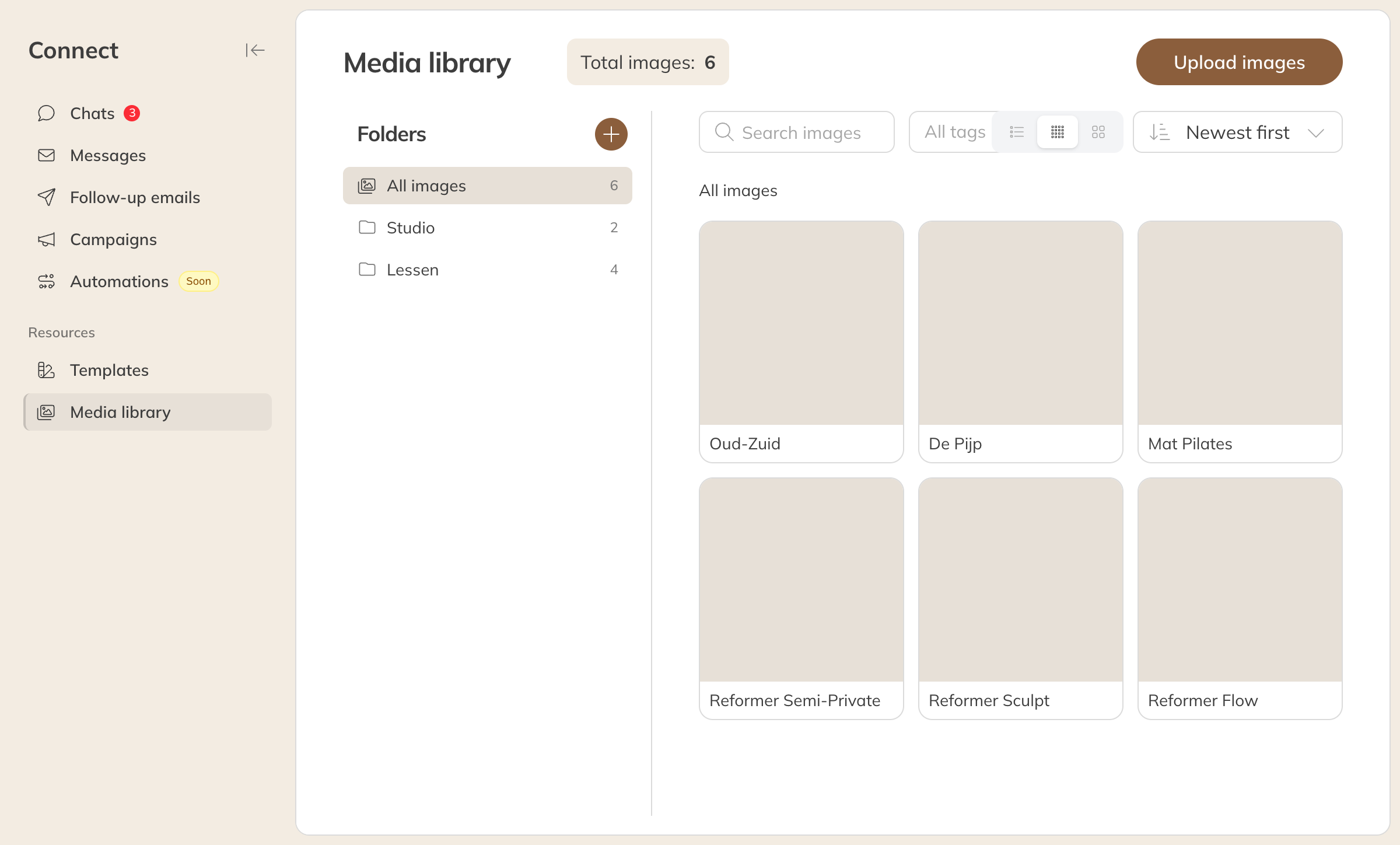
The media library
- Click Upload images.
- Drag your images into the window or choose them from your device. They can be JPG, PNG or GIF files of up to 20 MB each.
- Optionally give them a name, a folder and tags.
If the same image is already in your library, you'll see Already in your library as .... Choose Use existing image, or upload it anyway if you deliberately want it in a second folder.
Organising
- Folders: create a New folder, also inside another folder. An image sits in one folder. Through Image options you move it or rename it.
- Tags: tags group images across folders, for example Spring campaign. Filter with All tags, or change them through Manage tags.
- Search with Search images and choose how you see them: as a list or with small or large previews.
Note: If you delete an image, it disappears from your library. Emails that already use it keep showing it. If you delete a folder, its subfolders are deleted too, but the images in it are kept: they move to the top level of your library.
Campaign results
Go to Connect → Campaigns, click More and choose Statistics. At the top you'll see the totals of all your sent campaigns over the past month, 6 months, 1 or 2 years, with charts of the number of emails sent and the open and click rates. Below that are your campaigns. Click a campaign for the details.
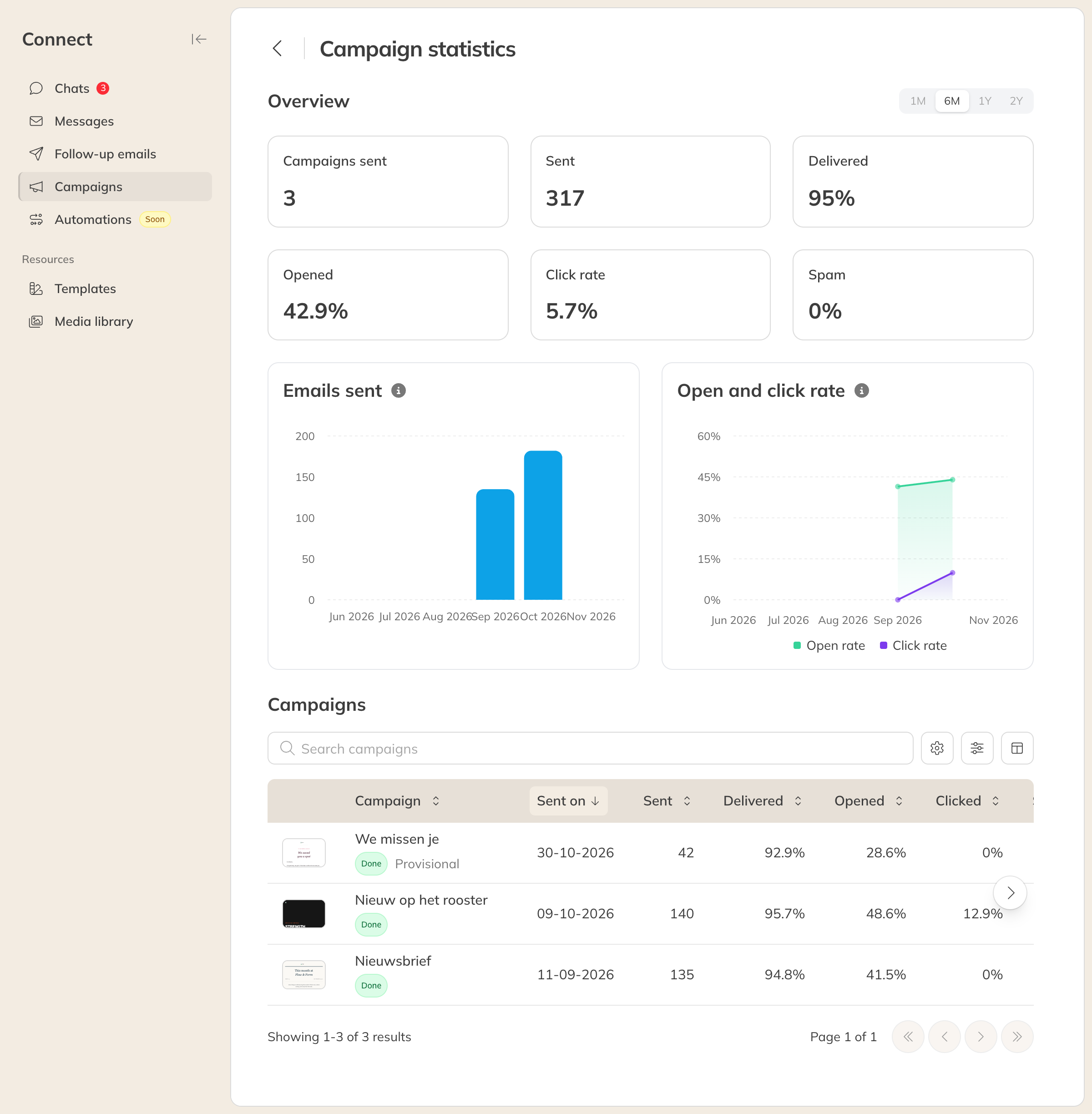
Statistics for all your campaigns
What the figures mean
| Figure | What it means |
|---|---|
| Sent | How many emails were sent |
| Delivered | How many emails reached the client's mailbox. Below that you'll see what Bounced (didn't arrive) and what has No delivery confirmation yet. |
| Opened | How many clients opened the email |
| Click rate | What share of recipients clicked a link |
| Clicks per open | What share of those who opened the email clicked a link |
| Spam | How many recipients marked the email as spam |
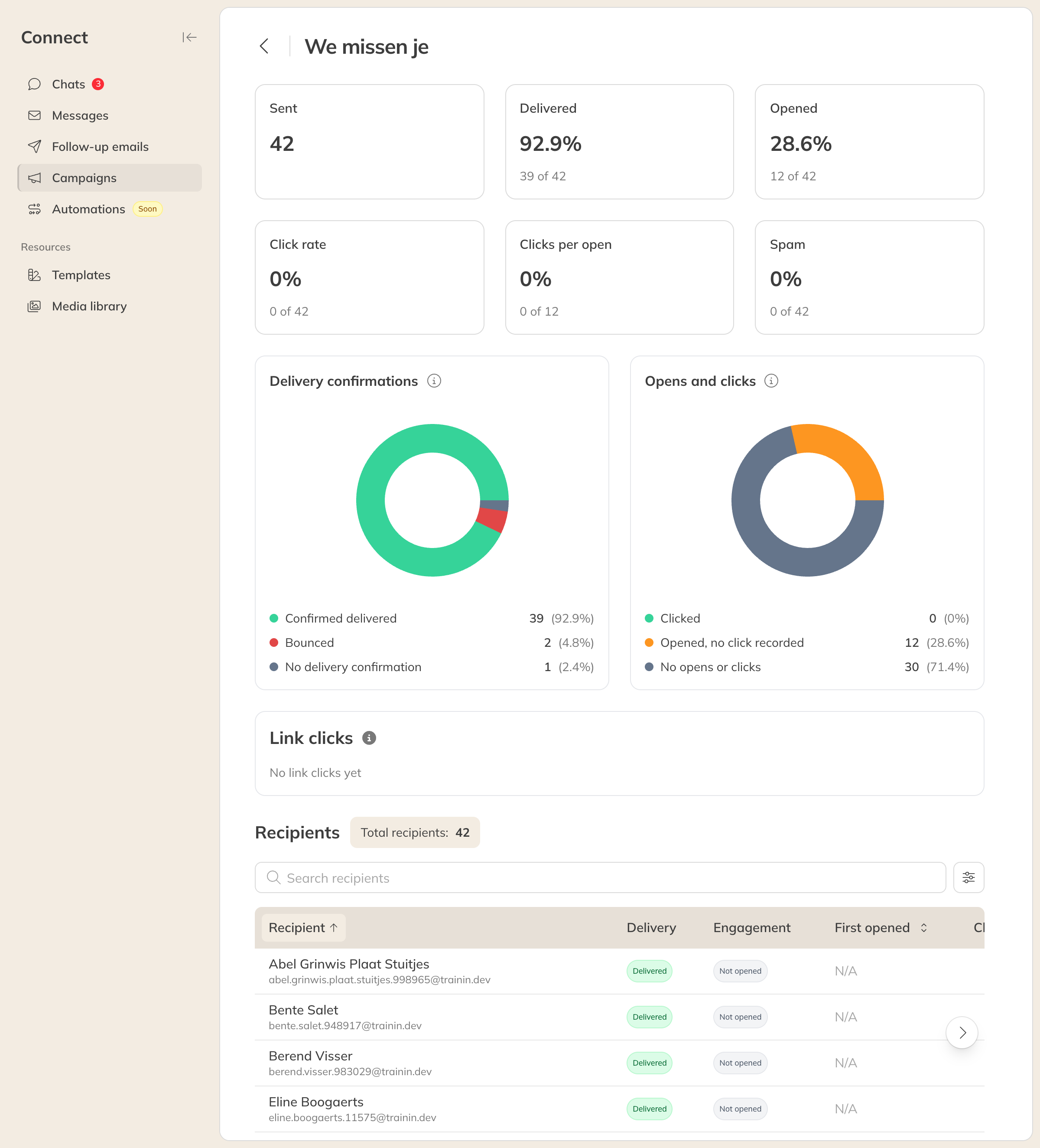
The statistics of a single campaign
Under Recipients you can see for each client whether the email was delivered and opened. With the Engagement add-on you can also see which links were clicked, per link and per client. See Getting more from campaigns with the Engagement add-on.
If the figures aren't complete yet, you'll see Still counting: not all emails have reported their status yet.
Note: If too many recipients mark your email as spam, you'll get a warning. Email providers expect less than 0.10%; from around 0.30%, Gmail and Yahoo may delay or block your emails. In that case, only send to clients who asked for your emails, and make sure the unsubscribe link is easy to find.