You create a workout once and then assign it to as many clients as you like. You find all your workouts in Coaching → Workouts.
Creating a new workout
- Go to Coaching → Workouts and click New workout.
- Fill in the Workout name and click Save. The workout builder opens.
- Add exercises and sections (see below) and click Save.
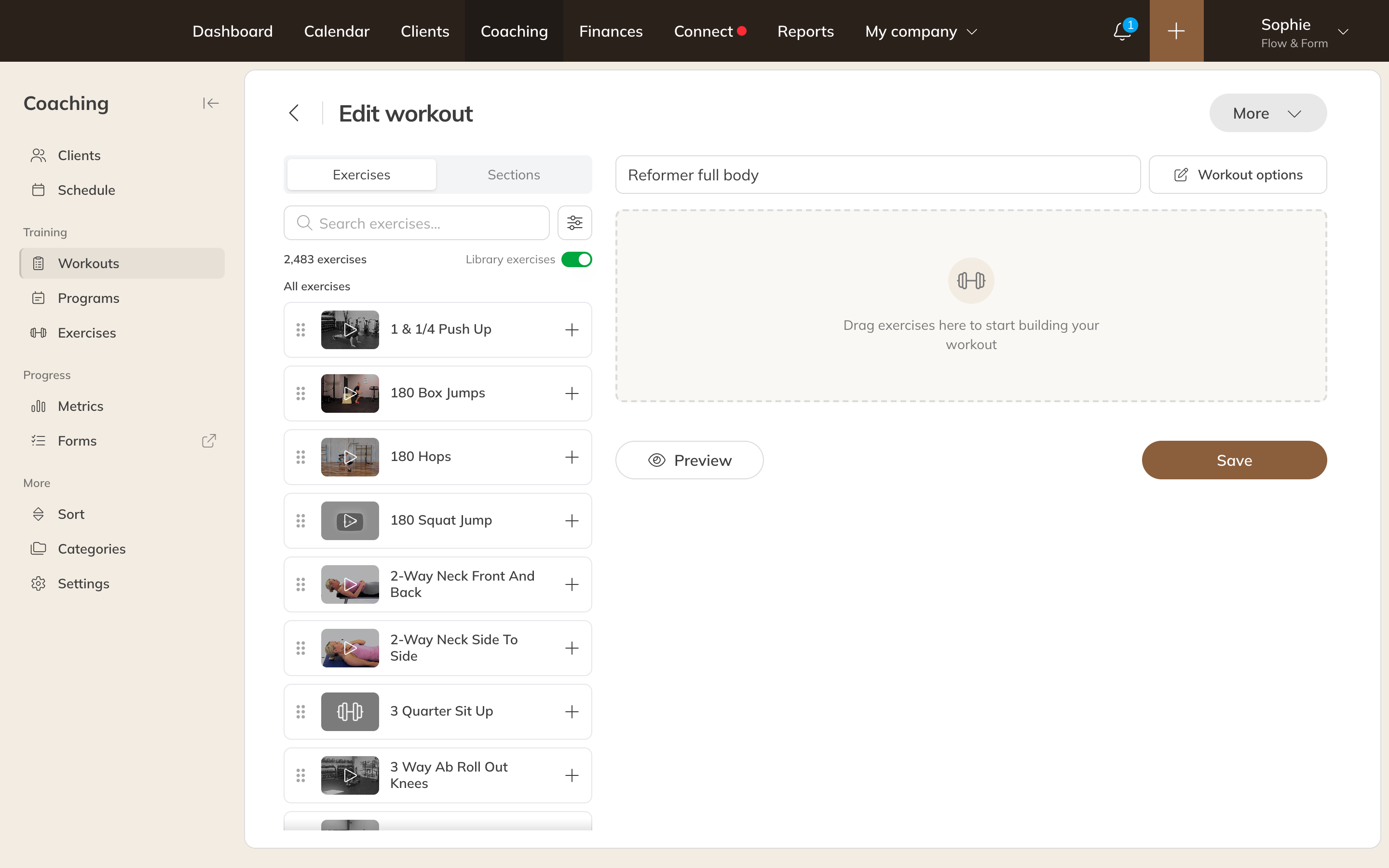
The workout builder
Adding exercises
The exercises are on the left: your own exercises and those from the Trainin library. Search by name or filter by Muscle group, Equipment or Scoring type. Drag an exercise into the workout, or click the + next to the exercise to add it. On a phone, use Add exercises.
For each exercise in the workout you can:
- Add instructions, for example a point to focus on in this workout;
- Set goals: the goal for each set, for example weight and reps, and optionally Rest and Duration. Clear goals removes all goals;
- tick or untick Loggable: whether results are recorded for this exercise;
- duplicate or delete the exercise, and change the order by dragging.
Sections and supersets
With Add section you divide the workout into parts, for example Warm-up, Main set and Cool-down. A section gets a name and, optionally, instructions. Drag the exercises into the section.
Want two exercises done straight after each other? Click Link as superset between the two exercises. Unlink superset separates them again.
Preview shows how the workout looks to whoever logs it.
Workout options
In the list of workouts, click Options → Options next to a workout (or Workout options in the builder). There you set:
| Option | What happens |
|---|---|
| Category | Groups your workouts. You manage categories via Coaching → More → Categories. |
| Client rights | View results, Log themselves and Change exercises. Each option can only be turned on once the previous one is on. |
| Available for all clients | Every client with coaching sees the workout and can log it, without you assigning it. |
| Available to client groups | Every client in the chosen client groups can view and log the workout, as long as they are in the group. |
| Duration and Difficulty | Information for the client. |
| Description for client and Picture | What the client sees with the workout. |
| Description for staff | Instructions only staff can see. |
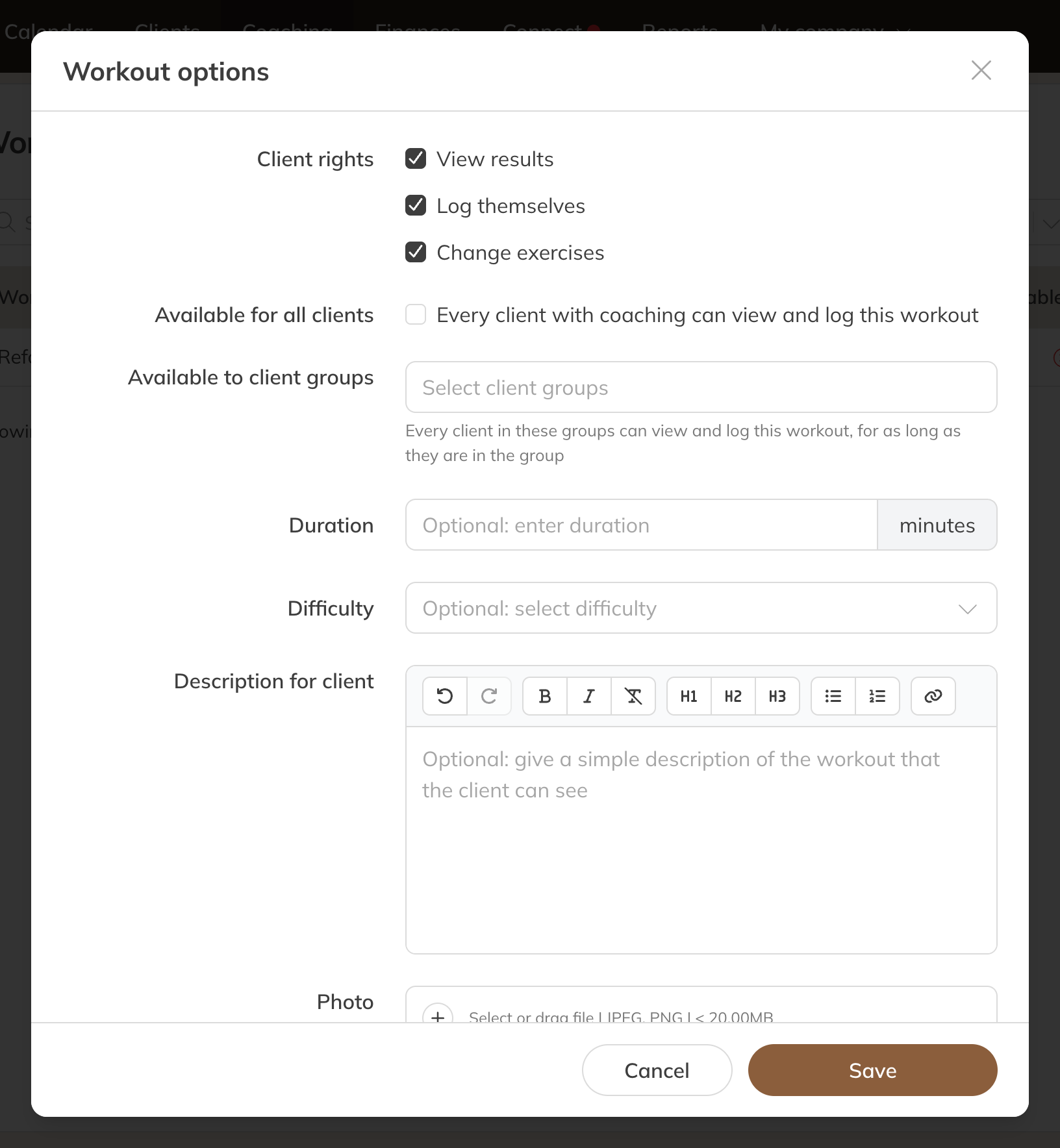
Workout options
Note: If you change the rights of a workout that is available to all clients or to client groups, the change applies straight away. Workouts that have already been scheduled keep their own settings.
Duplicating, printing and sorting
- Duplicate makes a copy, for example as the basis for a variation.
- Print makes a printable version of the workout.
- Via Coaching → More → Sort you set the order of your workouts and programs.
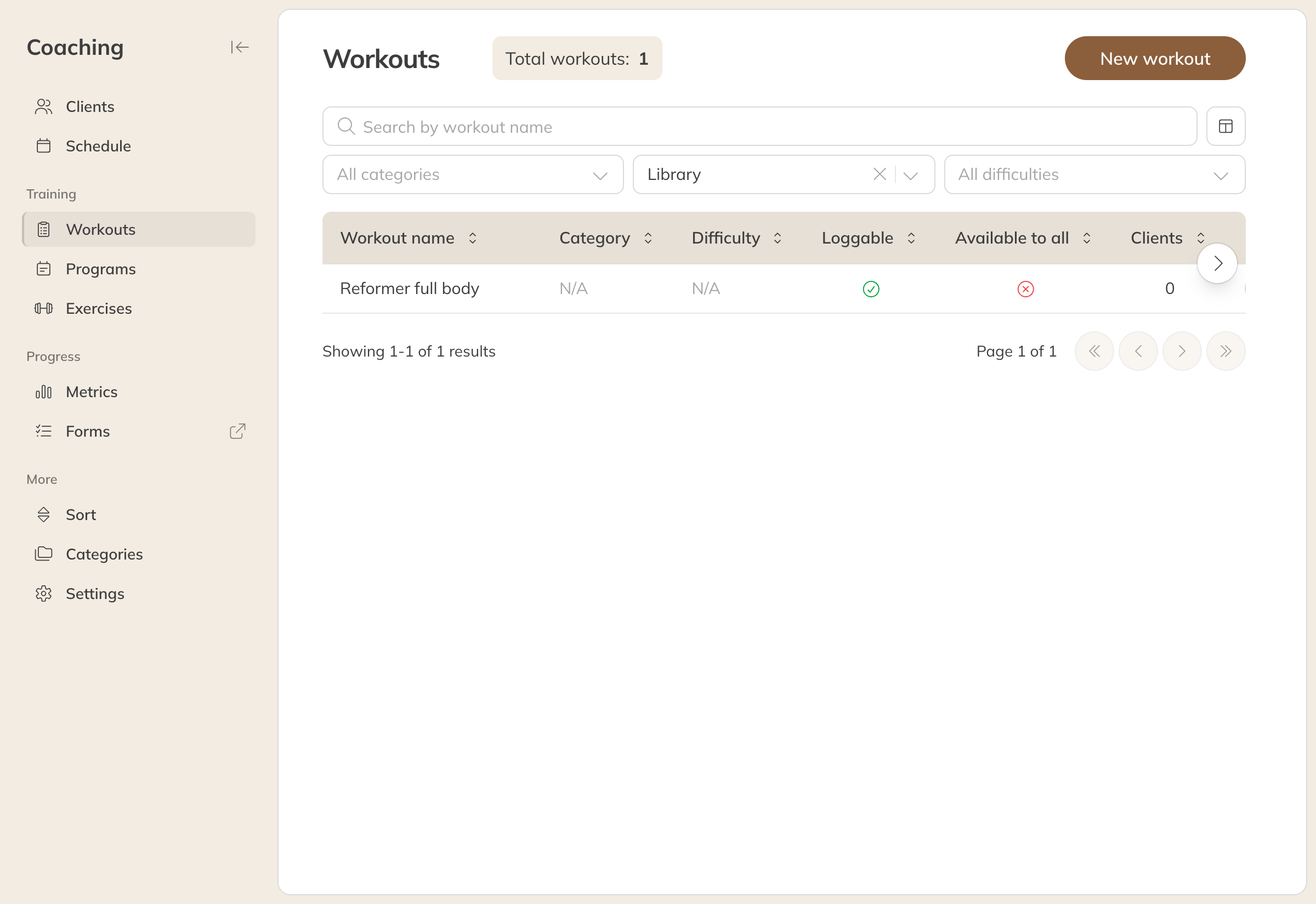
The list of workouts