A program is a plan of several weeks with workouts and forms on fixed days. When you assign it, all workouts and forms are scheduled in one go from the start date.
Creating a program
- Go to Coaching → Programs and click New program.
- Fill in the name and click Save.
- Add workouts or forms to each week: choose Add workout / form or drag them from the panel into a week.
- In the Schedule options window, set the Starting day, whether the item repeats (Every week to Every 4 weeks) and how often (Number of times to repeat).
- Click Save.
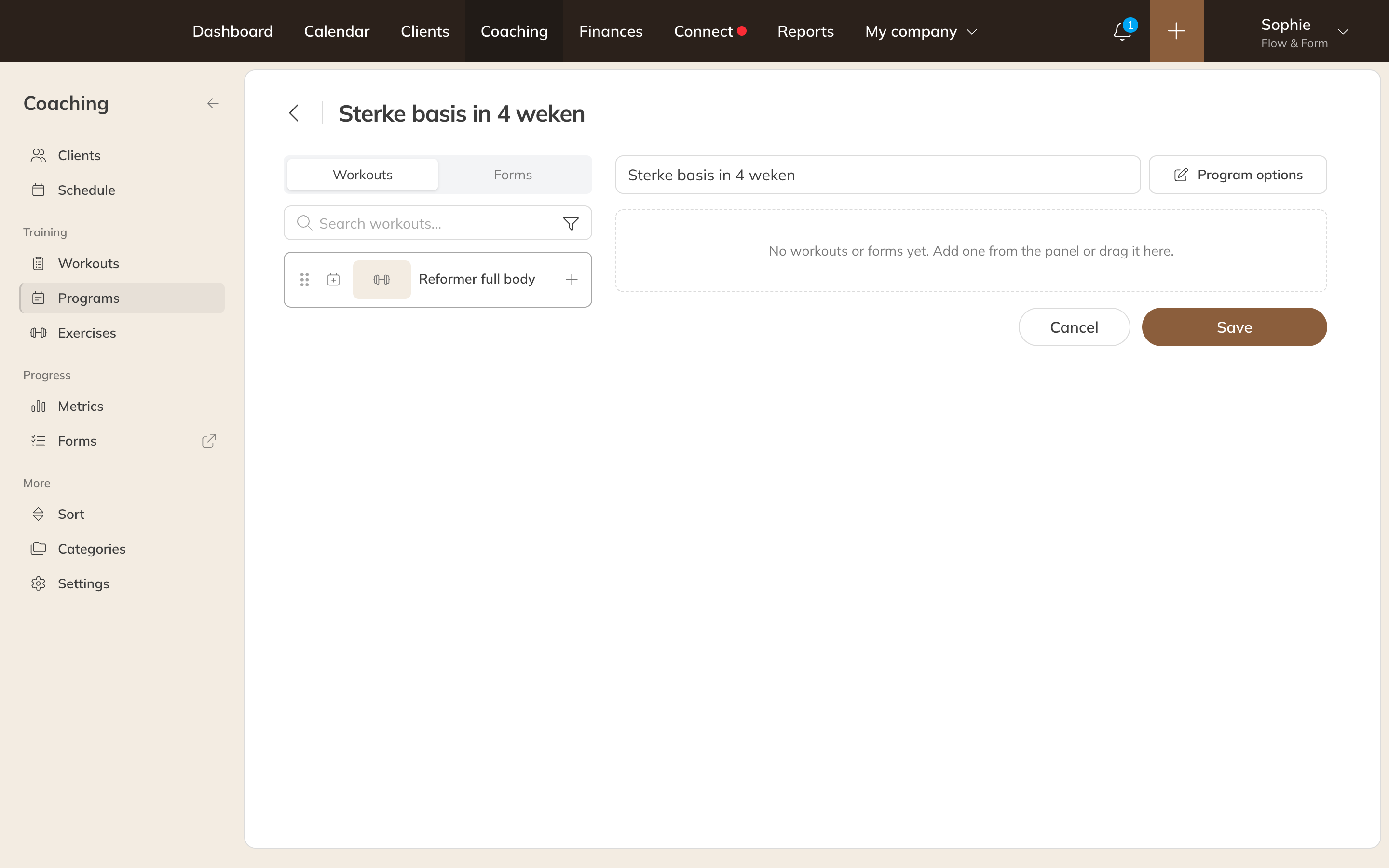
Building a program week by week
Under Program options you enter the Duration in weeks, the Difficulty, a Description for client, a Description for staff and a Picture.
Note: Programs work with coaching forms. If you add a standard form, it becomes a coaching form when you save.
Assigning a program
- In the client's profile, on the Coaching tab, click Assign → Program. Or in Coaching → Schedule, click + on a day and choose Program.
- Choose the Client, the Program and the Start date.
- Click Assign program.
Every workout and form in the program lands on the right day in the client's schedule. In the Client app, the client sees the current program on the Details tab.
Note: Seeing This program has already been assigned from this start date? Then the client already has this program with the same start date. A program without workouts or forms doesn't schedule anything.