Metrics are the body and nutrition values you track for a client, such as weight, body fat percentage or sleep per day. You choose which ones you use. Go to Coaching → Metrics, or from the coaching settings to Manage metrics.
Turning metrics on and off
The metrics are in three groups: Body, Nutrition and General (your own metrics).
- Use the toggle to turn a metric on or off. Only metrics that are on can be filled in by you and your clients.
- Drag a metric by its dots to change the order.
- In the three-dot menu, choose Pin chart to show the metric as a chart in the client's coaching profile. A pinned chart has a pin icon.
Your changes are saved straight away.
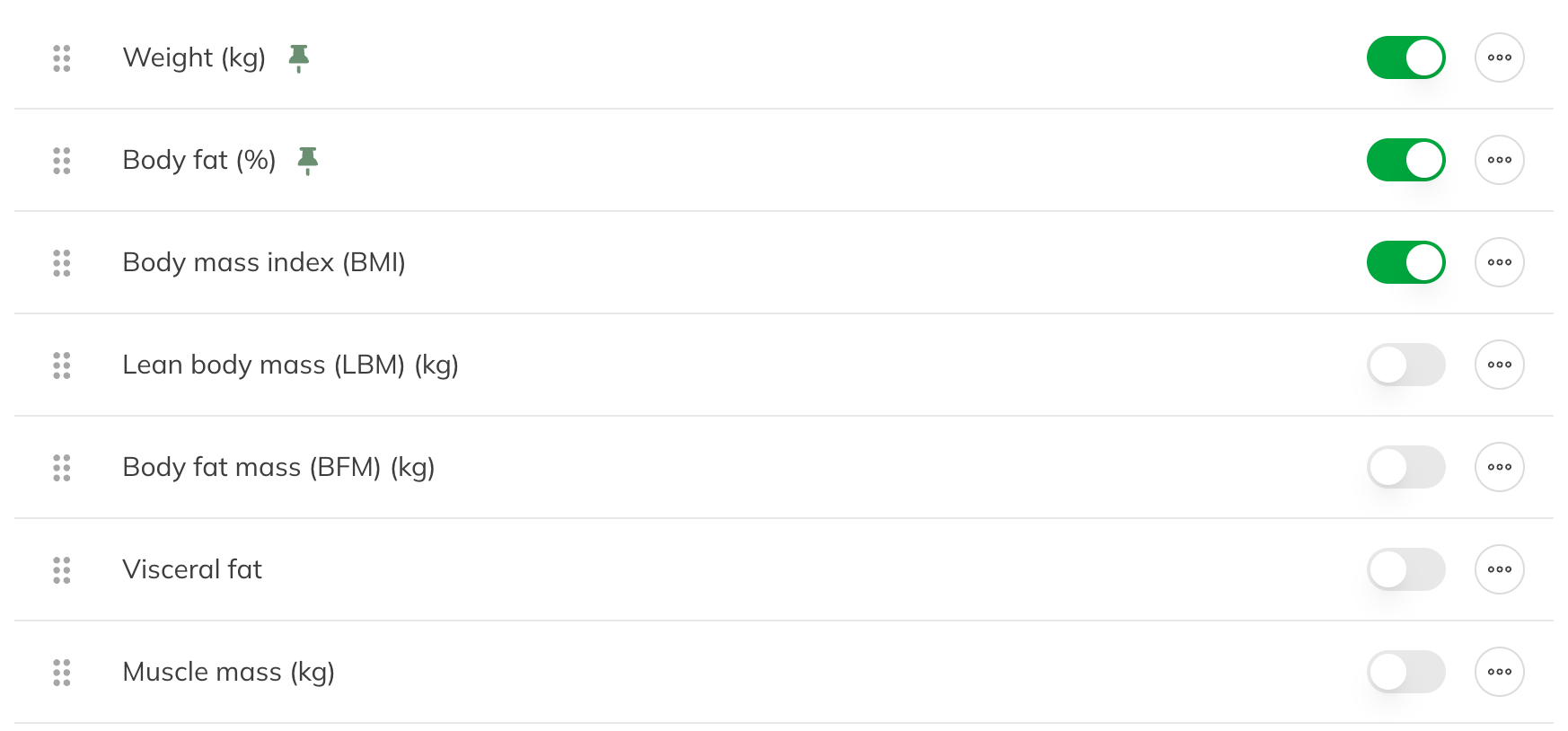
Turning on metrics and pinning charts
Creating your own metric
Want to track something that isn't in the list, such as energy level or sleep quality? Click New metric.
| Field | What you fill in |
|---|---|
| Name | For example Energy level. Two active metrics can't have the same name. |
| Kind of value | Number, Decimal, Integer, Percentage, Duration, Rating (such as 7 out of 10), Scale (such as 1 to 5) or Yes or no. Under How a value reads you see an example. |
| Unit | Only for a number. The unit is just a label: nothing is converted. |
| Decimal places and Limit values | How many decimal places, and the Lowest value and Highest value that can be entered. These are required for a rating or scale. |
| Group | Where the metric appears: under body, nutrition or general. |
Note: Once measurements have been recorded, you can no longer change the kind of value. You can only delete a metric as long as nothing has been measured and no form uses it. A metric with measurements can be removed from the lists; the old measurements then stay visible.
Tip: You can also add metrics to a form: the client's answers are then saved as measurements. See Tracking intake and progress with forms.