Forms let you ask for information, for example at an intake. A coaching form can also contain metrics: the answers are then saved as measurements for the client, so you see the progress in the charts.
Creating a form
- Go to Forms (in Coaching: Coaching → Forms) and click New form.
- Fill in the Form name, for example Intake form. Under Type, choose Coaching if you want to record measurements, otherwise Default.
- Add fields and click Save.
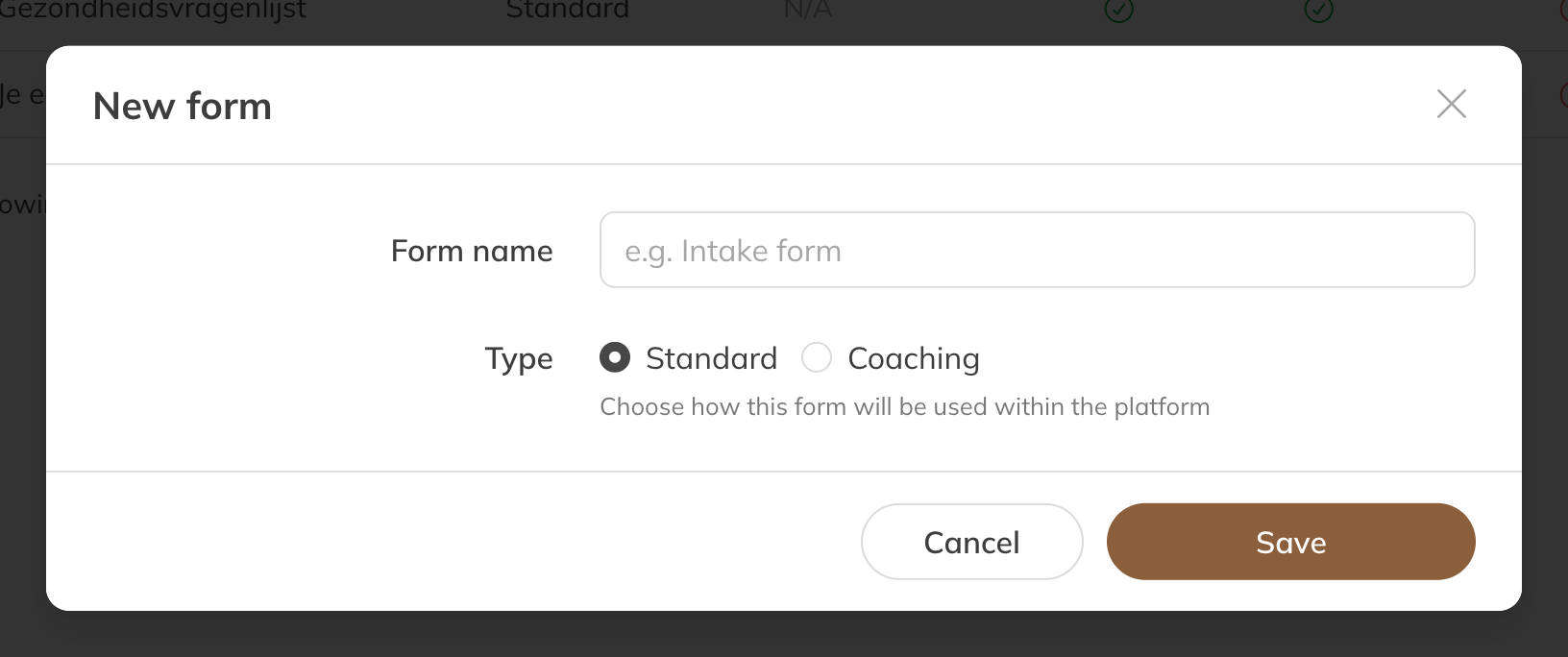
Creating a new form
You can use these kinds of fields:
- Header and Description: to structure and explain the form;
- Short answer, Long answer and Number;
- Yes/No field and Checkbox;
- Dropdown and Radio buttons: the client picks one of the options;
- in a coaching form, also your metrics, under Your metrics.
In the form options you choose what the client can do: View answers, Fill out themselves and Change answers after submitting. Duplicate quickly makes a second, similar form.
Note: Measurements in forms are part of coaching. If coaching is off, you can't add metrics to a form.
Assigning a form
- Open the client's profile, go to the Coaching tab and click Assign → Form.
- Choose the form and Scheduled (on a date) or Available anytime.
- Under Client can, choose what the client can do, and whether you want to notify the client.
A standard form then appears under Forms in the client's profile, not under Coaching.
Filling in the form
- You fill it in: open the form in the client's profile and fill it in. If the client isn't allowed to fill it in themselves, they only see it in the app once you have filled it in.
- The client fills it in: the client finds it in the Client app under Forms.
Answers to metrics are saved as measurements for the client and appear in the charts.