With access control, clients check themselves in at the door with a QR code, barcode, tag or code. Trainin then checks whether the client has a booking or a valid product and marks them as attended.
Which type of access control?
There are four options. Your business can use one at a time.
| Option | How clients get in | What you need |
|---|---|---|
| Trainin check-in | The client scans a QR code, barcode or tag at the Trainin check-in screen. | A tablet with the check-in screen and a scanner. See Setting up a check-in screen. |
| SALTO KS | The client gets a mobile key in SALTO KS when they have a booking. | A SALTO KS account and SALTO KS locks. |
| Passcode | The client gets a numeric access code. | An access system that works with codes. |
| External QR | The client shows a QR code; an external access system checks it. | An external access system with its own API URL. |
Having access control switched on
Access control isn't available in the Starter plan. In Pro it's an add-on, and in Premium it's included in your plan. Either way, Trainin switches it on for you: contact Trainin and tell us which option you want.
- Go to My company → Integrations and under Access control choose Check-in.
- If you see an information page, access control isn't switched on for your business yet. Contact Trainin.
- Once Trainin has switched it on, you'll see a button to activate the option, such as Activate check-in, Activate SALTO KS access, Activate passcode access or Activate external QR access. Click it.
- You'll then see the settings for that option. Adjust them and click Save.
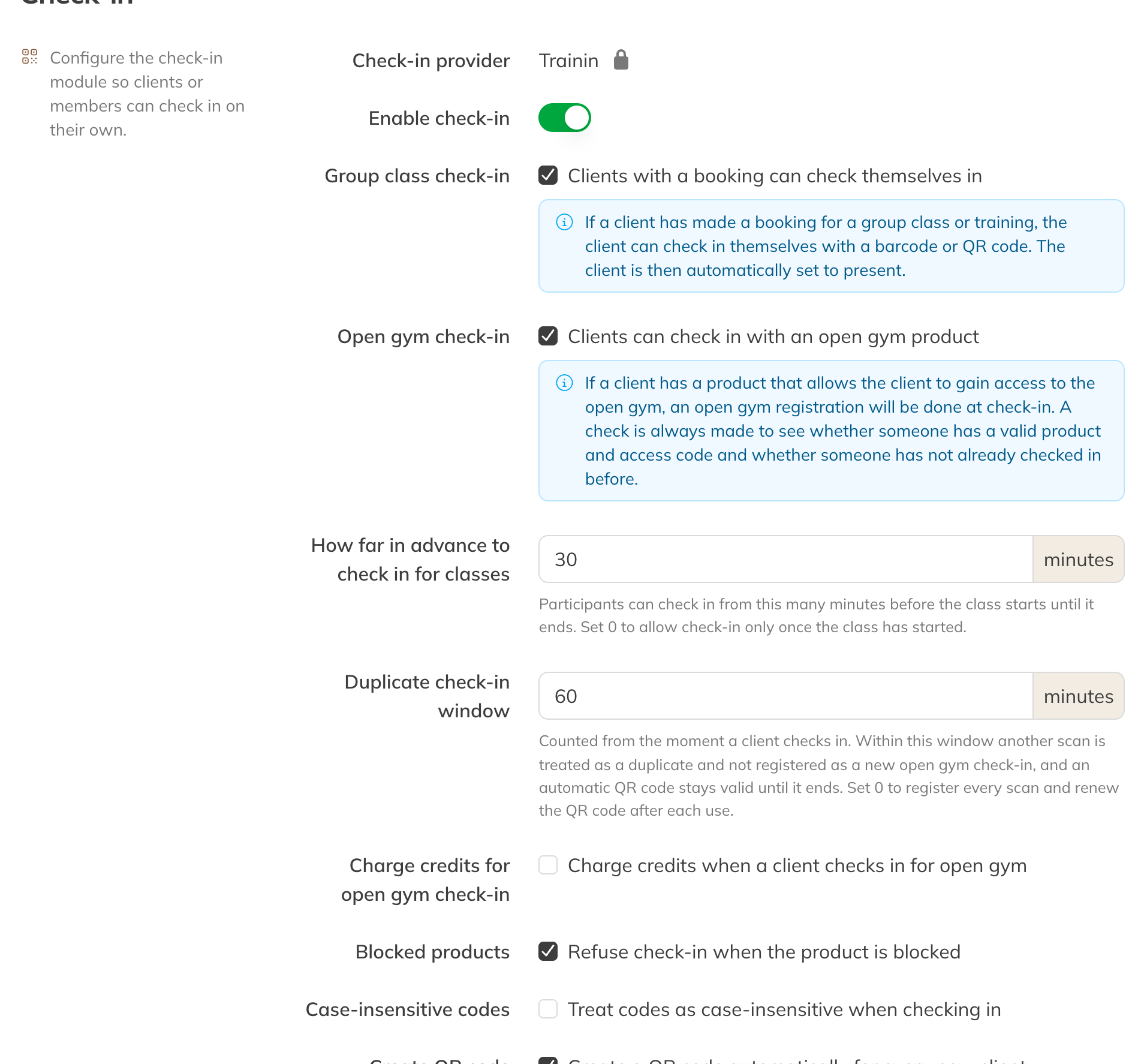
The Trainin check-in settings
Note: For this page you need the permission Access to check-in configuration. By default the owner has it.
Setting up Trainin check-in
| Option | What happens |
|---|---|
| Enable check-in | Turns check-in on or off. When it's off, nobody can check in. |
| Group class check-in | A client with a booking for a group class or training checks themselves in and is marked as attended. |
| Open gym check-in | A client with an open gym product can check in without a booking. An open gym visit is then registered. Trainin unlocks this option for you; if it's greyed out, contact Trainin. |
| Share code/tag with family members | Only if you use family accounts. Family members check in for their group classes with one code or tag. For open gym, each family member needs their own code or tag. |
| How far in advance can you check in? | How many minutes before the start of the class, until it ends, an attendee can check in (0 to 240). With 0, check-in is only possible once the class has started. |
| Duplicate check-in window | Within this number of minutes after a check-in, a new scan counts as a duplicate and isn't registered again as an open gym visit. With 0, every scan counts, and for open gym credits are deducted every time. |
| Deduct credits for open gym check-in | Deduct credits for an open gym visit. At Credits per open gym check-in you choose how many (0.5 to 100). |
| Blocked products | Refuse check-in if the client's product is blocked. Turn this off if a block should only stop new bookings. |
| Case-insensitive codes | For tags: turn this on if your scanner sometimes sends codes in capitals and sometimes in lower case. |
| Create QR code automatically | Every new client gets a QR code. Existing clients don't; contact Trainin for that. |
| QR code format | Only change this if your scanner can't read a full QR code. A shorter code is easier to read, but also easier to guess. |
| Welcome message, Confirmation message and Info message | The texts on the check-in screen. In the confirmation message you can use variables, such as the client's first name. |
| Show profile photo | Show the client's photo once they've checked in. |
Note: If you change the QR code format, every client gets a new QR code when you save. The old one stops working immediately; the new one appears when the client opens their code again.
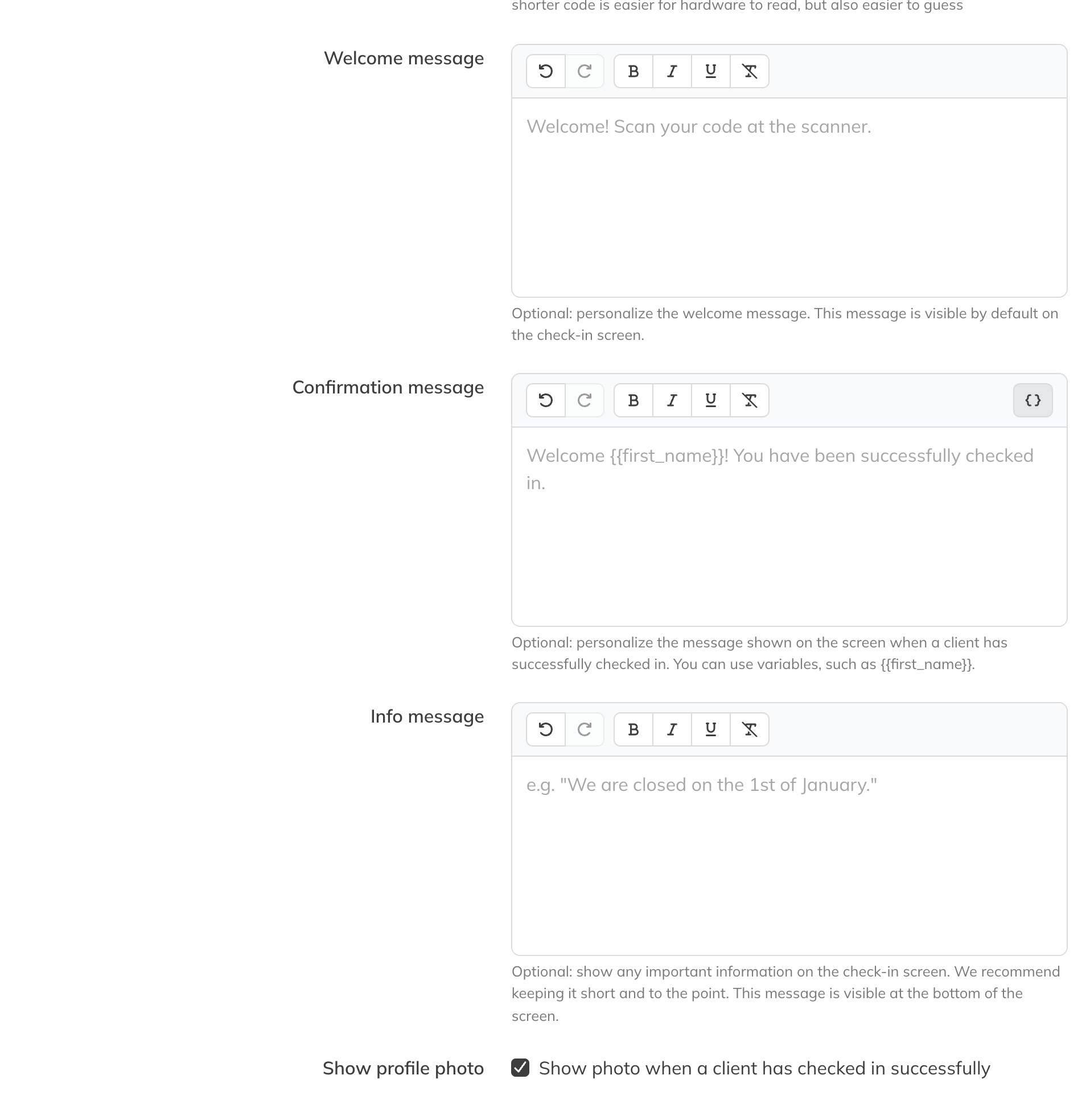
The messages on the check-in screen
What happens when someone scans
With every scan, Trainin first looks up who the code belongs to. Then:
- A booking for a class. If the client has a booking for a class that falls within the check-in window, they're checked in for that class and marked as attended. No extra credits are deducted: they were already deducted at booking. If the client has several classes, a class at this location comes first, then the earliest one.
- Already checked in. If the client already checked in within the duplicate check-in window, they see You're already checked in.
- Open gym. If open gym check-in is on, Trainin looks for a product of the client's they can check in with, and registers an open gym visit on that product.
Which product an open gym visit uses
Only products with Open gym? switched on count. You'll find that option on the product under My company → Products, and it only appears when open gym check-in is on.

A product for open gym
If the client has several such products, Trainin chooses in this order:
- First a Membership, then a Day/week pass, then a Credit pack, then a Single session.
- Within the same kind of product, the product that expires first.
The product must be valid on that day and the visit must fit on it: there must be enough credits on it, or for a membership with a limit per period, that limit must not have been reached yet. An ended product doesn't count. If the visit doesn't fit on any product, the client is refused.
If you deduct credits, the set number of credits is taken from that product. If you don't deduct credits, the client still needs an open gym product, but nothing is deducted.
Why a client is refused
The check-in screen shows the client what's wrong. The most common messages:
| Message | What it means |
|---|---|
| Code not recognised | The code doesn't belong to any client. |
| Code has expired | The QR code has already been used or is older than 24 hours. The client opens the app for a new code. |
| Too early to check in | The client has a class today, but the check-in window isn't open yet. |
| No booking found | The client has no class to check in for, and open gym is off. |
| No active membership | The client has no product for open gym. |
| No credits left | The client does have an open gym product, but the visit no longer fits on it. |
| Membership blocked | The open gym product is blocked and Blocked products is on. |
| Your booking is at a different location | The client's class is at a different location from this check-in screen. |
Refused check-ins from known clients appear in the overview with the status Failed. See Viewing check-ins.
SALTO KS, Passcode and External QR
- SALTO KS: click Connect SALTO KS and log in with your SALTO KS account. Use Sync data to fetch your sites and template access groups. Set how long before and after the start a client with a booking gets access, and whether Trainin automatically creates a mobile key when someone books. A template access group in SALTO KS must have a name that starts with TRAININ - TEMPLATE.
- Passcode: choose whether every new client automatically gets an access code and how many digits it has (4 to 10).
- External QR: enter the API URL of the external access system. Choose whether every new client automatically gets a QR code, whether you also want to use tags, and whether only clients with an active check-in product get access.
Note: There are no examples of these three options in the demo. If you're unsure about your settings, contact Trainin.