How to Add Your (or Your Team’s) Tasks in the Schedule
Estimated Reading Time: 5 minutes
Applies to: All Plans
Quick Summary
You can add internal tasks to your Schedule to organize your own work or your team’s responsibilities.
Tasks allow you to plan internal work and block time in your calendar without creating bookable Activities for clients.
Why This Matters
Not everything in your day is a client booking.
Adding tasks to your Schedule helps you keep your planning clear and prevents time conflicts with Activities that clients can book.
Step by Step Instructions
Step 1: Open your calendar: Schedule
– Go to your Schedule to view and manage your calendar.
Step 2: Create a new calendar item: Schedule > Select Start date
– Select the desired start date in your Schedule to create a new calendar item.
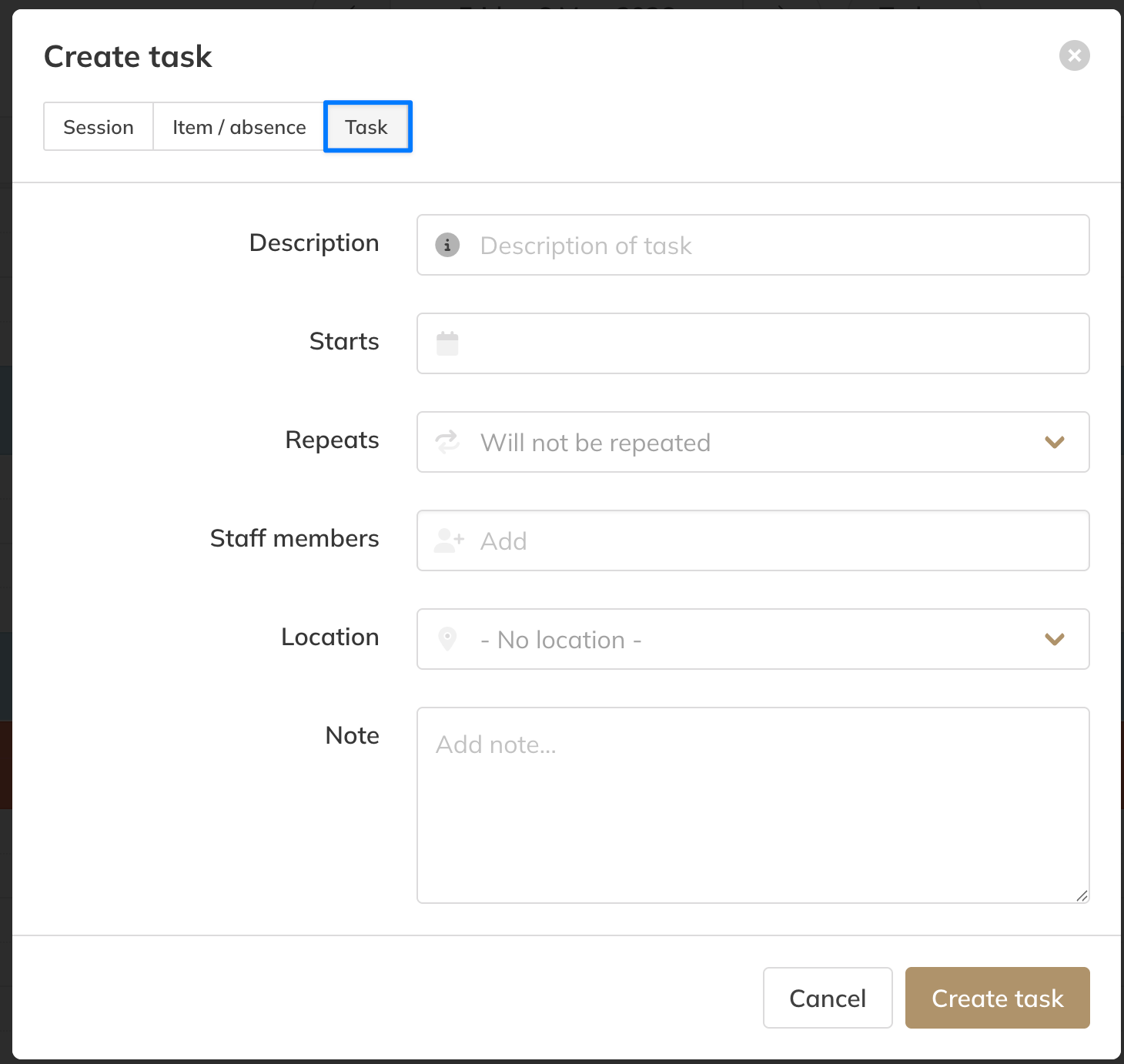
Step 3: Select the task type: Schedule > Calendar Item > Task
– Choose the option to create a Task instead of a client Activity.
Step 4: Add task details: Schedule > Task > Title and Description
– Enter a clear title and description so you or your team understand the purpose of the task.
Step 5: Set the time of the task: Agenda > Task > Starts on > Repeats
– Set the start date to block availability during that period. Also indicate whether the task should recur in the agenda.
Step 6: Assign the task to a team member and a location: Agenda > Task > Employees > Location
– Select the appropriate team member if the task needs to be assigned to someone within your team. Also specify the location where the task will take place.
Step 7: Save the task: Schedule > Create task
– Save the task so it appears in the Schedule and blocks that time slot.
Step 8: Mark the task as completed: Schedule > Task > Mark as Done
– Once the task is finished, open it and mark it as completed to keep your planning organized.
Best Practice
Use clear and specific task names.
This helps your team quickly understand what needs to be done without opening the task details.
Common Questions
Can clients see my tasks?
– No. Tasks are internal and do not appear as bookable Activities.
Do tasks block time in the Schedule?
– Yes. Tasks block the selected time slot to prevent double bookings.
Can I assign tasks to my team members?
– Yes. You can assign a task to a specific team member.
Can I create recurring tasks?
– If a task repeats regularly, you can create multiple tasks in advance to plan the work.
Where can you find the open tasks?
– You can find an overview of outstanding tasks on your dashboard, where you can also mark them as completed, and view and complete them per day in the calendar.
If you would like to know more about our Pro, Premium or Add-Ons, send us an email to support@trainin.com.
Related Articles
– How to Set Business Hours and Block Holidays in the Calendar
– How to add activities to your schedule to let customers book