How to Pause a Membership
Estimated Reading Time: 4 minutes
Applies to: All Plans
Quick Summary
You can pause both the ongoing and fixed-term Memberships in Trainin. When a Membership is paused, the client will not receive new credits for that period and you can choose if they can still make bookings with their remaining credits during the pause period or not. You can also choose to pause the payments by skipping a period or adjusting the amount manually.
Why This Matters
Pausing a Membership allows you to temporarily freeze a membership for clients who are on holiday, injured, or unable to attend for a certain period of time.
This ensures that Credits and payments align with the time the client is actively using the Membership.
Step by Step Approach
Step 1: Search for the client in question, open the client profile: Clients > Client Profile
Step 2: Open the products tab: Client Profile > Products
– This section shows all Products assigned to the client.
Step 3: Open the product options of the product you want to pause: Client Profile > Products > Options Button (3 dots) or click on the product in question
– Use the options menu next to the Membership you want to manage / open the membership by clicking on it to see all options
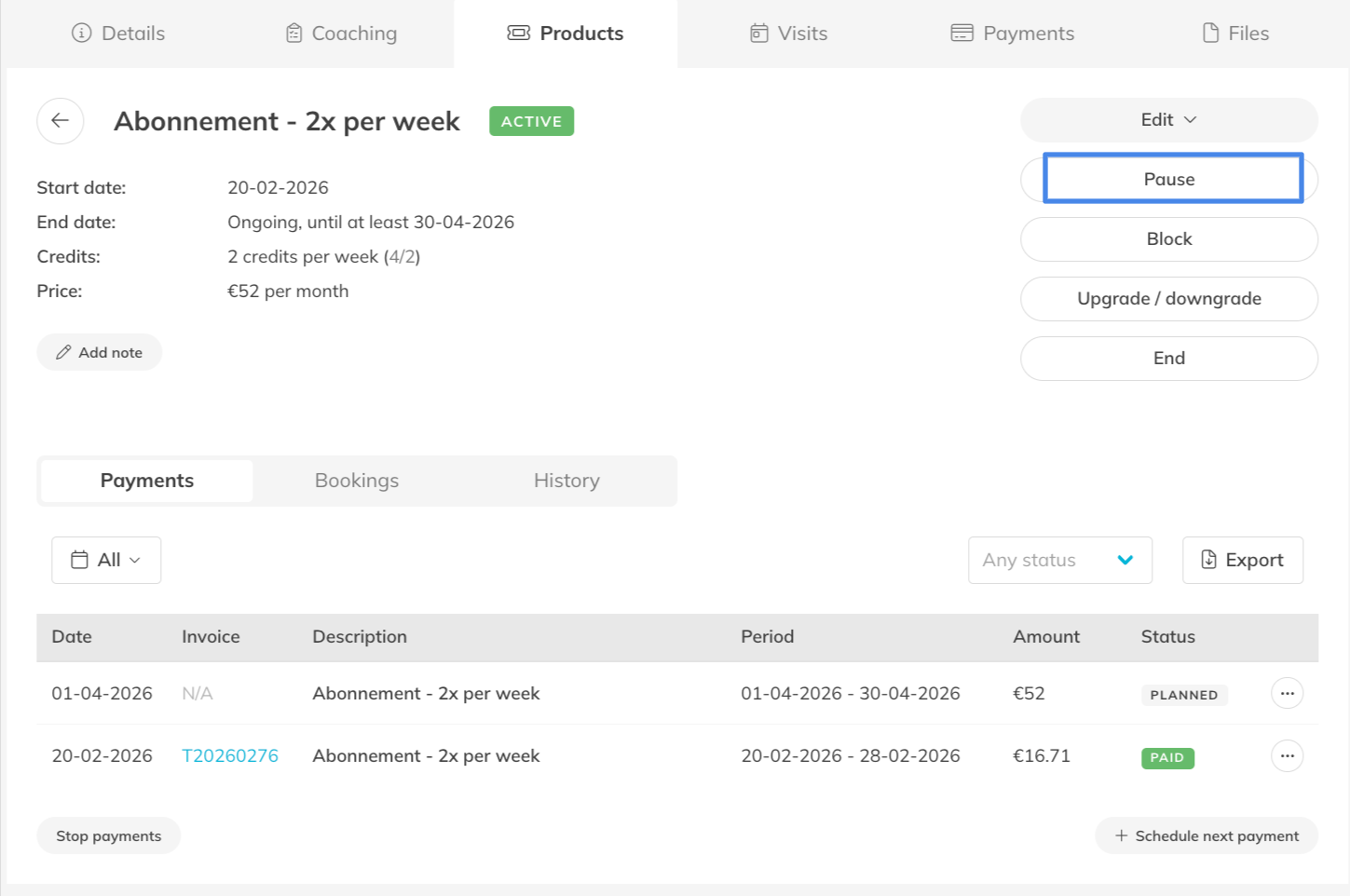
Step 4: Pause the Membership: select ‘Pause’ from the different options
Step 5: Choose the pause type that corresponds with your needs.
– We recommend choosing ‘payment period’ as this option pauses both the credits and the payments at the same time.
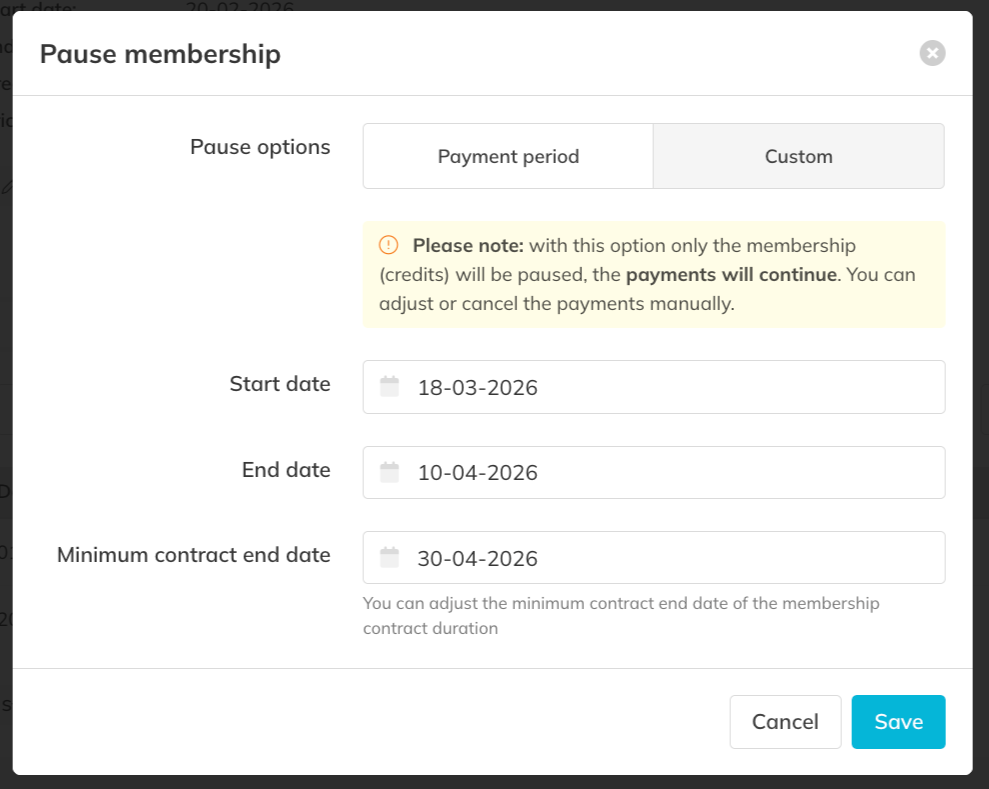
- You can also select the custom option but with this option you will have to pause the credits first (by selecting the dates of the pause period) and then manually adjust the payments after (this option consists of 2 steps).
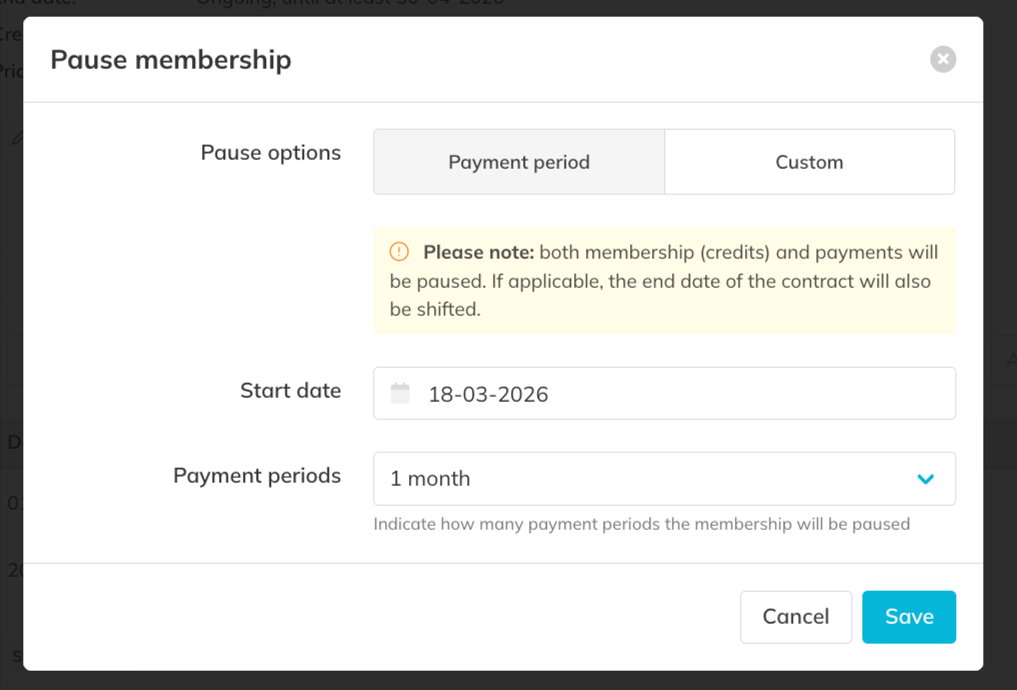
Pause Option 1: Based on Payment Period
Choose this option if you want to pause a Membership for one or more payment periods. Depending on the product settings this will correspond to a multiple of the payment period, for example 1 month, 2 months, 3 months or 4 weeks, 8 weeks, 12 weeks etc.
You will see the following fields:
Start date: Select the date when the Membership pause should begin.
Payment periods: Define how many payment periods the Membership should be paused. It will skip an equal number of payments i.e. 3 months = 3 payments
When a Membership is paused for a payment period, the next payment date will shift forward. If applicable, the contract end date will also move accordingly.
Important: If the pause period has already started and the payment is already being processed, that payment will not be postponed, but the next one will.
Same accounts for a payment that has already been received, it will then skip the following payments.
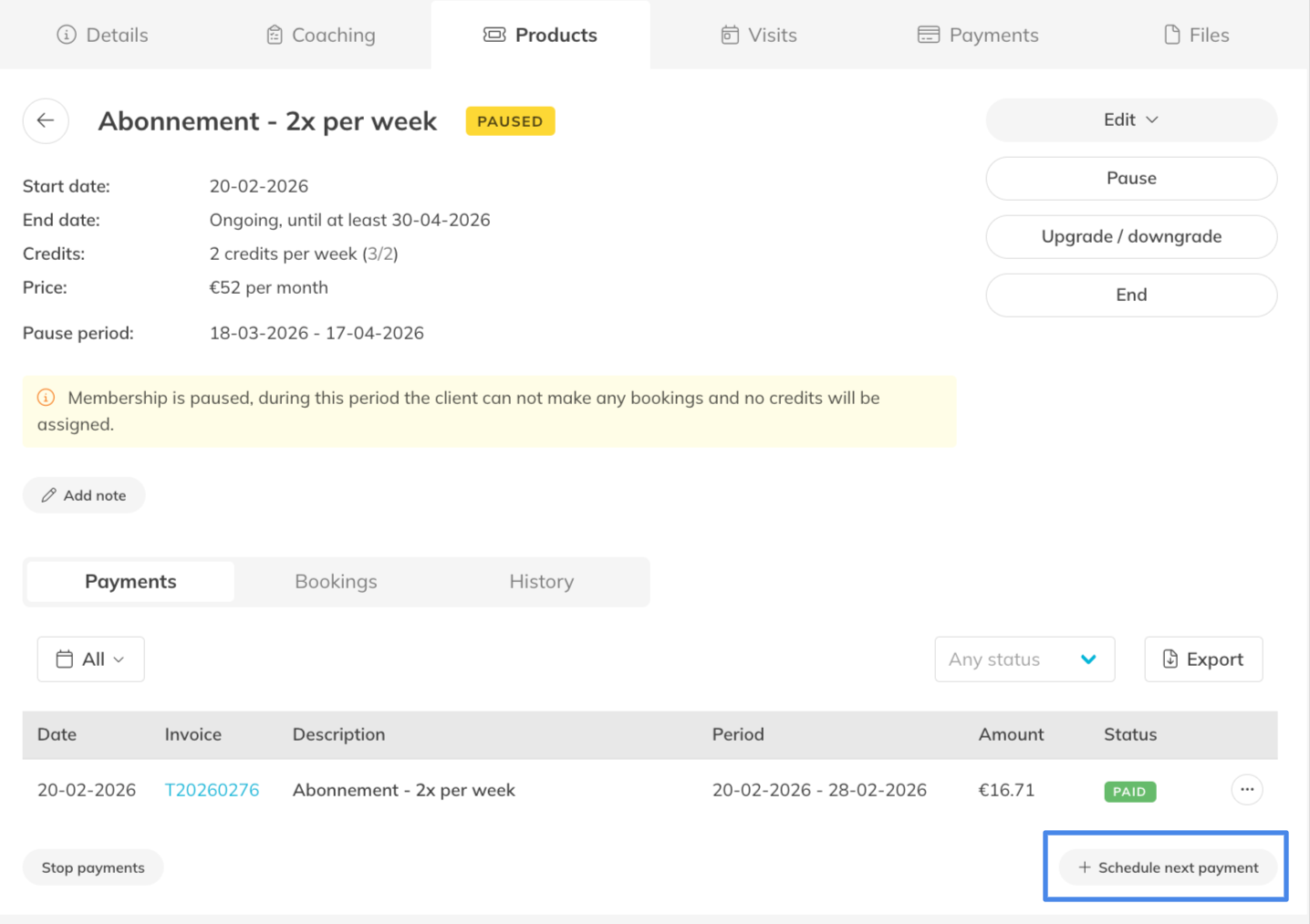
Review the payments associated with the membership: to double check you can click ‘+ Schedule next payment’ to show the next planned payment and edit this payment if desired. *If you cancel this next planned payment it will skip that payment period.
Pause Option 2: Custom (Advanced)
Choose this option if you want to manually define the pause period. This is useful when the pause does not match the standard payment cycle.
Please note that the payment has to be adjusted separately; this option only affects the credits that are assigned to the client, not the payments.
You will see the following fields:
Start date: Select the date when the Membership pause should begin.
End date: Select the date until which the Membership should remain paused.
Minimum contract end date (optional): If applicable, you can extend the contract end date to compensate for the pause period.
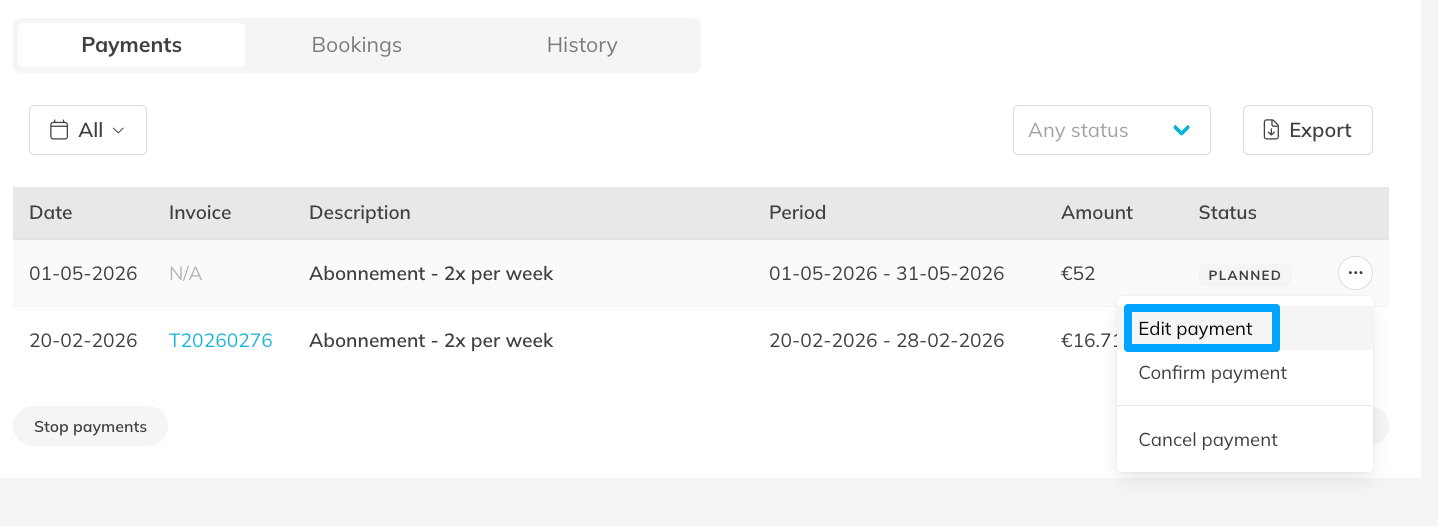
Important: If you want the client to pay less during the pause period because they are not actively using the Membership, you can adjust or reschedule payments manually.
This can be done by opening the payments overview via ‘edit’ or clicking on the Membership.
Now you will see all the payments associated with this membership, you can click ‘+ Schedule next payment’ to show the next planned payment and edit this payment if desired.
Extra Option: Allow unused Credits during a pause
If your Membership allows unused Credits to roll over to future periods, you can allow those Credits to be used during a pause period. This option can be configured here: My company > Settings > Calendar
Enabling this allows clients to use Credits from previous periods even while their Membership is paused.
Best Practice
Clearly communicate the pause conditions with your clients, including how payments and contract end dates may change. You decide what options they have for pausing a membership (i.e. only per payment period) and how often they can do this.
Review the payment schedule after pausing a Membership to ensure payments reflect the intended pause period.
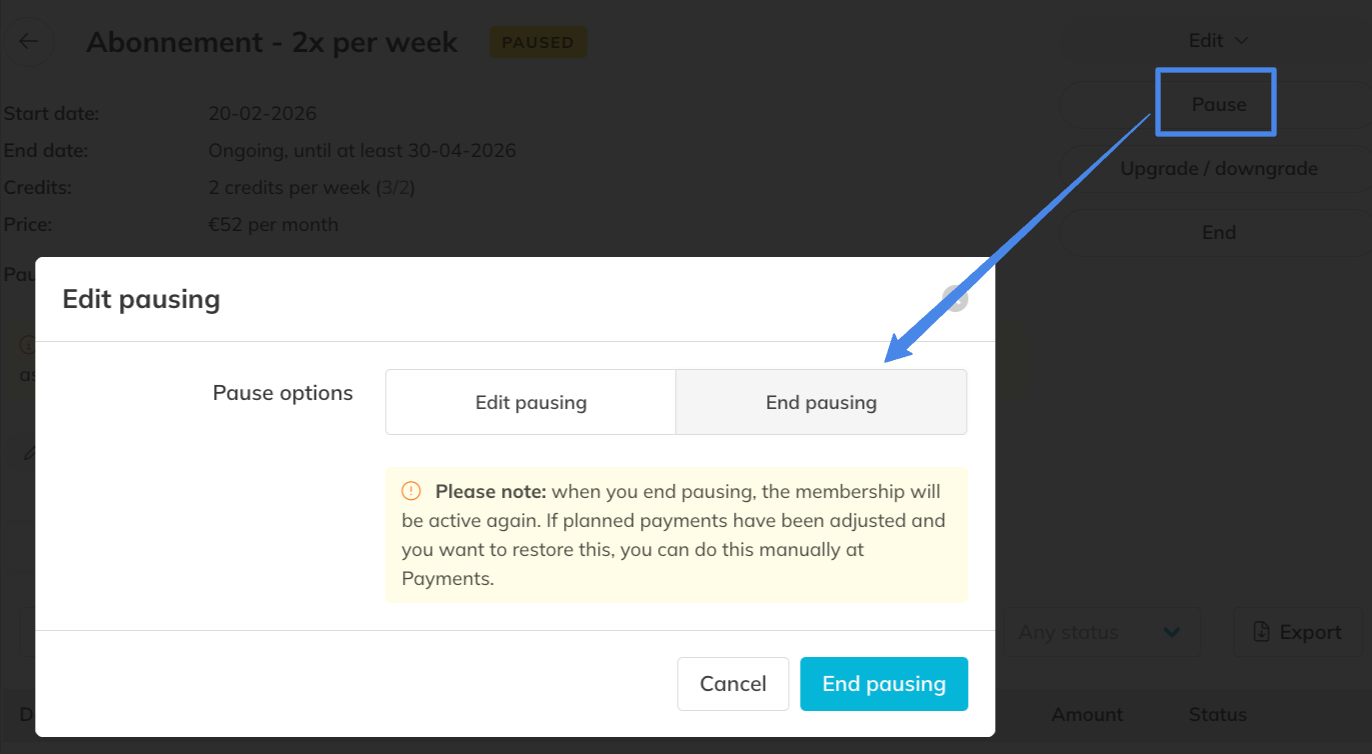
You can reactivate the membership by selecting the Pause button in the customer’s paused product.
Common Questions
Can clients make bookings while their Membership is paused?
– No. By default, clients cannot make bookings and no new Credits are issued during the pause period. Unless you allow this through your company settings, then it is possible.
Does pausing a Membership change the payment schedule?
– Yes. When paused by payment period, the next payment(s) will be skipped and therefore the next payment date will shift forward. Make sure to double check the payment schedule to see if it worked the way you intended it.
Can I pause a Membership for a custom period?
– Yes. The Custom option allows you to manually define the start and end dates of the pause. Make sure to also adjust the payment separately if you choose this option.
Can unused Credits be used during a pause period?
– Yes, if this option is enabled in Settings > Calendar & Planning.
Next logical steps
– How to manually Assign Products to Your Customers
– How to Create a Membership
– How to change Product Validity or end an assigned Product