How to Configure Notifications and Messages for Your Customers
Estimated Reading Time: 10 minutes
Applies to: All Plans
Quick Summary
You can control which email notifications your customers receive from the system.
This allows you to align communication with your Memberships, Activities, Credits, and payment flows so clients receive the right information at the right time.
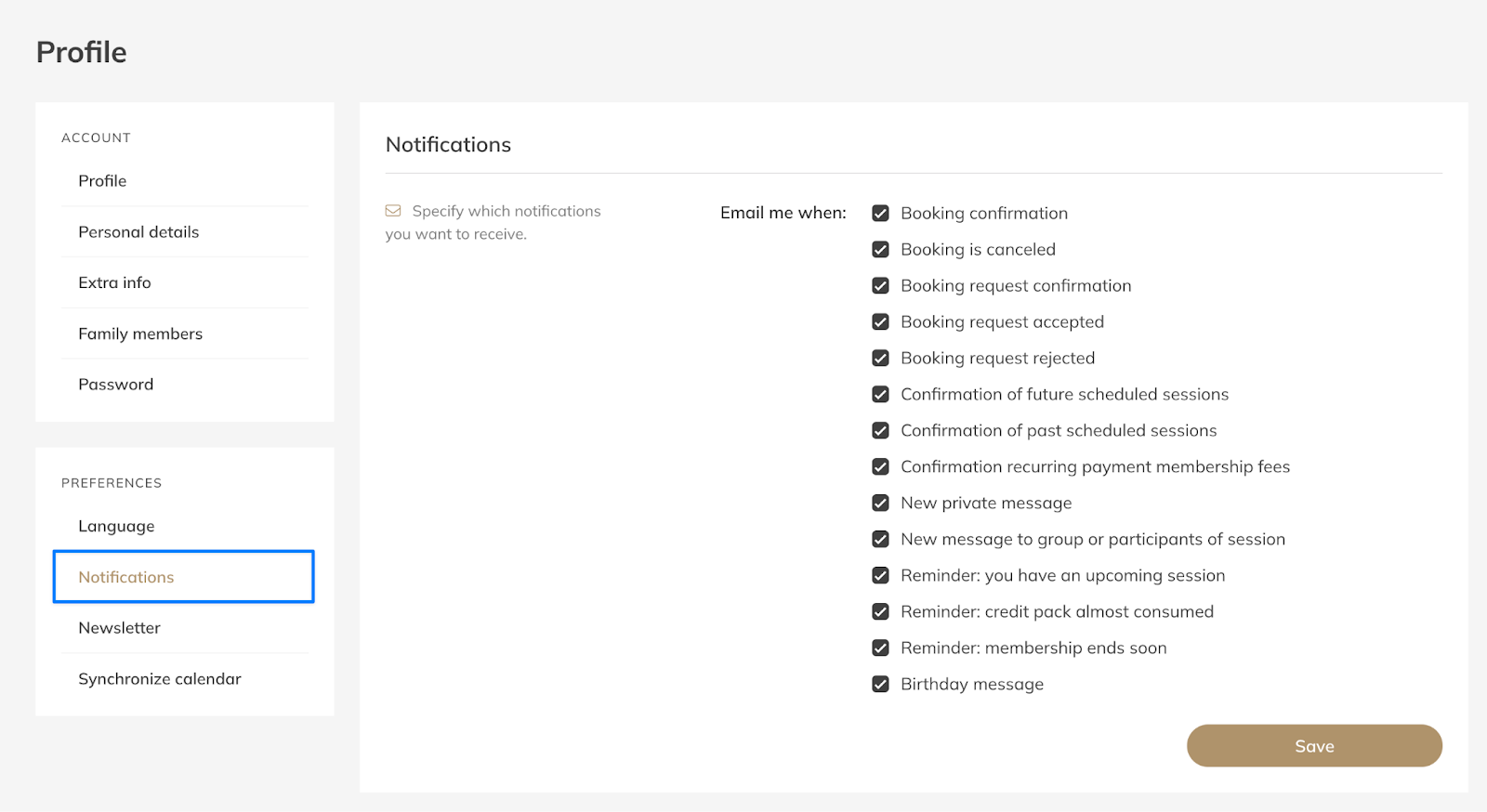
Customers can also control their own notification preferences from their profile in the app.
Why This Matters
Too many emails can overwhelm clients.
Too few notifications can lead to missed Activities, unpaid invoices, or confusion about Membership details.
Configuring your notification settings ensures clients stay informed while keeping communication clear and relevant.
Step by Step Instructions
Step 1: Go to My Company > Settings > Client notifications
– Navigate to the area where automated system messages and customer emails are managed.
Step 2: Review the customer notification overview
– This section shows all automated emails and messages that can be sent to clients.
Step 3: Configure Activity booking notifications
– Decide if clients should receive confirmations, updates, or cancellations when they book or modify Activities in the Schedule.
Step 4: Configure Activity reminders
– Enable reminder emails for upcoming Activities to help reduce no-shows and ensure clients remember their bookings.
Step 5: Save your notification settings
– Saving applies the changes and activates your updated communication preferences.
Best Practice
Keep essential emails active, such as booking confirmations, Activity reminders, and payment confirmations.
These notifications help prevent misunderstandings, reduce no-shows, and minimize manual support requests from clients.
Clients can also adjust their own notification preferences from their profile if they want to receive fewer messages.
Common Questions
Can I turn off all customer notifications?
– Yes, but this is not recommended because clients may miss important booking or payment information.
Can I control reminders for Activities?
– Yes. Reminder emails for Activities can be enabled or disabled in the notification settings.
Can customers also manage their own notifications?
– Yes. Customers can manage their notification preferences by clicking their name in the app and navigating to Profile > Preferences > Notifications, where they can choose which messages they want to receive.
If you would like to know more about our Pro, Premium or Add-Ons, send us an email to support@trainin.com.
Related Articles
– How to Activate Automated Follow-Up Emails
– How to customize your welcome emails