How to sell Retail or Bar products through the POS
Estimated Reading Time: 3 minutes
Applies to: Pro and Premium
Quick Summary
The POS allows you to sell retail items, bar products, and other non-booking products directly from the platform. This is useful for selling items such as drinks, merchandise, or small retail products to clients while physically on location.
Why This Matters
Selling products through the POS allows you to quickly process in-person purchases and automatically register the transaction in your system.
It ensures sales are recorded correctly and linked to the client when needed, helping you track revenue and maintain accurate financial records.
Step by Step Instructions
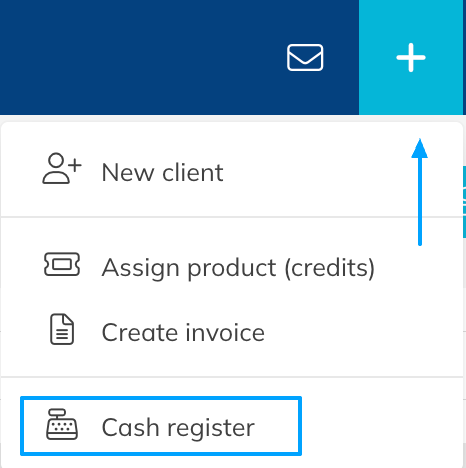
Step 1: Open the POS register: + icon (top right corner) > Cash register
– This opens the POS where you can select products and process sales.
Step 2: Select the product category: Retail / bar
– Choose the Retail / bar section to display all available retail and bar products.
Step 3: Add products to the order
– Click on the product tile to add it to the order summary on the right side of the screen.
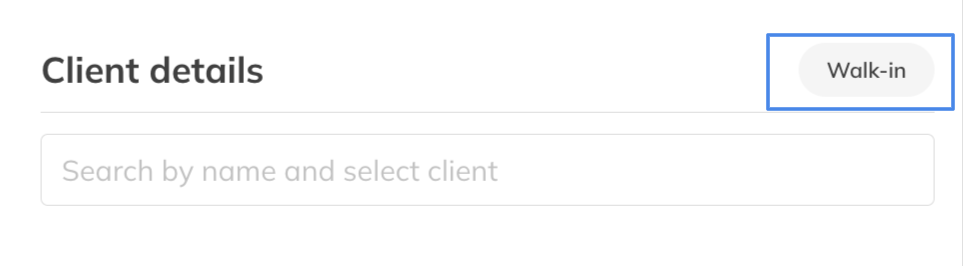
Step 4: Select the client: Client details > Search client
– If the sale should be linked to a specific client, search and select the client in the Client details section.
– If a sale does not need to have a customer attached to it (not a credit sale), you can choose the Walk-in option on the top right.
- If it a bar sale that is not connected to a customer, you can leave the payment without a name. Credit products can only be sold when attached to a customer account.
Step 5: Choose the payment method
– Select the payment method, such as card, cash, or bank transfer, depending on how the client pays. You can also add it to the client’s account if you wish to charge them later on or send them a payment link.
Step 6: Confirm the transaction: Confirm
– Confirm the order to complete the sale and register the payment.
Best Practice
Link POS purchases to a client whenever possible. This helps you track customer spending and keeps purchase history complete.
Pro Tips
Use the Retail / bar category for products that do not require bookings, such as drinks or merchandise.
You can sell multiple products in a single transaction by adding several product tiles to the order summary before confirming the sale.
If the sale is not attached to a client for retail and shop products, you can select the Walkin button.
Common Questions
Do I need to select a client when selling a retail product?
– No. Retail and bar products can be sold without linking the purchase to a specific client by selecting the Walkin Option when processing a sale.
Can I sell multiple products in one POS transaction?
– Yes, you can add multiple products to the order summary before confirming the sale.
Where can I see POS sales afterward?
– All transactions processed through the POS are recorded and can be reviewed in your financial reports. (Pro and Premium)
If you would like to know more about our Pro or Premium, email us to support@trainin.com.