How to get insight and view reports on strikes and penalties
Estimated Reading Time: 3 minutes
Applies to: Pro and Premium
Quick Summary
You can monitor customer behavior related to no-shows and late cancellations through the No-shows list, Cancellations list, per client and via finances.
These reports help you quickly identify patterns, track how many strikes customers have received, and review any penalties that were applied.
Why This Matters
Penalties and strike tracking helps to protect your schedule and prevent repeated no-shows.
Reports give you visibility into:
– Which customers receive strikes most frequently
– How many penalties were issued over a period of time
– Trends in cancellations and no-shows
– The overall impact of your attendance policy
This insight helps you make better operational decisions and maintain healthy attendance in your Activities.
Step by Step Instructions
Step 1: View strikes in the no-show section: Reports > No-shows (or via Calendar > More)
– This report shows whether a no-show strike has been registered and displays the current status for each client.
Step 2: View strikes in the cancellations list: Reports > Cancellations (or via Calendar > More)
– This report shows whether a late cancellation strike has been registered and displays the current status for each client.
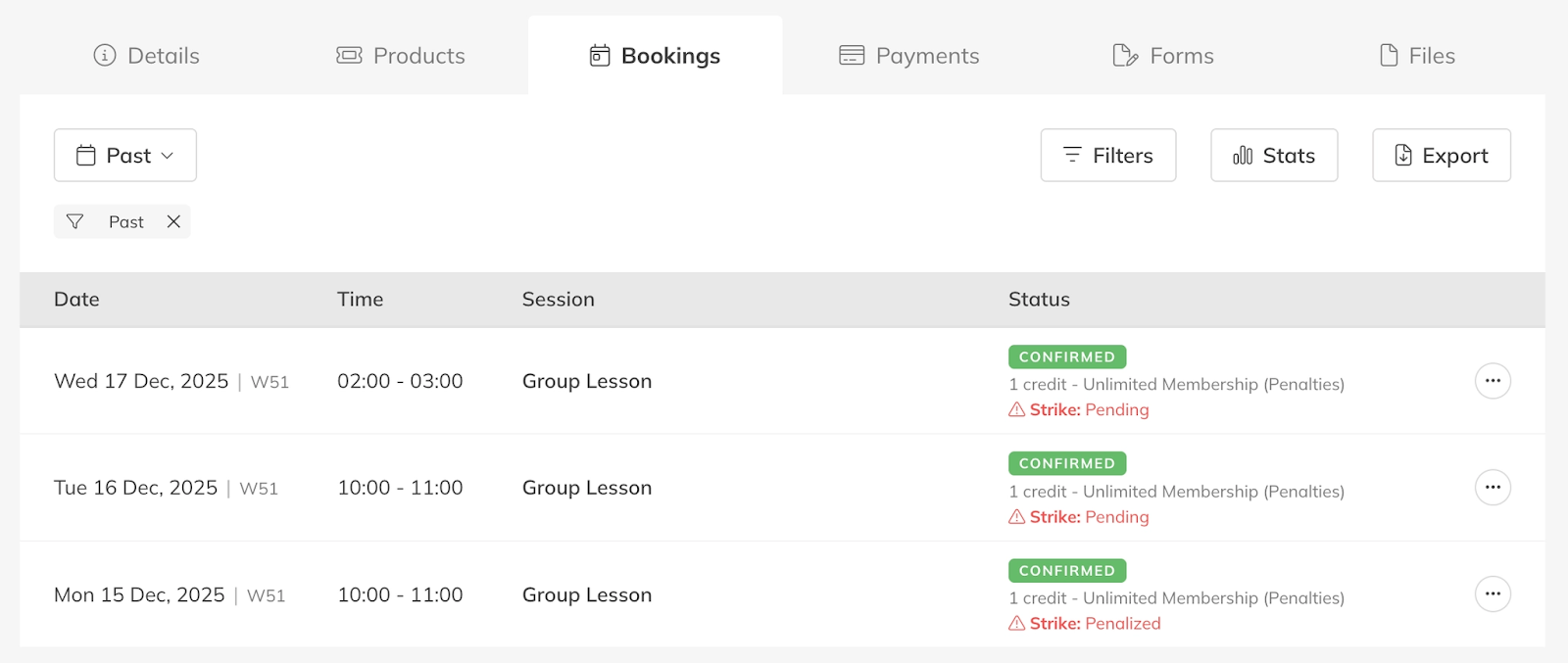
Step 3: View strikes in the client profile: Clients > Select Client > Bookings
– In the Bookings tab you can see if a strike has been registered. The strike appears on the relevant booking. Click on the booking to view more details, including whether the strike is pending or confirmed, and whether it has expired or been cancelled. You can also use the status filter to quickly find bookings that include a strike.
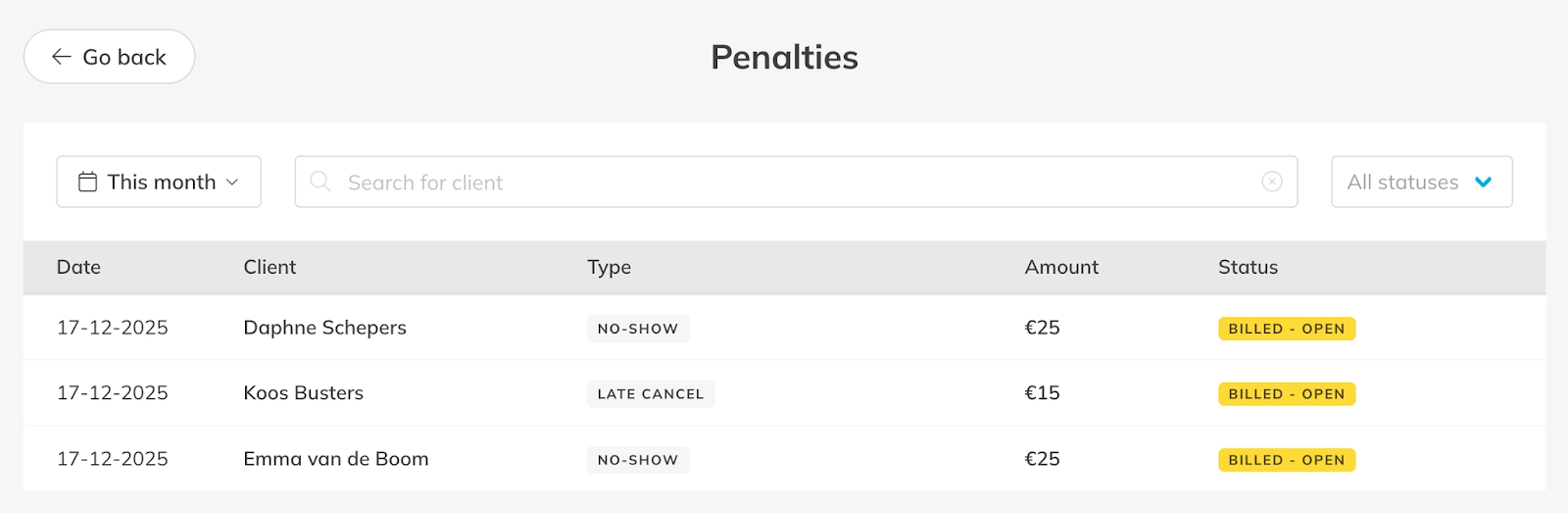
Step 4: View applied penalties and related orders: Finance > More > Penalties
– This section gives you an overview of all applied penalties. In the Sales section, you can also see that payments (orders) have been created and sent for the applied penalties.
Best Practice
Review your penalties and strikes reports regularly.
A weekly or monthly review helps you quickly spot repeated no-shows and determine whether your attendance policies are working as intended. You can add a recurring task in the calendar.
This also allows you to proactively address issues before they impact your schedule.
Pro Tips
Monitor strike patterns to identify customers who may need reminders about cancellation policies.
Use reporting filters to analyze attendance behavior during peak hours or specific Activities.
Combine penalties insights with schedule reports to better understand where attendance issues occur most frequently.
Common Questions
Can I see which customers have the most strikes?
– Yes. The strikes report allows you to review which customers have accumulated strikes based on your attendance policies.
Can I review penalties for a specific time period?
– Yes. Reports allow filtering by date so you can analyze penalties over a selected timeframe.
Do reports show both strikes and penalties?
– Yes. Separate reports allow you to view strikes issued and penalties applied, giving you a complete overview of attendance enforcement.
Related Articles
– How to configure automated Penalties for no-shows and late cancellations– How to enable penalties in your products
– How to disable penalties for specific Activities
– How to manage penalties and strikes for a customer
– How to can my customers view their strikes and their penalties