How to assign a workout to your customers for training
Estimated Reading Time: 5 minutes
Applies to: Premium / Pro or Starter with Add-On
Quick Summary
Trainin allows trainers to assign coaching content to clients in several ways. You can assign or schedule a Workout, Form, or Workout Program.
Assignments can be done from three different places in the platform:
– Coaching
– Client profile
– Calendar
Each method supports both direct assignment or scheduled delivery depending on how you want clients to complete the training.
Why This Matters
Different coaching situations require different assignment methods.
For example:
– Assign workouts in advance for independent training
– Schedule workouts during sessions
– Deliver full programs over multiple weeks
Using the right method helps trainers keep coaching structured and easy for clients to follow.
Step by Step Instructions
Scenario 1: Assign workouts via Coaching
Step 1: Open the coaching section: Coaching > Workouts
– This section contains all workouts available for coaching.
Step 2: Start the assignment process: Coaching > + New > Assign Workout
– Choose the customer who will receive the workout, choose which workout will be assigned and if you want to make the workout personal.
– Tip: make the workout personal if you want to make some adjustments for this specific client.
Scenario 2: Assign a workout, form or workout program via the client profile
Step 1: Open the client profile: Clients > Select Client
– This allows you to manage coaching assignments for that specific client.
Step 2: Navigate to the coaching section of the client: Client Profile > Coaching
– This area shows all workouts, and forms assigned to the client.
– Besides that you can see the progress of a client and the latest results.
Step 3: Add new coaching content: Client Profile > Coaching > Schedule or + Assign
– Schedule: Choose this option if you would like to schedule a workout or form on a specific date, or when you would like to schedule a workout program.
– Assign: Choose this option when you just want to assign a workout or form without a specific date. Tip: make the workout personal if you want to make some adjustments for this specific client.
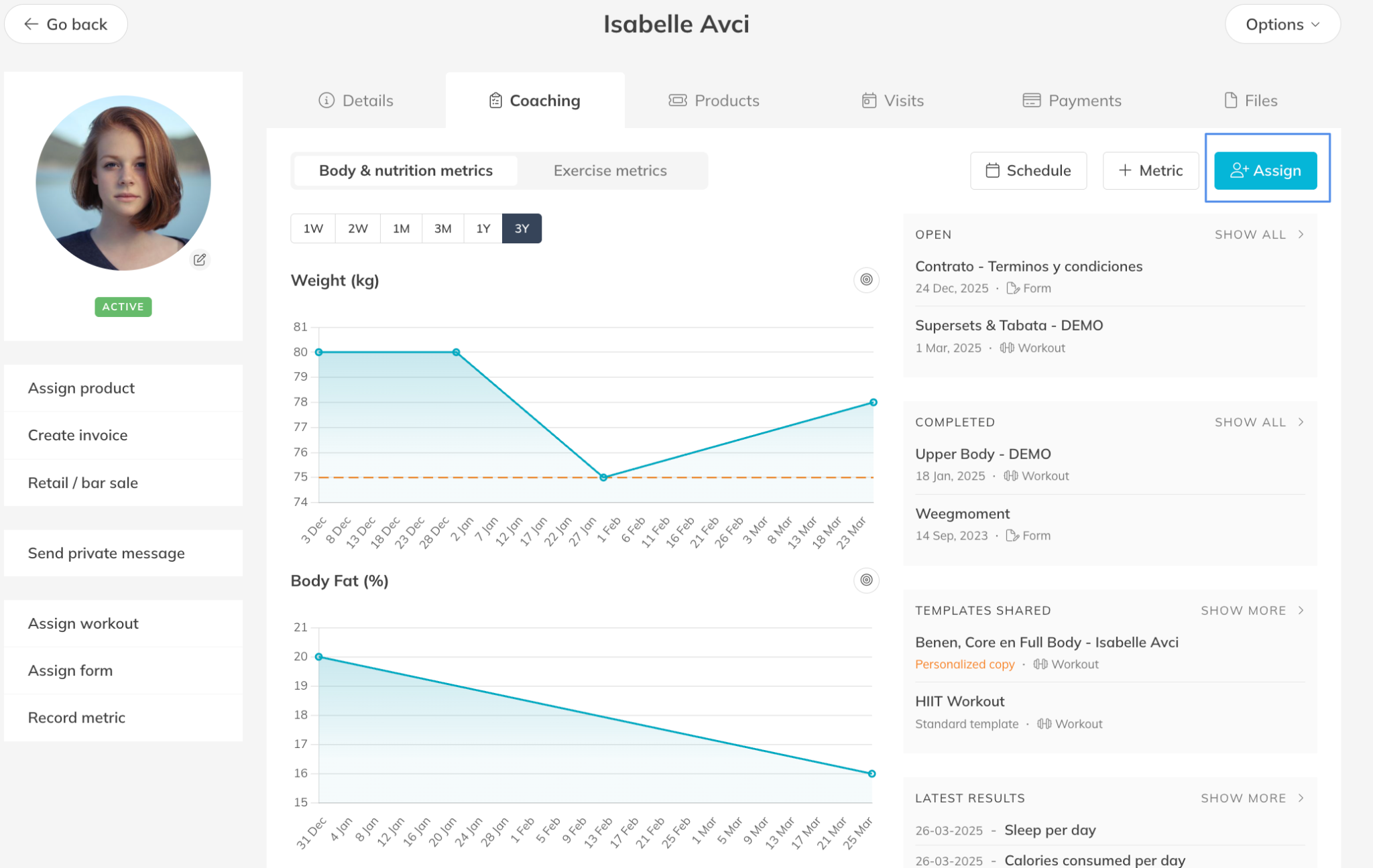
Step 5: Save the assignment: Schedule or + Assign > Save
– The workout, form, or program will now be visible or scheduled for the client.
Scenario 3: Assign training via the Calendar
Step 1: Open the calendar session: Calendar > Open Session in Calendar
– This allows you to attach coaching content to a specific training session.
Step 2: Access the workout options inside the session: Session Details > Edit
– This section lets you link workouts to the session.
Step 3: Select the workout you want to attach: Session Settings > Workout
– Choose the workout that the participant(s) should complete during the session.
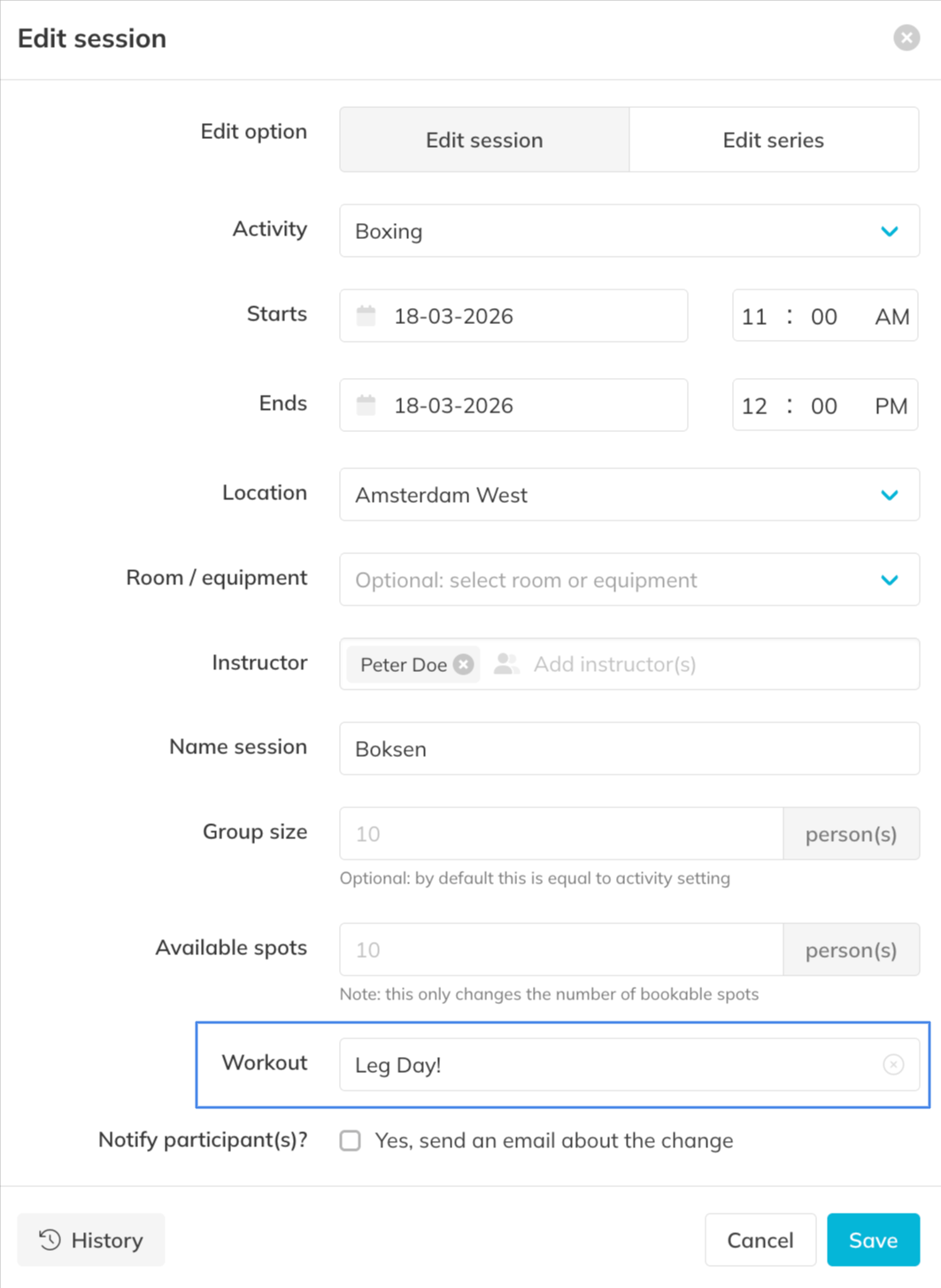
Step 4: Confirm the assignment: Session Settings > Save
– The workout or program will now be linked to the session and available to the participant(s).
Best Practice
Use the assignment method that matches your coaching workflow.
For example:
– Use Coaching when preparing training in advance
– Use the Client profile when managing individual coaching
– Use the Agenda when linking workouts to training sessions
Pro Tips
Use Workout Programs when you want to deliver structured training over multiple weeks.
Combine Forms with workouts to collect feedback or track progress.
Assign workouts for independent training.
Common Questions
What types of coaching content can I assign?
– You can assign three types of content:
Workout
Form
Workout Program
What is the difference between assigning and scheduling?
– Assigning makes the training immediately available to the client.
– Scheduling places the workout or program on a specific date.
Where should I assign workouts from?
– You can assign training from:
Coaching
Client profile
Calendar
Workout assignments and coaching tools are available in the Premium plan or Pro/Starter plan with Add-On.
This allows trainers to manage structured training plans and deliver coaching directly through Trainin.
Related Articles
– How to upload your own custom exercises for coaching
– How to enable and set preferences for the coaching and body metrics module
– How to create a workout plan template for your customers
– How to create a workout program for your customers
– How to follow the activity and metrics progress of your customer
– How to create a Workout of the Day (WOD)