How to create a Workout of the Day (WOD) for all your coaching customers
Estimated Reading Time: 5 minutes
Applies to: Premium / Pro or Starter with Add-On
Quick Summary
A Workout of the Day (WOD) allows you to publish a daily workout that becomes available to all clients with coaching activated. Instead of assigning workouts individually, you can create one workout that everyone can follow on the same day.
This is commonly used in group coaching environments such as CrossFit gyms, bootcamps, or studios that run daily training programs.
Why This Matters
Using a Workout of the Day saves time and creates a shared training experience for your community. Instead of managing workouts per client, you can publish one daily workout that automatically appears for all coaching clients.
This makes it easier to run structured programs, keep members engaged, and maintain consistency across your coaching.
Step by Step Instructions
Step 1: Enable Workout of the Day: Go to My Company > Settings > Coaching > Enable WOD Module?
– Start with activating the WOD module in the settings.
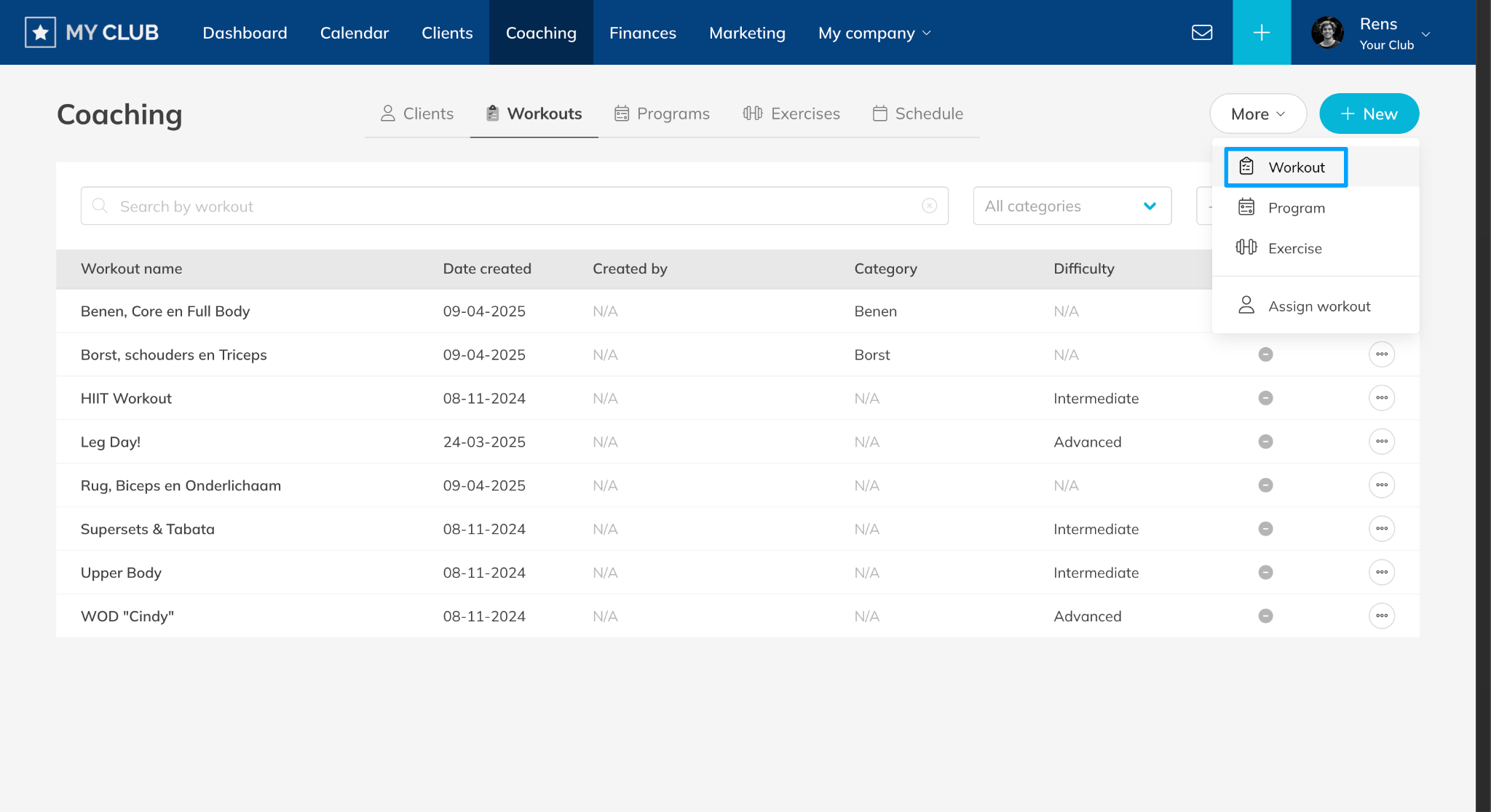
Step 2: Create a new Workout of the Day template: Go to Coaching > Workouts > + New > Workout
– Start creating a new WOD that will be shared with all clients who have coaching activated.
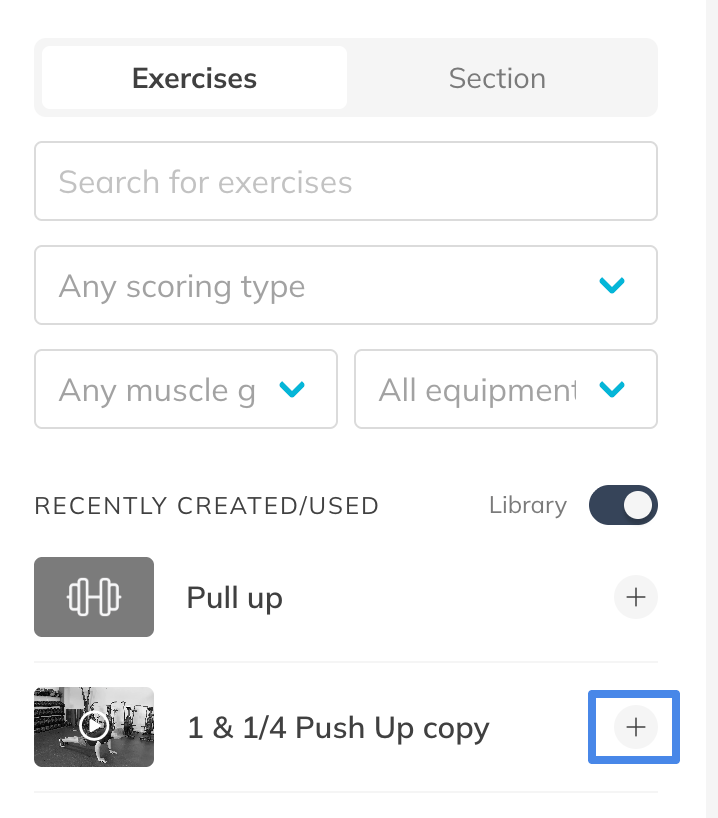
Step 3: Add exercises to the WOD template: Edit Workout > + Exercise
– Trainin provides access to a library with more than 2500 exercises that you can add directly to workouts.
– You can add your own exercises when something is not available in the standard exercise database or when you want to make it more branded.
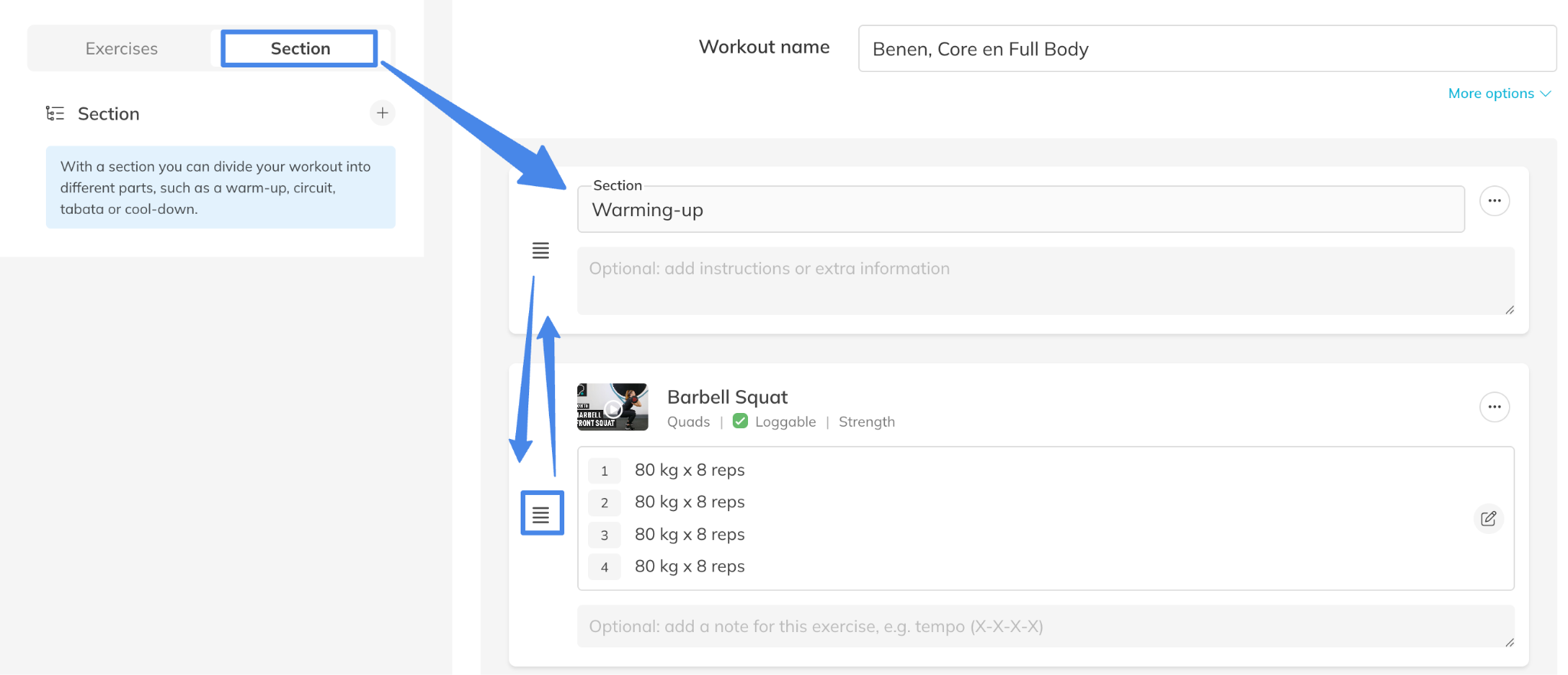
Step 4: Organize the workout structure: Workout Plan > Exercise Order / Sections
– Arrange exercises in the correct sequence to build a clear and structured WOD and add different sections within the workout.
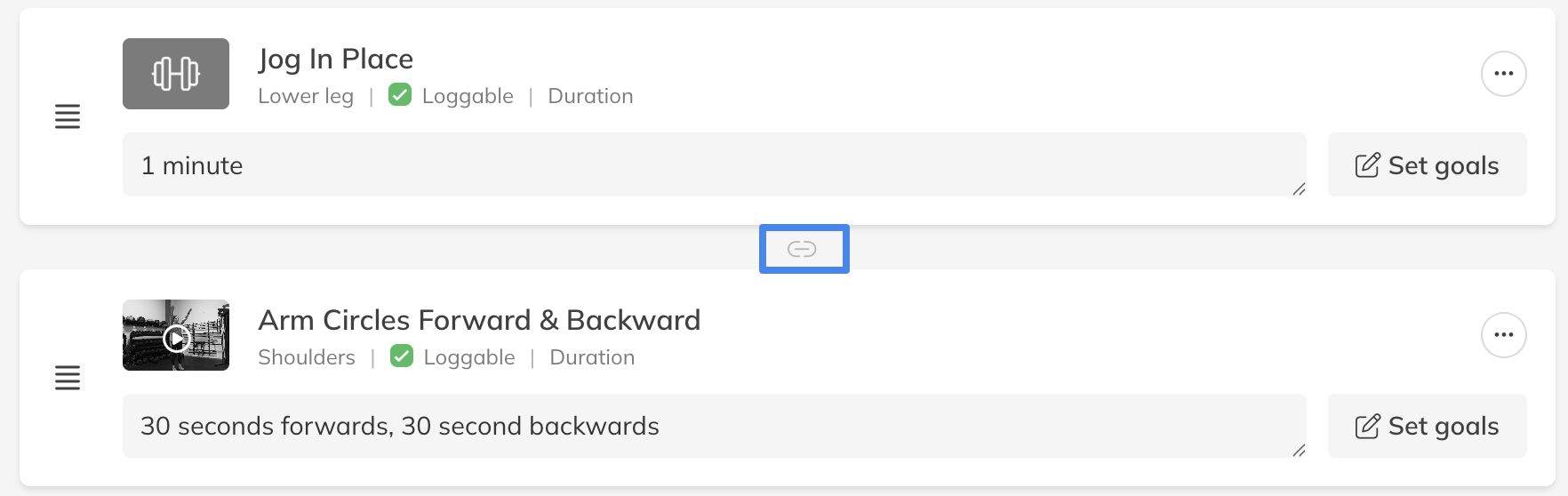
Step 6 (optional): Create supersets: Workout Plan > connection icon between exercises
– Connect exercises to create supersets in the WOD. You can create a superset with multiple exercises.
Step 7: Save the workout plan template: Workout Plan > Save
– The template will now be available to assign to clients.
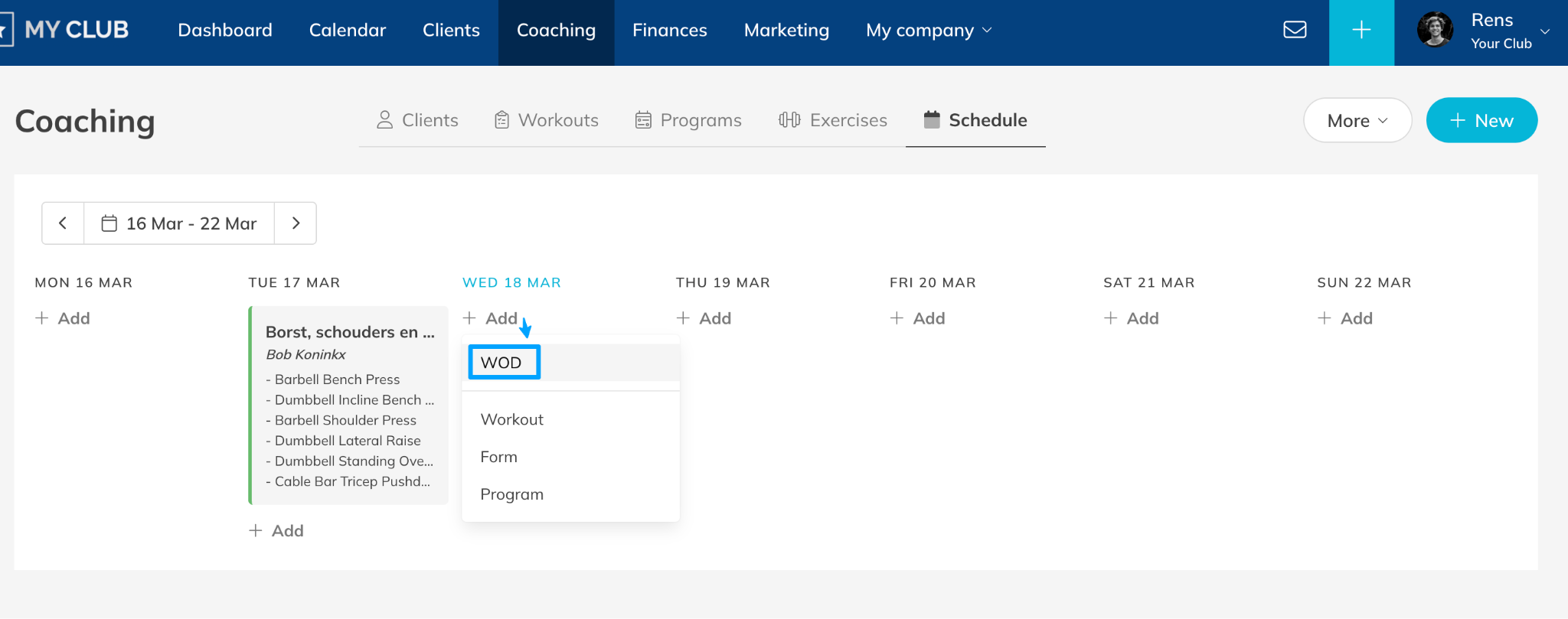
Step 8: Schedule the WOD in the calendar: Coaching > Schedule > + Add > WOD
– Choose a date and workout to schedule. The WOD will now be available to clients.
– It’s possible to schedule multiple WOD’s at the same day.
Best Practice
Keep the Workout of the Day simple and clear. Most gyms and studios structure WODs with a short warm-up, a main workout, and optional accessory work to keep sessions easy to follow.
Pro Tips
Use the Workout of the Day to create consistency in your coaching. Many trainers plan their WODs weekly so clients know what type of training to expect throughout the week.
You can also add scaling options or coaching notes so clients at different fitness levels can still complete the workout safely.
Common Questions
Who can see the Workout of the Day?
– Only clients who have coaching activated in their account will see the WOD in the app.
Where do clients find the Workout of the Day?
– Clients can find it inside the workouts section of the client app.
How do clients log their workout results?
– Clients can open the workout and log their results directly inside the workout after completing the exercises.
Do clients have to complete the Workout of the Day?
– No, clients can choose whether they want to log and complete the WOD.
Workout of the day is available in the Premium plan or Pro/Starter plan with Add-On.
This allows businesses to assign a workout to all clients at once directly through Trainin.
Related Articles
– How to upload your own custom exercises for coaching
– How to enable and set preferences for the coaching and body metrics module
– How to create a workout plan template for your customers
– How to create a workout program for your customers
– How to assign a workout to your customers for training
– How to follow the activity and metrics progress of your customer