How to Manage the Attendance of Your Classes for Reporting
Estimated Reading Time: 4 minutes
Applies to: All Plans (Reporting for PRO & Premium)
Quick Summary
Attendance tracking allows you to see which clients participated in your Sessions and ensures your reporting reflects real participation.
By managing attendance correctly, your reports will show accurate data about class participation and client engagement.
Why This Matters
Accurate attendance tracking helps you understand how often clients participate in your Activities.
This improves reporting accuracy and gives insight into class popularity, trainer performance, and client engagement.
Step by Step Instructions
Step 1: Open your Activity schedule: Schedule
– Go to your Schedule to view all planned and completed sessions.
Step 2: Open the session participants list: Schedule > Select Session > Participants
– Select the specific session to see the full list of booked clients.
Step 3: Review the attendance status of participants: Schedule > Session > Participants > Attendance Status
– Here you can mark whether a client was Present or Absent.
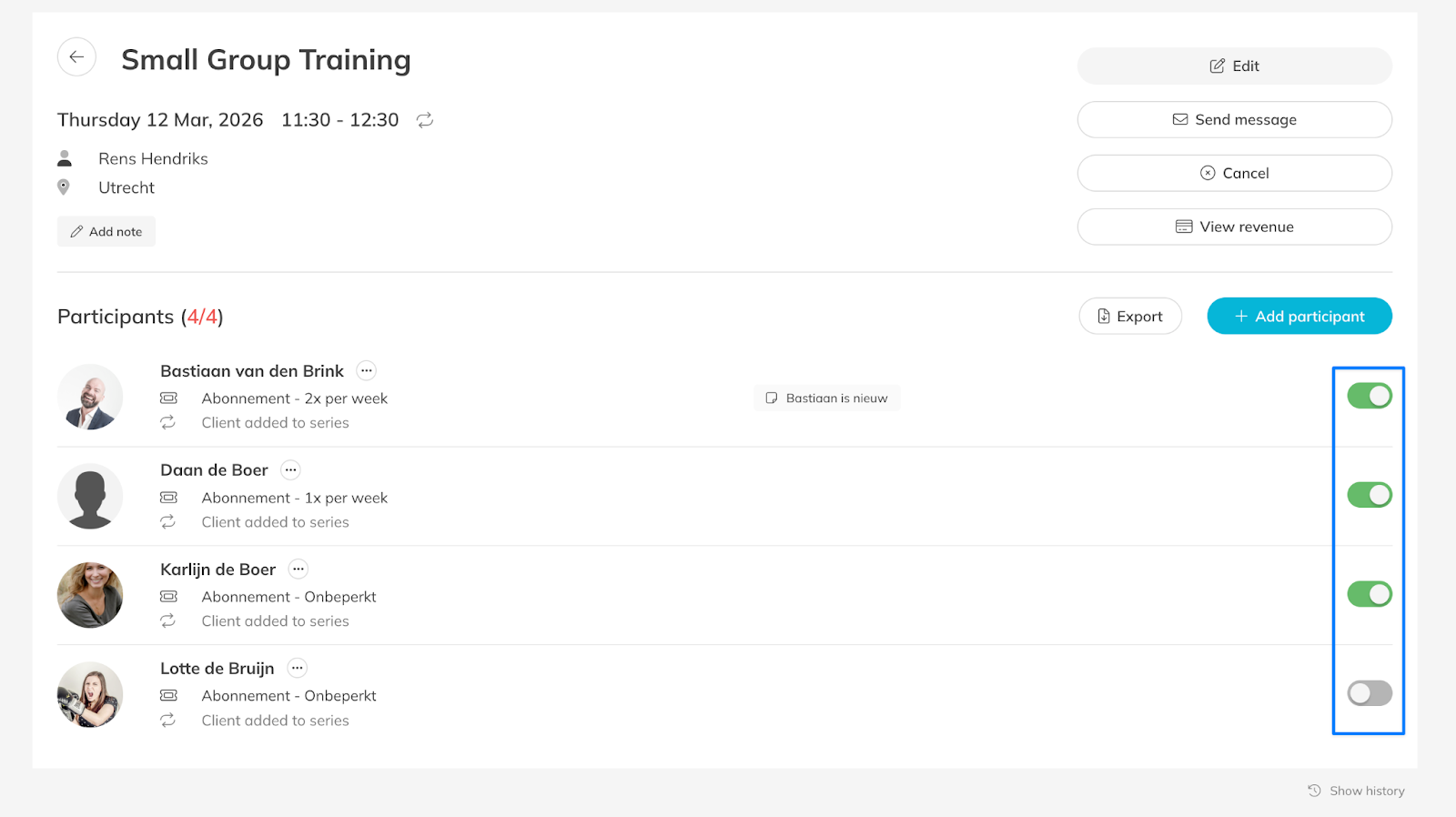
Step 4: Update attendance if needed: Schedule > Session > Participants > Mark Attendance
– Adjust the attendance status of clients to reflect who actually attended the class.
Step 5: Use attendance data for reporting (PRO & Premium): Reporting > Attendance or No-shows
– Attendance data is automatically included in your reports so you can analyze participation and performance.
– You can also keep track of no-shows when managing client activity.
– If you experience frequent no-shows, Trainin offers a Penalties Add-On (included in Premium) that allows you to automatically apply penalties when clients miss scheduled Activities.
Best Practice
Update attendance after each Activity.
Keeping attendance records accurate ensures your reporting reflects real client participation and helps identify which Activities perform best.
Common Questions
Can I change attendance after the session has finished?
– Yes. You can update attendance at any time from the session participants list.
What happens if I do not update attendance?
– If attendance is not updated, reporting may not accurately reflect actual participation.
Can clients be automatically marked as present?
– Yes. You can configure Activities so participants are automatically marked as present by default when attendance tracking is enabled.
Is the attendance linked to credits?
- No. If you do not maintain attendance, it will not adjust / affect the credits of the client (that is separate from the attendance).
If you would like to know more about our Pro, Premium or Add-Ons, send us an email to support@trainin.com.
Next logical steps
– How to manually Book Your Customers to Scheduled Activites
– How to add a customer to a recurring session
– How to Edit, Update, or Cancel Scheduled Activities in Trainin