How to Manually Adjust Credits in a Customer’s Membership or Credit Pack
Estimated Reading Time: 3 minutes
Applies to: All Plans
Quick Summary
This guide explains how to adjust Credits for a customer who has a Membership or a Credit Pack. You can manually adjust the number of remaining Credits or manually give additional sessions when needed.
Adjusting Credits helps you correct booking mistakes, compensate clients, or restore sessions when a cancellation occurs.
Why This Matters
Credits may occasionally need to be adjusted; for example, when a booking was deducted incorrectly or you want to compensate a client.
Updating Credits directly in the customer’s Product when necessary ensures their available sessions stay accurate and prevents confusion during booking.
Step by Step Instructions
Step 1: Open the customer profile: Customers > Select Customer
– Find and open the profile of the customer whose Credits you would like to adjust.
Step 2: Open the customer’s Products: Customers > Select customer > Product tab
– This section shows all Products such as Memberships and Credit Packs.
Two ways:
Next to the Product > 3 dots settings button > Edit Credits Remining
Open the product > Options > Edit Credits Remining
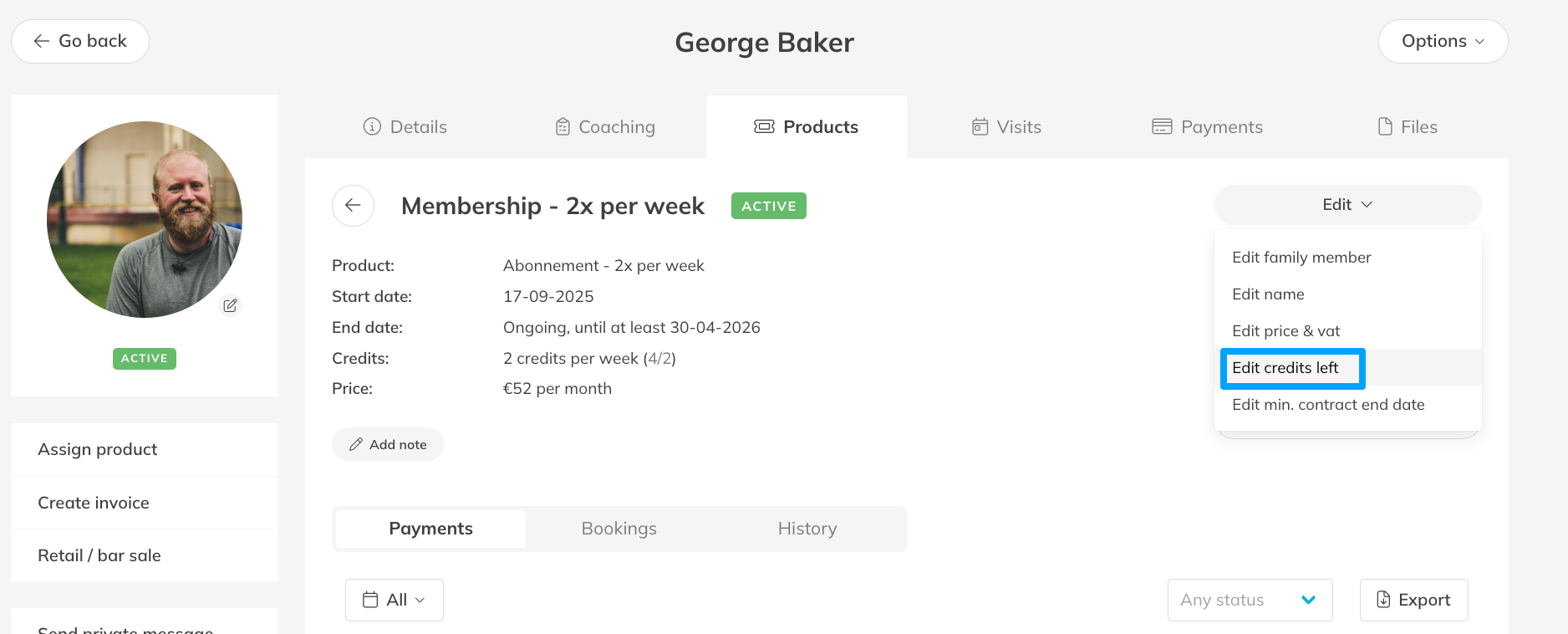
– Change the number of remaining Credits to add or return sessions to the customer.
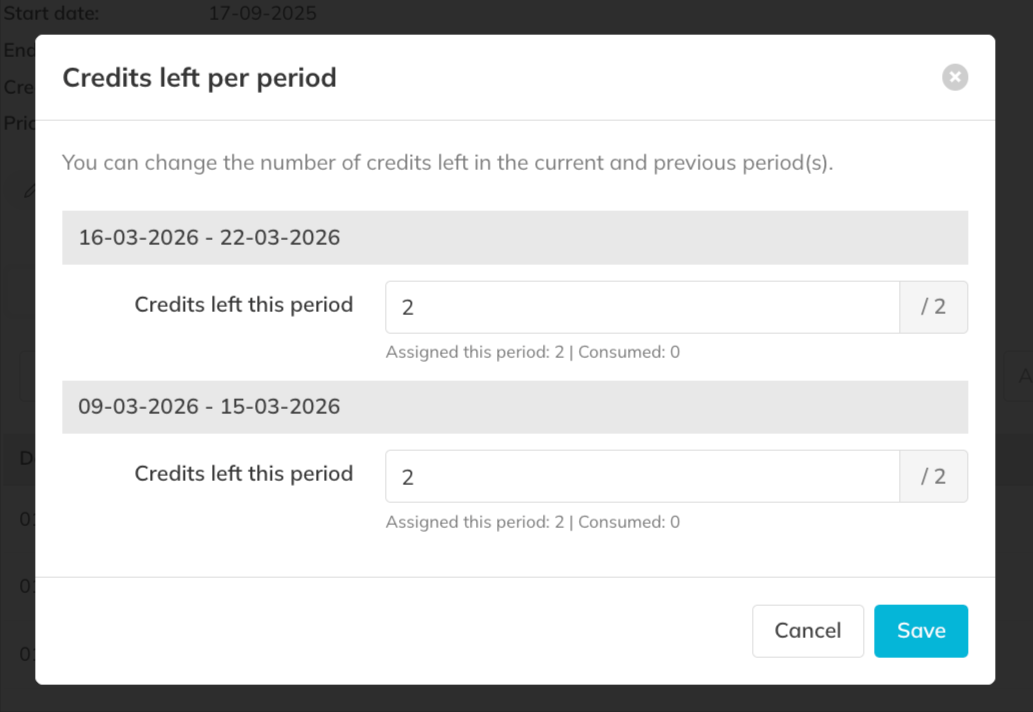
Step 3: Save the updated Credits.
– Once saved, the updated number of Credits will immediately be available for the customer.
Best Practice
Adjust Credits directly on the active Membership or Credit Pack only when necessary. This keeps the customer’s product history clear and prevents duplicate sessions.
Pro Tips
Use Credit adjustments to quickly correct booking errors without modifying past bookings.
If a Membership period allows unused Credits to roll over to extra periods, Credits from previous periods may also still be adjustable.
Always double-check the new Credit total before saving to avoid giving too many or too few sessions.
Common Questions
When should I adjust Credits instead of cancelling a booking?
– Adjust Credits when a booking was deducted or added incorrectly or when you want to compensate a client without modifying the schedule.
Can I adjust Credits on both Memberships and Credit Packs?
– Yes. The process is the same and can be done from the customer’s Products tab.
What if the Membership or a Credit Pack has already ended?
– If the Membership is no longer active, you can assign a free single-session product instead. You will need to create this product first. With a credit pack, you can update the validity to a date in the future to reactivate the credits.
Do Credit changes affect previous bookings?
– No. Adjusting Credits only changes the number of remaining sessions available for future bookings.
If you want help managing customer Credits or Products, contact support@trainin.com.
Related Articles
– How to manually Assign Products to Your Customers
– How to Create a Membership
– How to pause the membership of a client
– How to change Product Validity or end an assigned Product