How to Modify the Price of an Assigned Membership
Estimated Reading Time: 2 minutes
Applies to: ALL
Quick Summary
You can modify the price of a Membership that is already assigned to a client without changing the original product setup. This is useful when you need to apply a custom price for a specific client while keeping your standard Membership pricing unchanged.
Why This Matters
Sometimes clients receive special pricing due to promotions, loyalty discounts, or negotiated rates. Adjusting the price directly on the assigned Membership allows you to manage these situations without creating duplicate Membership products.
Step by Step Instructions
Step 1: Open the client profile: Customers > Select Customer > Profile
– Locate the client whose Membership price needs to be adjusted.
Step 2: Open the products section: Products
– This tab displays all assigned Memberships and Credit Packs linked to the client.
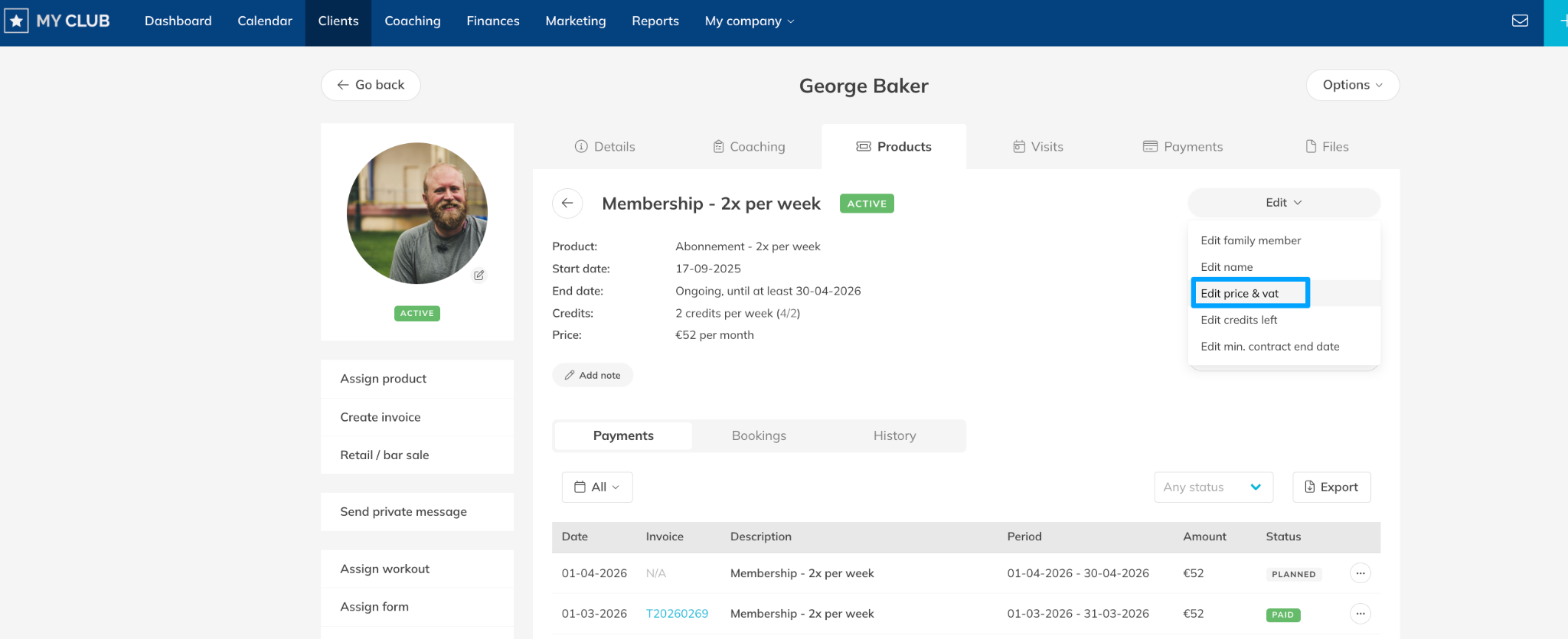
Step 3: Open the options menu for the specific product: 3 dots button
Step 4: Modify the Membership price: Products > Options > Change Price & VAT
– Enter the new price for the client’s Membership (and/or the VAT if needed) and save the changes to apply the updated billing amount for the next payments.
Best Practice
Use individual price adjustments only when necessary. If multiple clients require the same pricing, it is usually better to create a separate Membership product and assign it to them to keep reporting and pricing structures clear.
Pro Tips
Always confirm the new price before saving to avoid incorrect billing.
Price changes only affect the selected client and do not modify the original Membership product.
If the Membership uses Automated Payments, the updated price will apply to future billing cycles.
Common Questions
Does changing the price affect other clients with the same Membership?
No. The price adjustment only applies to the selected client’s assigned Membership.
Will the new price apply immediately?
The new price applies to upcoming payments. Previously processed payments remain unchanged.
Can I change the price back later?
Yes. You can repeat the same steps and update the price again whenever needed.
If you need to apply custom pricing for multiple clients, consider reviewing your Membership setup to determine whether a new Membership option would better support your pricing structure.
Related Articles
– How to manually Assign Products to Your Customers– How to Create a Membership
– How to pause the membership of a client
– How to change Product Validity or end an assigned Product
– How to modify credits from the membership or credit pack of a customer