How to Track Your Trial Sessions to Increase Activations
Estimated Reading Time: 5 minutes
Applies to: PRO & Premium
Quick Summary
Trial sessions allow potential clients to experience your services before committing to a purchase. Trainin automatically tracks these sessions so you can easily monitor and prepare for them.
You can quickly review upcoming trials from your dashboard or see them inside your calendar, helping you stay organized and ready to convert trials into loyal clients.
Why This Matters
Trial sessions are often the first real interaction a potential client has with your business. Preparing for them allows you to deliver a more personal and professional experience.
When you know who is coming, which activity they booked, and who the instructor is, you can tailor the session to their goals. A well-prepared trial experience significantly increases the chances of turning that visitor into a long-term client.
Steps
Step 1: View your upcoming trials from the dashboard: Dashboard > Upcoming Trials
– As long as trial sessions are active, a dedicated section called Upcoming Trials will automatically appear on your dashboard showing scheduled trial sessions.
Step 2: Review trial session details:
– Each trial entry displays key information including the trial date, the potential client’s name, the scheduled time, the booked activity, and the assigned instructor.
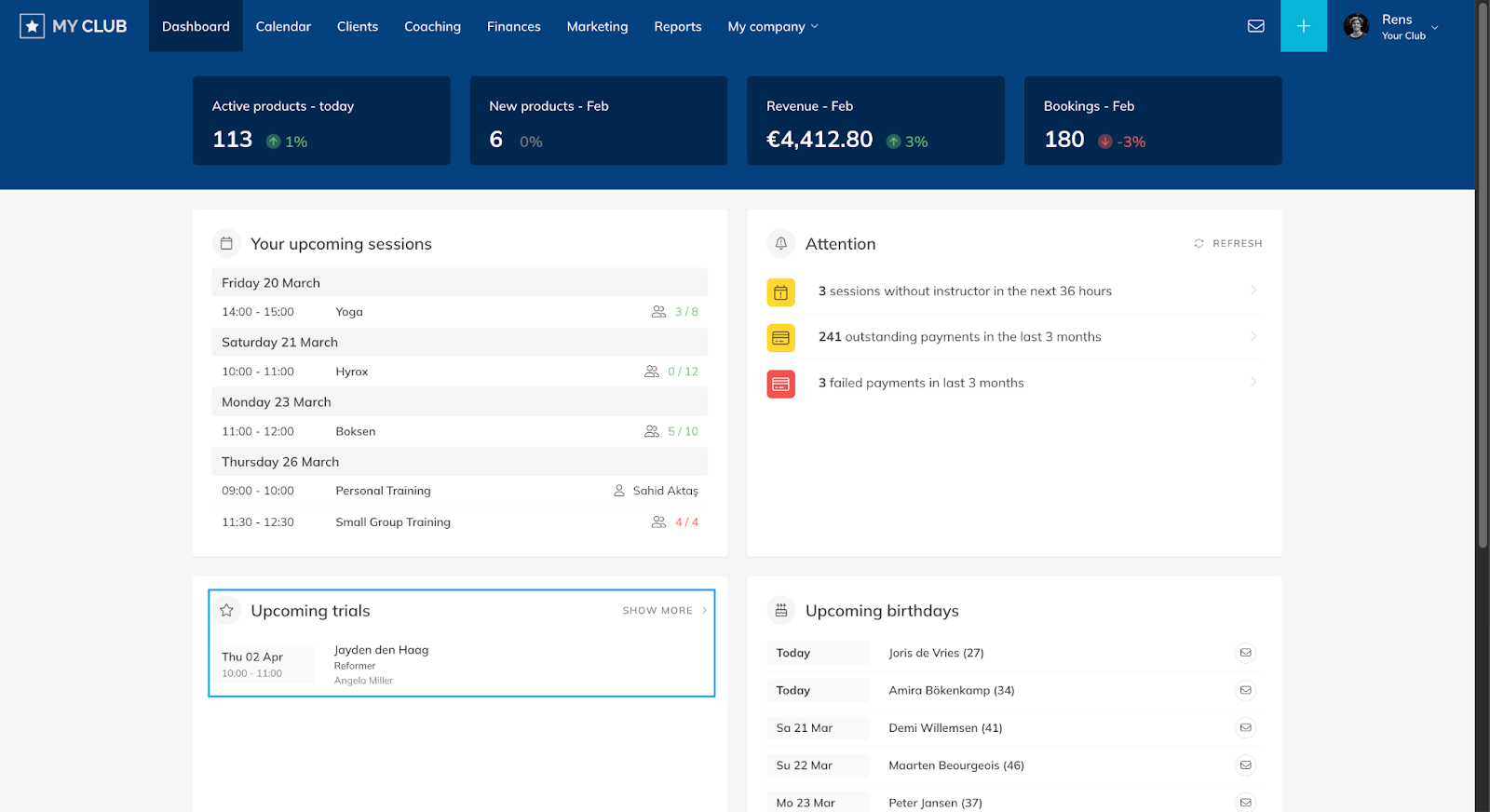
Step 3: Open the client profile for more details: Dashboard > Upcoming Trials > Click Client Name
– Clicking the potential client’s name allows you to view additional information about them so you can better prepare for the session.
Step 4: View the full overview of all trial sessions: Dashboard > Upcoming Trials > Show More
– Selecting Show More opens a complete list of your upcoming trial sessions so you can manage and track them more efficiently.
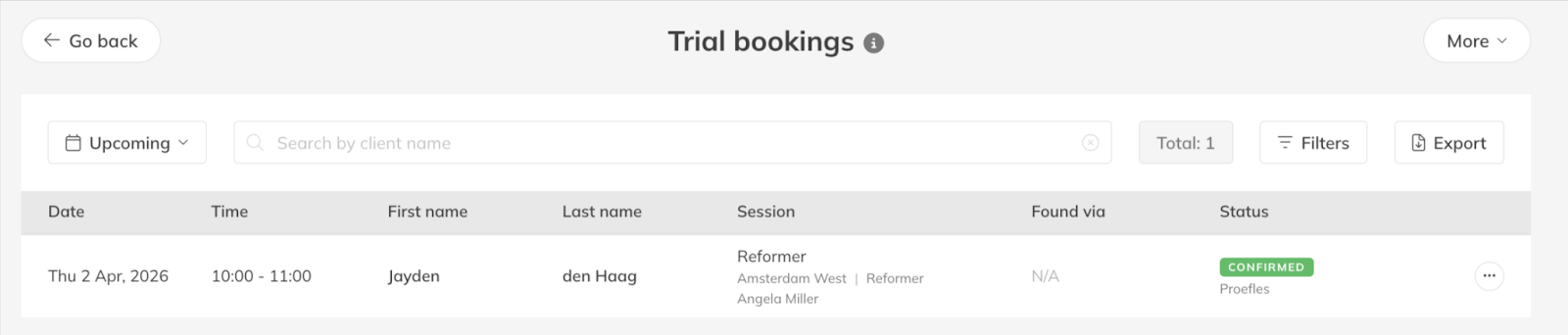
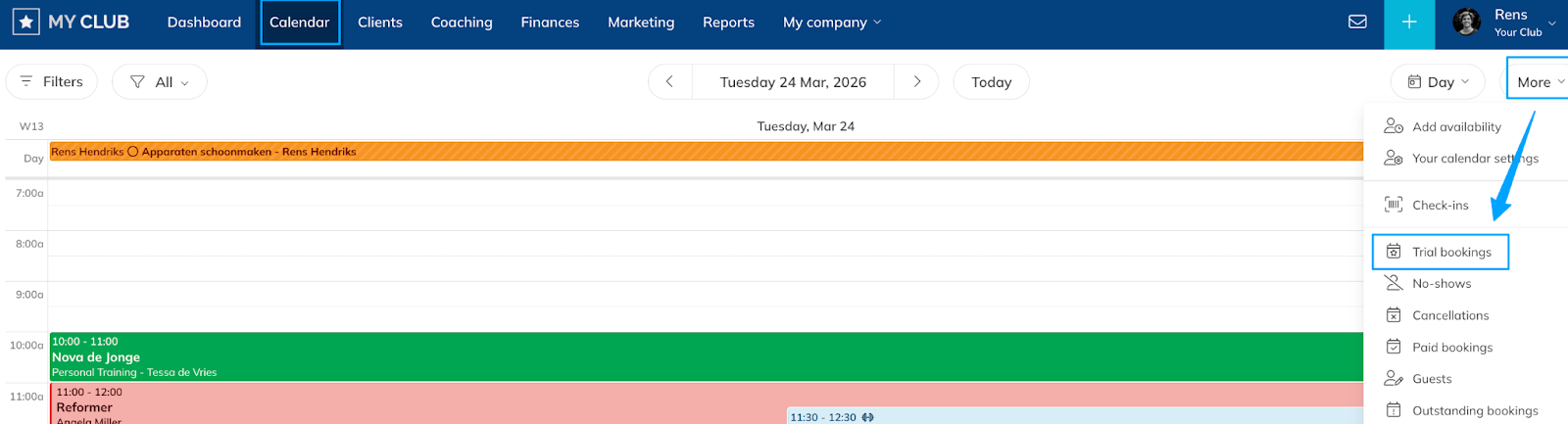
Step 5: View the full overview from your calendar: Calendar > More > Trial Bookings
– Trial sessions are also visible inside your calendar. From here you can access the full overview of trial bookings while planning your schedule alongside your other activities.
Best Practice
Before each trial session, take a moment to review the client's booking details and profile. Even small gestures (such as greeting them by name or understanding their interests) can make the session feel more personal.
A well-prepared trial session improves the experience and increases the chances that the client will return and purchase a Membership or Credit Pack.
Pro Tips
Use the dashboard for a quick daily overview of upcoming trials that require attention.
Coordinate with the assigned instructor so they know when a new trial client is attending and can give them extra guidance during the session.
If you embed the shop and booking module widget on your website, potential clients can purchase and schedule their trial session directly online. The booking will automatically appear in your Trainin system, making it easy to track and manage new leads.
You can use the Marketing module (PRO & PREMIUM), to activate automated follow up emails for trial sessions to keep potential customers engaged.
Common Questions
Where can I see upcoming trial sessions?
– You can see them directly on your dashboard in the Upcoming Trials section or in your calendar under Trial Bookings.
What information is shown in the Upcoming Trials section?
– You can see the trial date, potential client name, time, booked activity, and the instructor responsible for the session.
Can I view more details about the potential client?
– Yes. Clicking the client’s name opens their profile where you can review additional information.
Why should I track trial sessions regularly?
– Tracking trials helps you prepare better sessions, personalize the experience, and increase the likelihood of converting potential clients into paying members.
Encouraging potential clients to book trial sessions online can also help you capture new leads and manage them directly inside Trainin.
If you would like to know more about our PRO, Premium or Add-On features, please reach out to support@trainin.com.
Next logical steps
– How to create trial sessions for potential customers or to offer new services
– How to integrate the Web Widget into your personal website