How to Connect Trainin to Your Website Using Google Tag ID and Meta Pixel Estimated Reading Time: 6 minutes
Applies to: Pro & Premium
Quick Summary
You can configure your Google Tag ID and Meta Pixel ID inside Trainin to measure how your ads and campaigns perform. This lets you enable tracking on specific URLs to see campaign results.
Why This Matters
Adding tracking IDs lets you analyze conversion data, audience behavior, and ad performance more accurately. This helps you make better marketing decisions and optimize your campaigns over time
NOTE: we recommend sharing this page with the web developer you are working with.
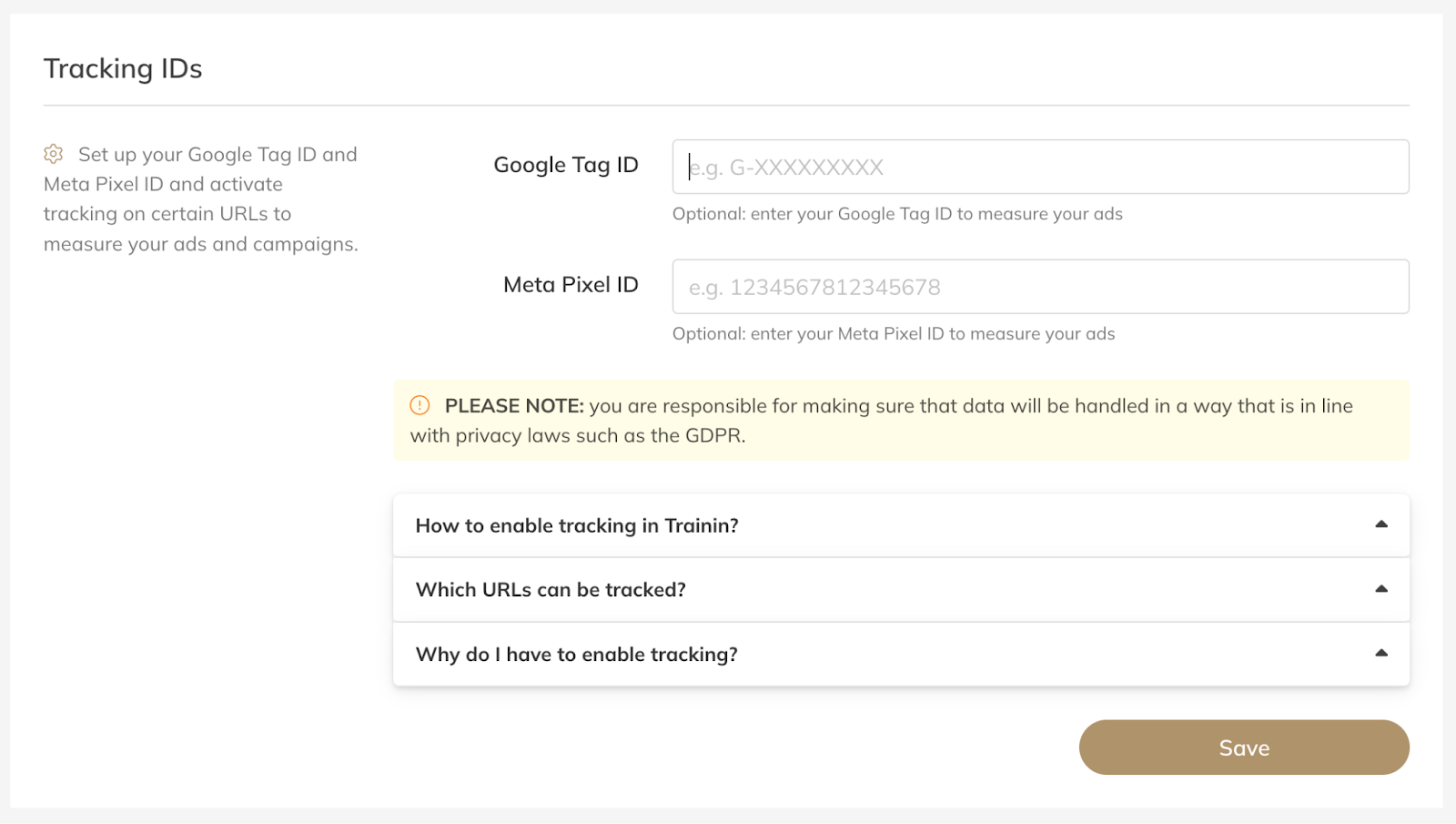
Where to find the Google Tag ID?
You can find your Google Tag ID inside your Google Analytics account.
Follow these steps:
Step 1: Go to Google Analytics
– Open https://analytics.google.com and log in.
Step 2: Select the correct property
– Choose the website or business you want to track.
Step 3: Open Data Streams
– Go to Admin (bottom left) → Data Streams → Click your Web stream.
Step 4: Locate your Google Tag ID
– Your Google Tag ID is displayed at the top of the stream details page.
It usually starts with:
– G-XXXXXXXXXX (Google Analytics 4)
If you don’t see a Tag ID yet, you may need to create a new Web Data Stream first.
Where to find you Meta Pixel ID?
You can find your Meta Pixel ID inside your Meta (Facebook) Business Manager account.
Follow these steps:
Step 1: Go to Meta Events Manager
– Open https://business.facebook.com/events_manager
Step 2: Select your Pixel
– Choose the correct Data Source (Pixel) from the left-hand menu.
Step 3: Locate your Pixel ID
– Your Meta Pixel ID is displayed at the top of the overview page, under the Pixel name.
It is usually a long numeric code (for example: 123456789012345).
If you don’t see a Pixel yet, you’ll need to create one first inside Events Manager.
Answers to frequently asked questions:
1) Not all payments are or will be tracked?
Check whether trackingconsent=yes has been added to the URL
Tracking only takes place on pages and widgets where tracking is set in the URL. These are URLs that are often placed on the website or possibly shared with customers. When customers or members go to the customer environment themselves or use the (native) app and then make purchases, no tracking takes place.
Many users block tracking (either consciously or because it is built into the browser by default).
In practice, this means you will not be able to measure most payments. To gain more insight into how a customer purchases a product, you may want to consider the following (additional) options:
Set up a redirect for a URL (for more information, see Marketing > Redirects in the business portal)
Display a field in Checkout where customers can indicate how they found you. This can be done via Settings > Customers in the company portal
2) Which events are tracked in GA4?
We track two events: purchase and pageview. When you arrive at the confirmation page after checkout, this is considered a purchase event. This applies to both products that required payment and free products.
You can test the events using Google Tag Assistant.
3) Tracking ID: Setting up cross-domain management
It is important that a tracking session is seen as a single session. However, if it is only seen as direct traffic, it is possible that this has not been set up correctly, even though the same ID is being used. We recommend reading this article: https://support.google.com/analytics/answer/10071811?hl=en. It is important to add the Trainin URL as a domain if you are using a tracking ID.
You can also exclude the Mollie URL from tracking (payment takes place at Mollie and you are then redirected back to Trainin), which may also have an effect.
4) Combining tracking ID and redirect: what to look out for?
You can combine a tracking ID (tracking consent) and a redirect. However, it is important to note that when you set up a redirect, you will always be redirected directly from Mollie to the set redirect page. You can then track the user when tracking is set up correctly on your website, but no 'purchase' tracking event will take place in our app.
5) Setting up a redirect: Exclude the training URL?
If you only want to use redirects andnotracking consent, it is important to also exclude the training URL from tracking. To do this, see the following article: https://support.google.com/analytics/answer/10327750?hl=en
6) Google Tag Manager container cannot be placed
We do not allow you to set up a Google Tag Manager ID (GTM-xxxxx), because this allows you to modify the functioning of the site, which means we cannot guarantee its security.
For the same reason, we do not allow custom or proprietary code to be added to the app (which you could add to the header code yourself, for example).
7) How long is tracking active from the moment someone clicks on a URL with tracking?
From the moment someone clicks on a URL with tracking, tracking is set to 60 minutes by default.
Please note: it is refreshed every time the script is loaded, which means that when you arrive at the checkout from the widget, the time is reset. This also applies when, for example, you return to Trainin after checking out at Mollie or when you switch between pages.