How to Configure Trainin Check-In to Automate Class Attendance
Estimated Reading Time: 6 minutes
Applies to: Pro (add-on) & Premium
Quick Summary
You have the option to let customers check in for a group class or training session. When a customer has successfully checked in, a (personalized) message is displayed on the screen and the customer is checked in and marked as "present" in the class. Check-in is only possible if a customer has made a booking.
Why This Matters
Allowing customers to check in ensures your attendance list is always accurate and up to date.
It reduces manual work at the front desk and prevents confusion about who is present, helping you manage capacity, monitor no-shows, and deliver a smoother class experience. In addition, it helps you correctly administer penalties or strikes (if this feature is activated) and makes it easier to follow up with no-shows, since attendance is automatically registered based on the check-in status.
You can activate the Group class check-in. Go to My Company > Integrations > Check-In > Enable group class check-in? = YES.
Other options with the check in:
How far in advance to check in for classes: You can indicate how far in advance participants can check in for a group class
"Already checked in" time window check: You can set the time window in which it is checked whether a client has already checked in
Welcome message: Optional: personalize the welcome message. This message is visible by default on the check-in screen.
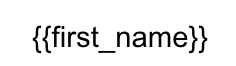
Confirmation message: Optional: personalize the message shown on the screen when a client has successfully checked in. You can use variables, such as {first_name}. Make sure to use double brachets like this:
Info message: Optional: show any important information on the check-in screen. We recommend keeping it short and to the point. This message is visible at the bottom of the screen.
Show profile photo? You can do this to make check-in more personal and prevent fraud
Related Articles
– How to Connect Your Turnstile and Magnetic Door for Access Control