How to can your clients download and save the App
Estimated Reading Time: 3 minutes
Applies to: All Plans
Quick Summary
Clients can access your platform through either the Native App or the Web App. This article explains how clients can download, install, or save the app on their device.
Why This Matters
Making it easy for clients to access your app improves engagement and helps them quickly book sessions, manage memberships, and interact with your business.
Step by Step Instructions
Native app:
Step 1: Download the Native App: App Store > Google Play Store
– Once your Native App has been submitted and approved by Apple and Google, clients can download the app directly from the App Store or Google Play Store.
– We recommend including the App Store and Google Play Store URLs in your welcome email and on your website.
– Clients can also find the app by searching for your app name in the relevant app store.

Web app:
Step 1: Open the Web App URL: Browser > https://yourcompanyname.trainin.app
– Clients can access the Web App by visiting your customer environment URL on their smartphone.
– This URL is commonly shared in the welcome email and can also be added to your website. You can find the URL going to My company -> Settings -> App & portal
– The Web App cannot be downloaded through the App Store or Google Play Store.
– Important: Make sure the app name and logo have been configured under branding before clients save the Web App.
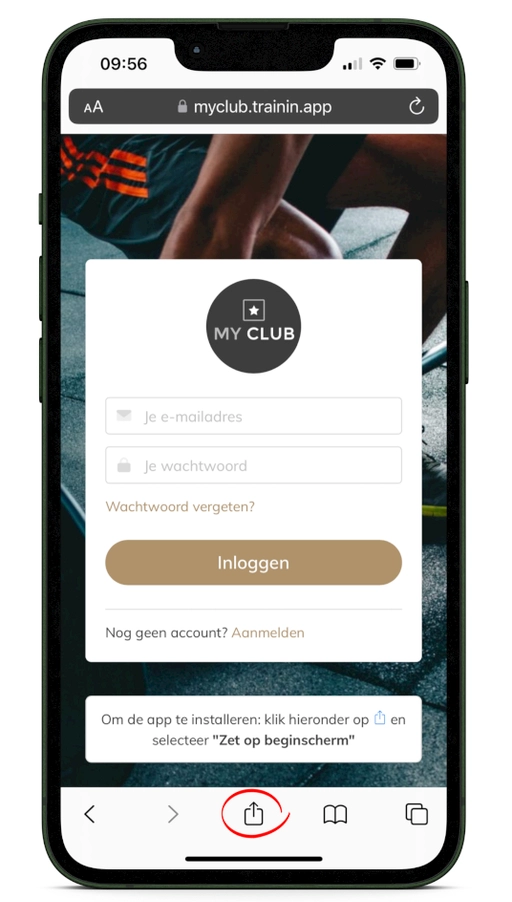
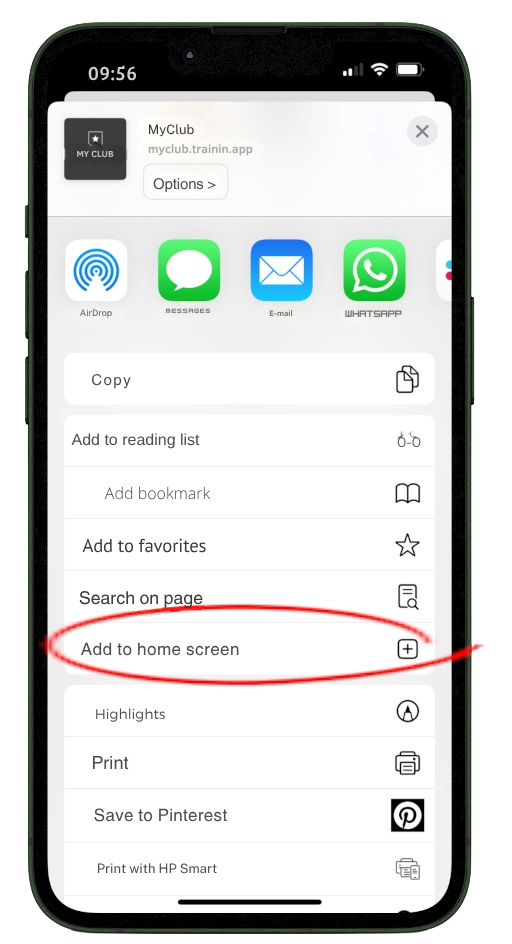
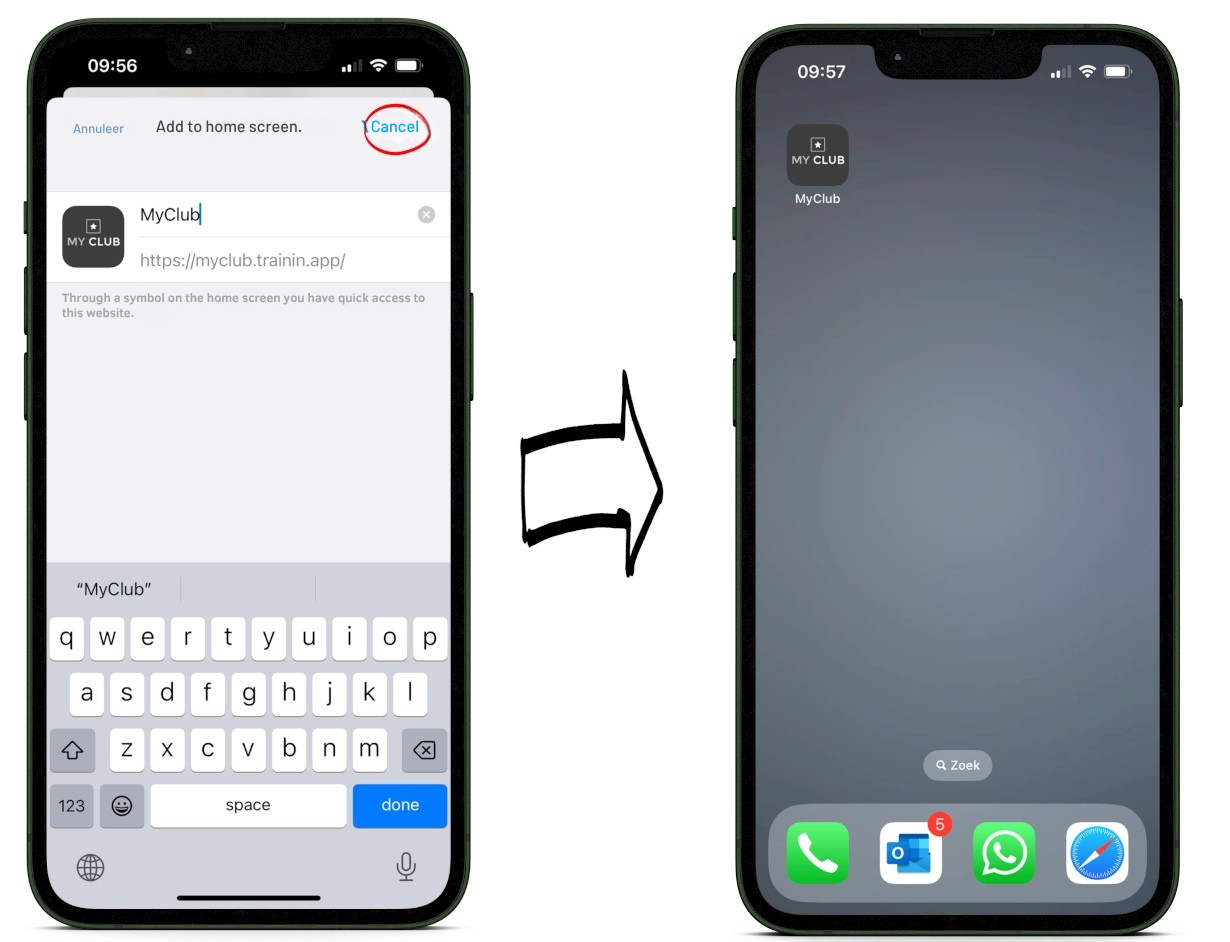
iOS: Save the Web App on iPhone or iPad: Safari > Share Icon > Add to Home Screen
– Open the customer environment URL in Safari.
– Tap the Share icon at the bottom of the screen.
– Select "Add to Home Screen".
– Confirm the app name and add the app to the home screen.
– Note: The app can only be saved using Safari on iOS devices.
Android: Install the Web App on Android: Chrome > Install App
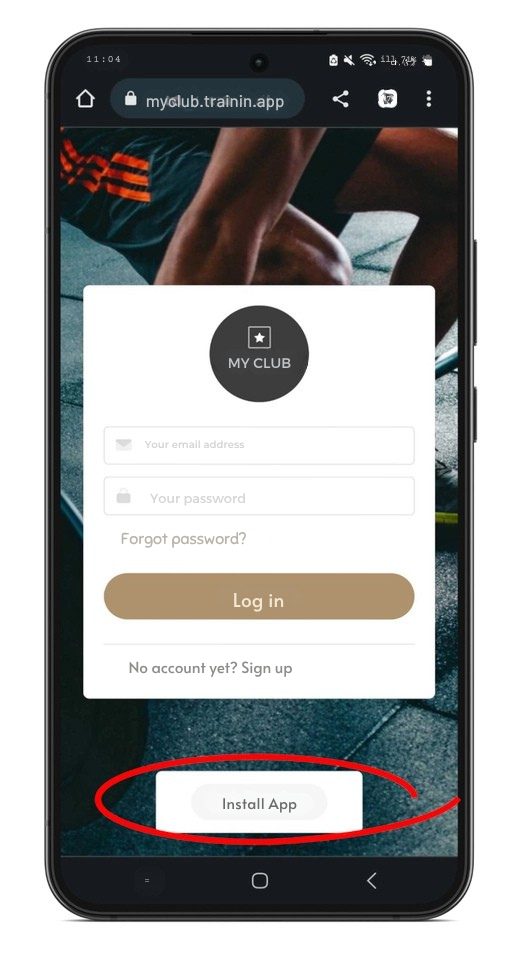
– Open the customer environment URL in Chrome.
– Tap the "Install App" button displayed on the login screen.
– Clients who are already logged in can also find the button on Home.
– Note: The install option is only available when using Chrome.
– If clients open the customer environment through another browser or directly from an email app, the button may not appear.
– The button may also not appear if the app has already been installed.
Best Practice
Include both the Native App download links or the Web App URL in your welcome emails. My Company > Settings > personalization
Add the Web App URL to your website under a login button so clients can easily access it.
Ensure your app name and logo are configured before sharing the Web App My Company > Settings > App & portal
Pro Tips
Use the Native App whenever for the best client experience as they will receive push notifications instead of emails.
Remind iPhone users that the Web App must be saved using Safari and will not work fo other browser in iPhone.
If Android users cannot see the Install App button, ask them to open the URL directly in Chrome.
Common Questions
Can clients find the Native App without a direct link?
– Yes, clients can search for the app by its name in the App Store or Google Play Store.
Can the Web App be downloaded from the App Store or Google Play Store?
– No, the Web App can only be accessed through a browser and saved to the device.
Why can't I see the Install App button on Android?
– The button may not appear if the customer environment is opened in a browser other than Chrome or if the app is already installed.
Why can't I save the Web App on iPhone?
– The Web App must be opened in Safari to use the "Add to Home Screen" option.
Related articles
– Trainin Add-Ons: Overview of Available Features
– How to request and configure your Branded Native App