- Go to My company → Settings → Branding.
- Under Appearance and Login page, change what you want.
- Click Save.
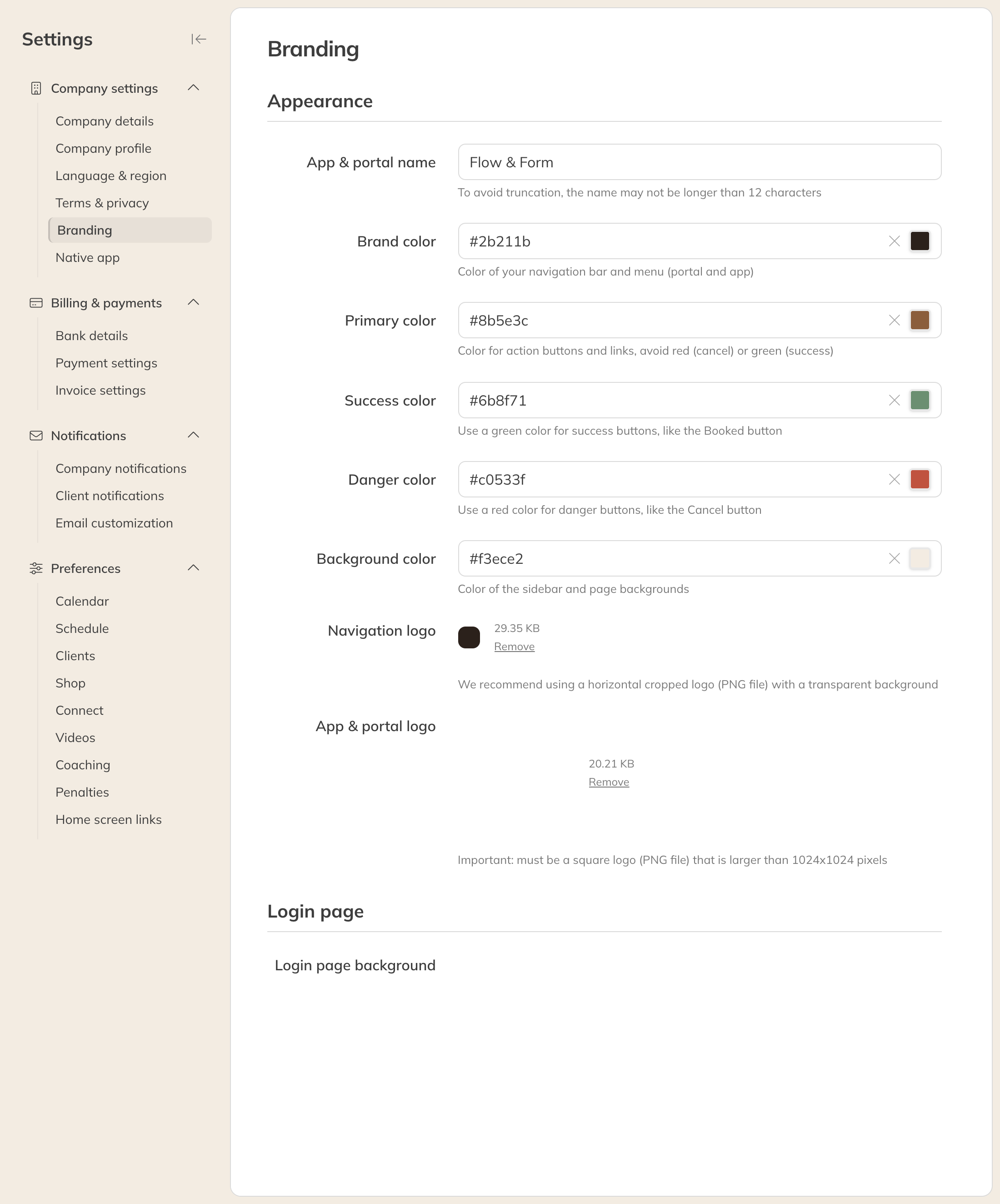
The Branding page
Appearance
| Option | What it does |
|---|---|
| App & portal name | The name of your app. Preferably use no more than 12 characters, otherwise it gets shortened. |
| Brand color | The color of the navigation bar and the menu |
| Primary color | The color of action buttons and links. Avoid red and green: those are for cancelling and success. |
| Success color | A green color for buttons such as Booked |
| Danger color | A red color for buttons such as Cancel |
| Background color | The color of the sidebar and the page background |
| Navigation logo | The logo in the navigation bar. Use a landscape logo as a PNG with a transparent background. |
| App & portal logo | The app icon. This must be a square PNG logo of at least 1024 x 1024 pixels. |
You type colors as a hex code (for example #00ABE7) or pick them with the color picker.
Login page
- Login page background: the photo behind your clients' login screen. Choose a 16:10 image, larger than 1920 x 1200 pixels.
- Welcome title and Welcome subtitle: the text on the login and sign-up page
Your own app in the App Store and Google Play
With the Native app, your clients get their own app with your name and logo in the App Store and Google Play. It is included in Premium and is an add-on in Pro (see What do Starter, Pro and Premium include?). Trainin turns on the native app for you: choose Settings → Native app and click Contact us to activate.
The web address of your app
You find the web addresses of your Client app and Company app under Company profile → Domains (see Your public company profile). You can't change them yourself. If you want a different address, contact support.